
Accolent ERP allows use of Alternates, which are products that can be designated as potential substitutes for a product. Once an Alternate to a specific product is set up, the Alternate may be specified on an order instead of the original product.
Set up the Alternate Product
- Go to Inventory/Products > Products > List Products to find an existing product (e.g., Product 18JP1000V).
- From the Product screen, Actions > Alternate Products from the dropdown menu.
- This brings up a pop-up screen.
- Add items to the Product Alternates screen by either entering or using the Search icon to find products.
- Clicking Save will create product 18JP1000NV as an Alternate Product for 18JP1000V.

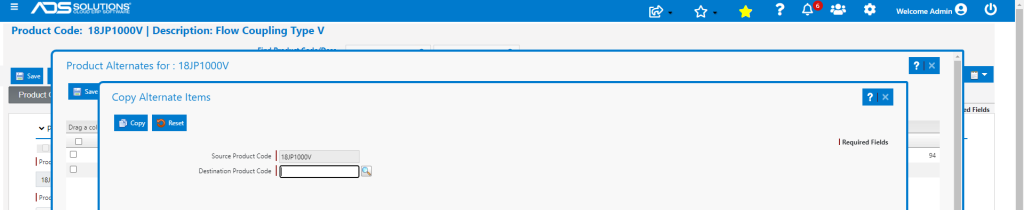
- The Copy button allows this list of Product Alternates to be copied to another product.
- To remove a product from the list of alternates check the left hand box, then Delete button to remove it.
- To see the UOM (unit of measure), List Price and Available Quantity of these products for a different warehouse, click on the Warehouse drop down menu and select the Warehouse.

Put the Alternate Product on an Order
- Go to Sales > Orders > Create Order to enter an order.
- Enter the Product Code on the products tab. If there are Alternates, Accessories, Kits, Lots or Serials defined, there will be a green gear icon next to the Product code. Click on the icon to see the details.
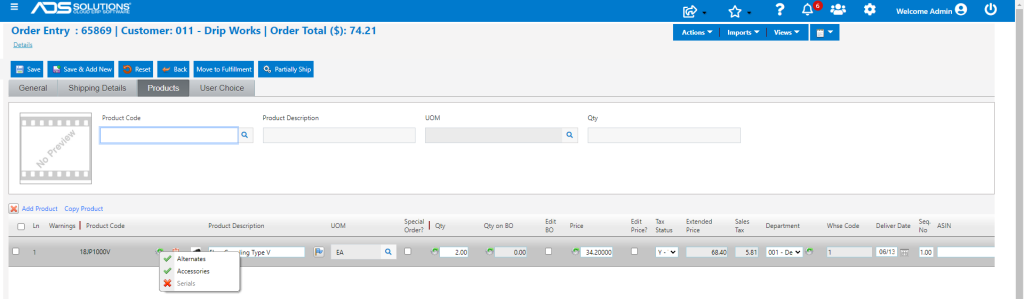
- The green check mark next to Alternates indicates there are alternate products for this product.
- Clicking Alternates will bring up a list of alternate products.

- To add any of these Alternates to the order, enter the Order Qty and click the Add to Order button to import the alternate products.