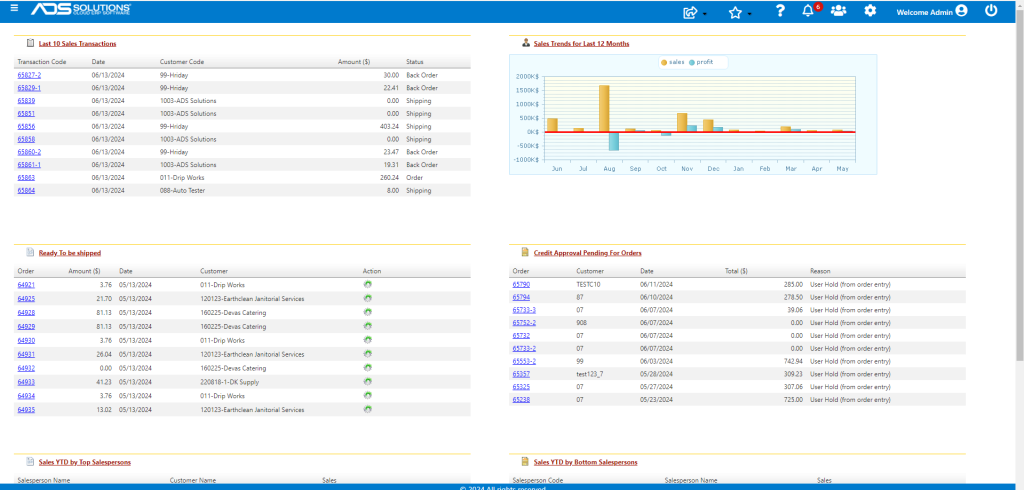
Accolent ERP is a roles and permissions-based system. Standard roles for most functional job descriptions are already provided, but there are no limits on the number of unique roles that may be created. Each role is assigned certain permissions, access rights and rights to view reports. These roles can be very detailed and go down to the level of access to certain fields. Users may select from multiple available Widgets that relate to their roles to create users’ dashboards. Up to 6 Widgets may be added to a dashboard.
Create a Role
- Go to Settings > Roles > Widgets and select Role.
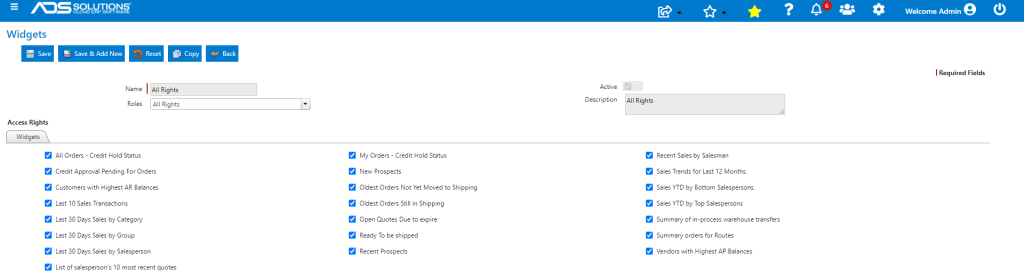
- When creating the Role, the “Widgets” tab will display all available widgets. Select those that should be available to this Role.
- In this example, since all widgets are checked, all would be available to the “All Rights” role.
Assign Widgets
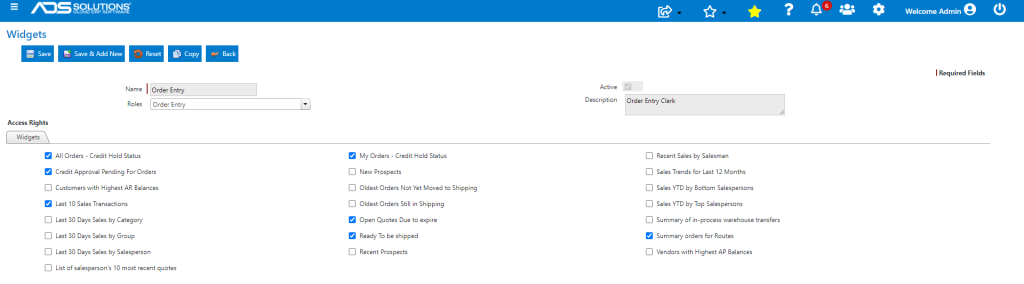
- Select the Standard Role, “Order Entry Clerk.”
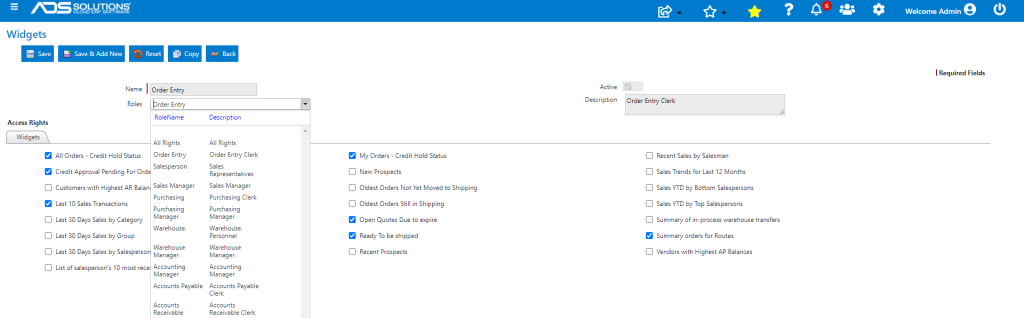
- There are certain widgets already assigned; add or remove widgets as appropriate.
User Selects Widgets Consistent with Role
- Users are then assigned specific roles.
- Each user can go to the Settings (Cog) icon on the menu bar at the top of the page to select the Widgets to display on the user’s dashboard.
- Only those Widgets that are permissioned for the user’s role will be available to be selected from.
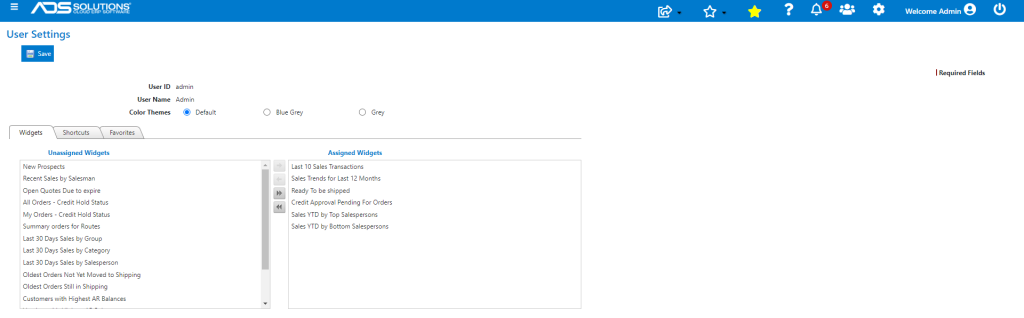
- In this case, the 6 Widgets in the right hand panel were selected.
- Go to Home > Widgets Dashboard which will display these 6 Widgets for this user.