
The Accolent ERP Self-Service Portal allows Customers’ employees (“End-Users”) to place orders, review the status of their orders, look up their prior transactions, review their Statements and pay invoices. This allows the Accolent user to deliver better service to its Customers with fewer sales and service personnel, increasing efficiency and reducing cost. The Self-Service Portal is a separate website that is linked to Accolent ERP and allows access to only those Customers and their End-Users that have been approved for Self-Service Portal access. Certain End-Users may be given permissions to enter but not submit orders on the Self-Service Portal. These orders may subsequently be approved or approved by another End-User with approval permissions.
Approval Required and Approval Permissions
- Any End-User that has Order Approval Required checked in the Permissions will not be able to submit orders; instead, orders will be held in Pending status.
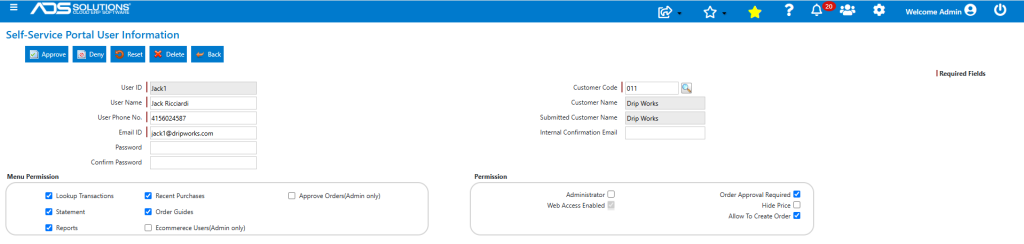
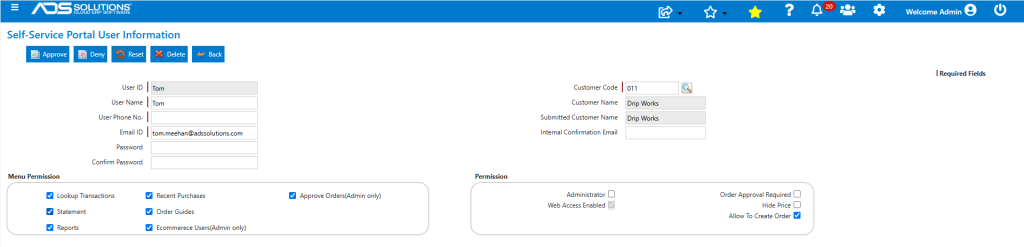
- Any End-User that has the Approve Orders Menu Permission checked, will be able to see the Approve Orders screen and will be able to Approve or Edit Pending orders.
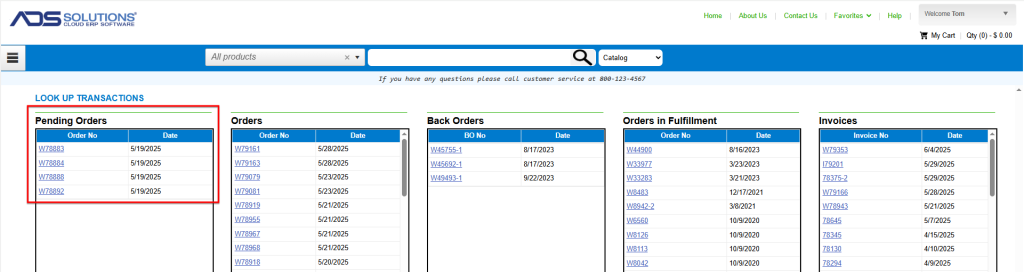
Pending Orders
- Orders created on the Self-Service Portal by an End-User requiring approval are not submitted to Accolent ERP as orders but are stored on the Self-Service Portal as Pending Orders.
Approving Pending Orders
- An End-User with Approval permissions will see the Approve Orders menu and be able to open the Approve Order screen.
- To Approve orders, select these on the grid and click Approve.
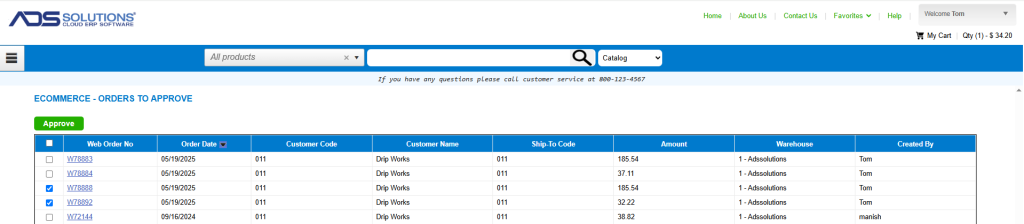
- This will release the selected pending orders and submit them to Accolent ERP.
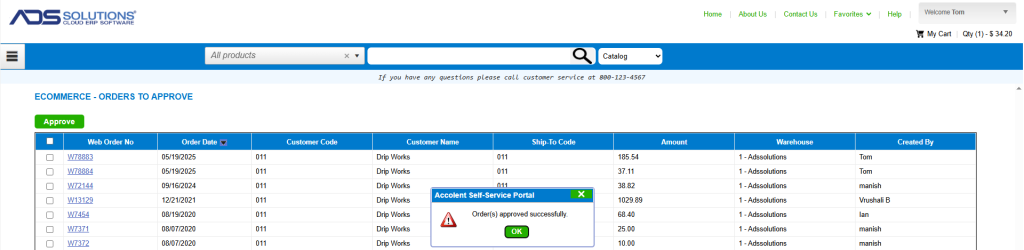

Editing and Approving Pending Orders
- Pending Orders that are awaiting approval may also be edited before approval.
- Only one Pending Order may be edited at a time.
- To edit an order (e.g., W78884), click on the hyperlink, then click the Edit button.
- To edit the order, it will be put into the Approver’s Cart; so, if there are items in the Cart, the Approver will first be asked to clear the Cart.
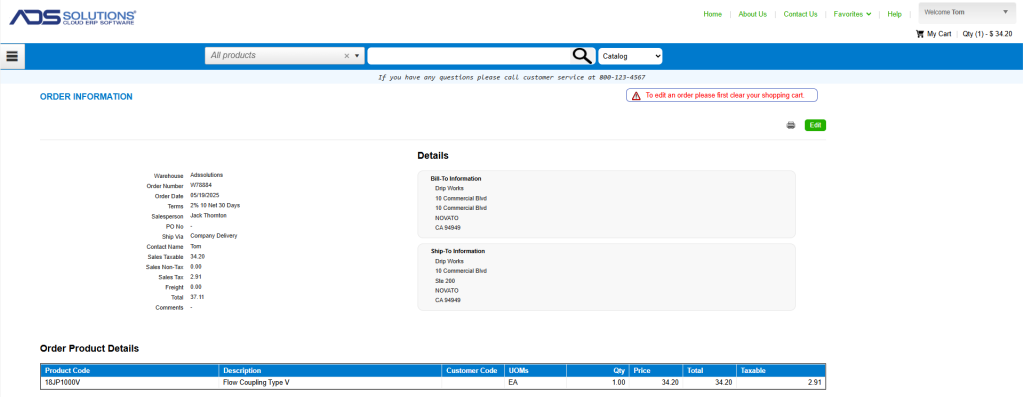
- Once the Cart is cleared, clicking Edit will put order W78884 into the Approver’s Cart.
- Open the Cart, the order number is displayed in the last column on the right-hand side of the grid.
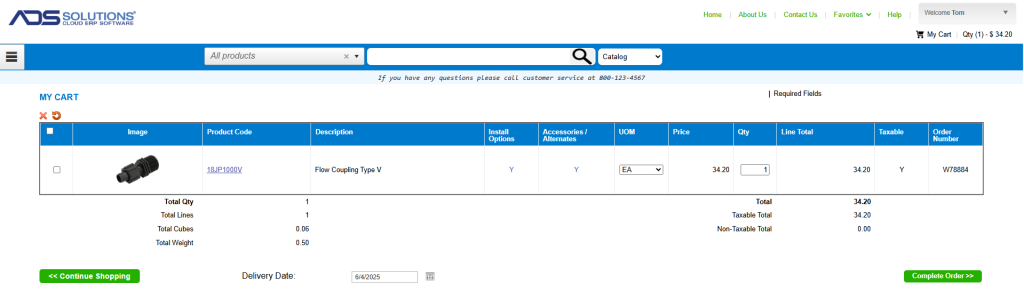
- The order may now be edited to add or delete lines or to change quantities.
- For example, increase ordered quantity to 2 EA and complete the order.
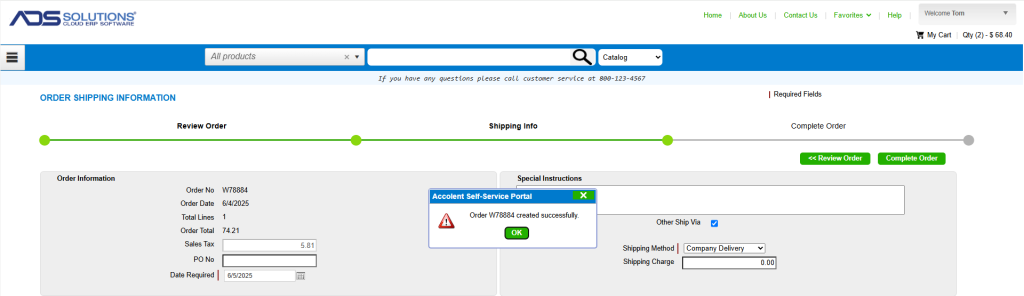
- The order is now released to Accolent ERP.
