
Accolent ERP offers several different ways to update and maintain Contacts. From a Customer or Vendor master record, users can: (1) directly edit a Contact already associated with that Customer or Vendor, (2) search the Contacts master record for a Contact and associate that Contact with the Customer or Vendor, (3) add a new Contact record and associate it with that Customer or Vendor, or (4) at any time, right click to open a new browser tab and access the full Contact master record to add or edit entries.
Directly Edit an Existing Contact
- From the menus select Customers > List Customers then select a Customer.
- In this case, select Customer Code 011 to pull up the Customer master record.
- Then go to Actions > Customer Contacts
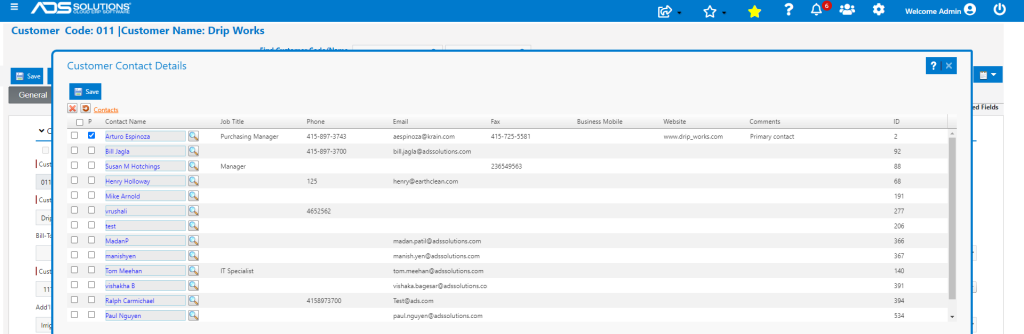
- To edit or change any of the Contacts associated with this Customer, click on the hyperlink on the Contact Name field.
- This will open up the Contact master record which can then be edited and saved.
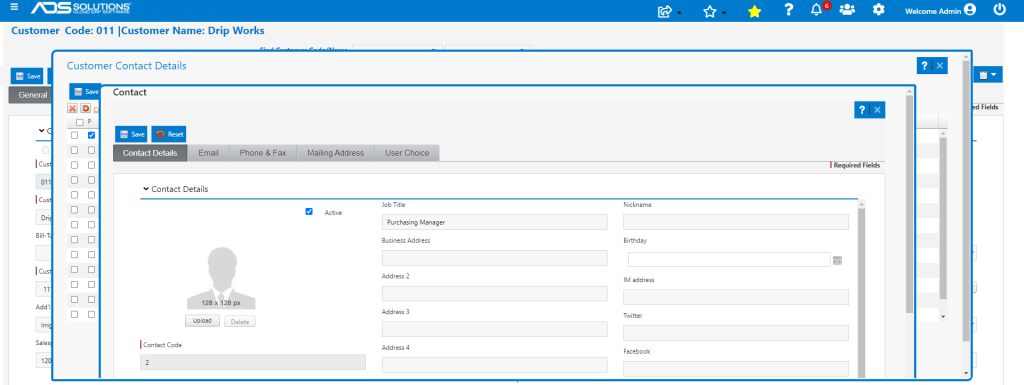
- Make any changes and/or additions and click Save to update the Contact record.
Add/Associate an Existing Contact with this Customer
- From the Contacts grid on the Customer record, click on the lookup icon (lookup) in the Contacts grid.
- This will open up the full Contacts list and you can select an existing Contact to add to this Customer record.
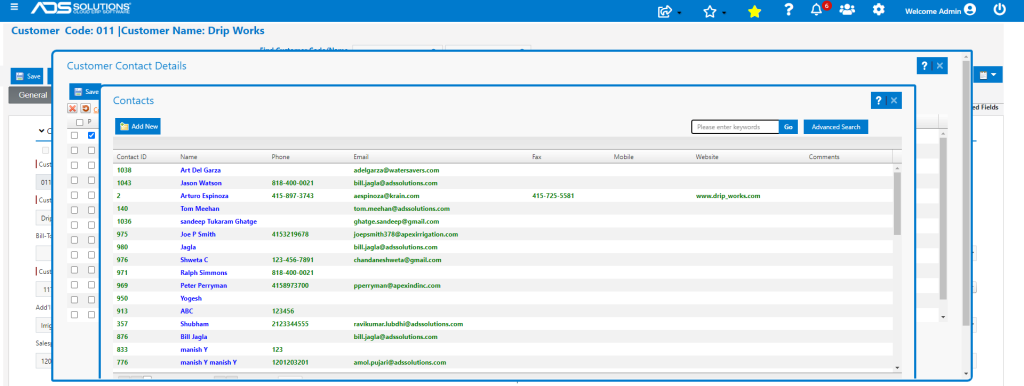
- Once a new Contact record is selected it will be automatically associated with the current Customer record.
Create and Add a New Contact
- From the Customer master record, you can create a new contact that is not already in the Contacts master.
- Click on the Contacts link to open up a new blank Contacts entry screen.
- Enter the new Contact data and click Save.
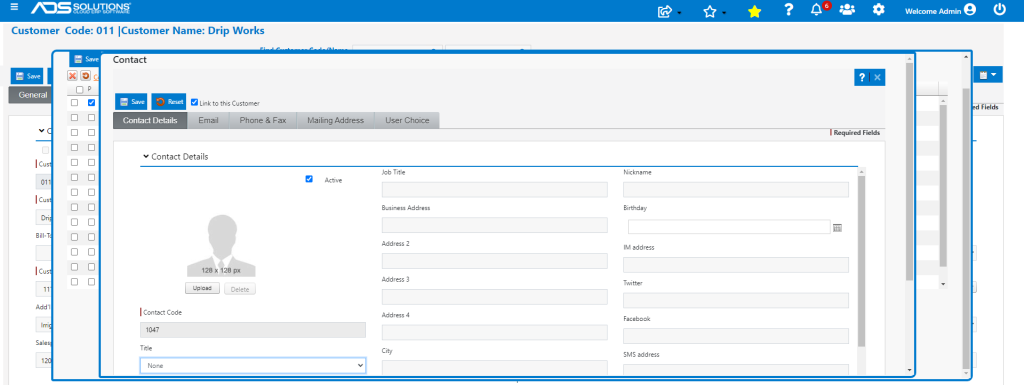
- Once you click Save, the new record will be added to the Contact master and associated with this Customer record.
Open Contact Master in a New Browser Tab
- At any time, you can go to the hamburger menu, and select Customers > Customers.
- Then right click on Contacts.
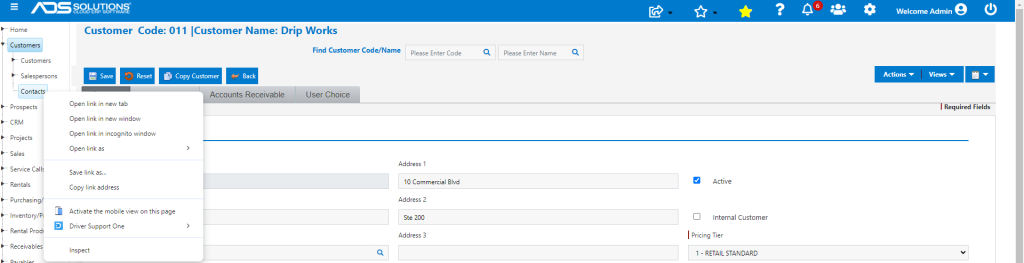
- Select Open link in a new tab.
- This will open the Contact master record in the new browser tab and make any changes to any Contact records that you choose.
- Once you save the entry in the new tab, exit the tab.
- Then go back to the original tab and refresh the record to see any changes that were made directly in the Contacts master.