Accolent ERP allows the user to enter lines on an order and then to assign a Sequence No to each line. The Sequence No allows for the lines on the order to be re-sorted on the screen and on the printed forms based on the assigned Sequence No. The Sequence No field is a decimal entry and so can be used if the user skipped a line on the order and wishes to insert a line (e.g., insert Seq No 1.5 between Seq Nos 1 and 2). The same option to re-sort line items also exists on a Purchase Order.
Create Multiline Order
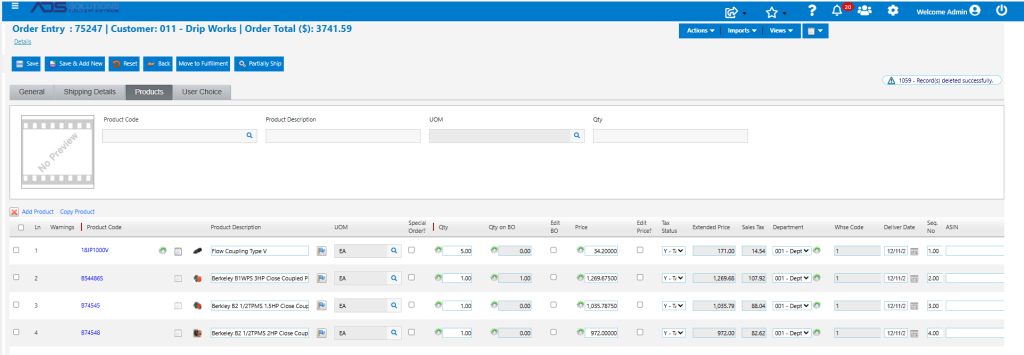
- Create order 75247 with 4 lines.
Re-Sort Order Lines
- As lines are entered on the order, the Seq No defaults to the value of the Ln.
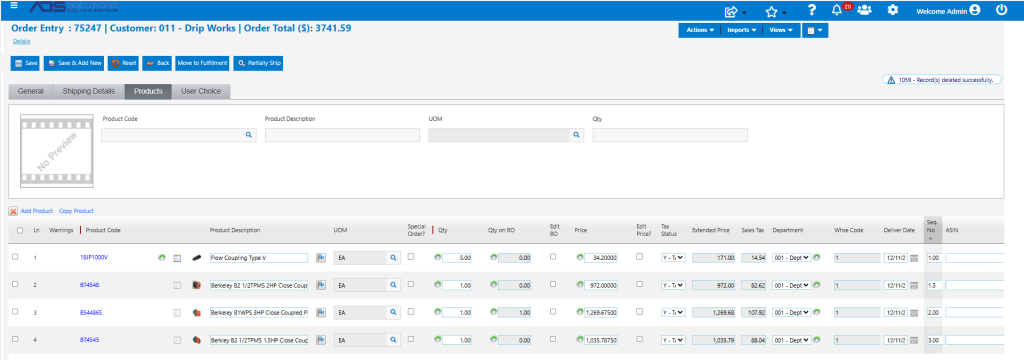
- Re-sort lines so that Ln 4 is inserted before Ln 2 by changing the Seq No of these lines.
- Note, that because the Seq No is a decimal-type field, Ln 4 may be inserted above Ln 2 simply by changing the Seq No of Ln 4 to (say) 1.5; there is no need to renumber all lines.
Print Re-Sorted Order
- All order forms: Work Order, Pick Ticket, Delivery Invoice and Invoice will print sorted by Seq No.
- Save order 75247, then print work order form.
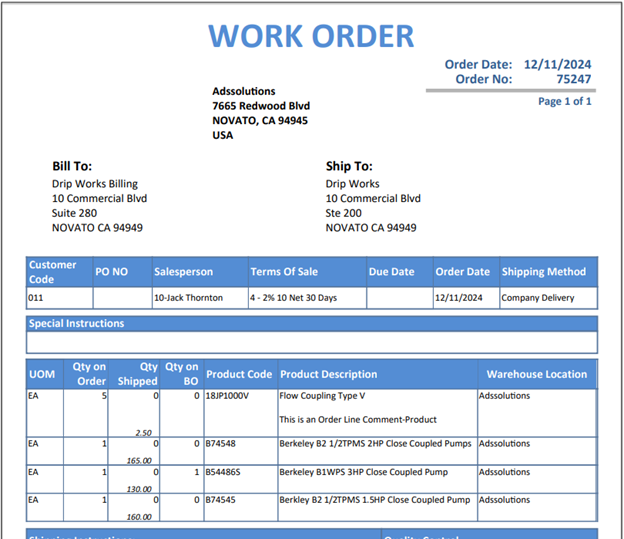
- This same re-sorted sequence is reflected on the Pick Ticket, Delivery Invoice and the final Invoice.
Create Purchase Order
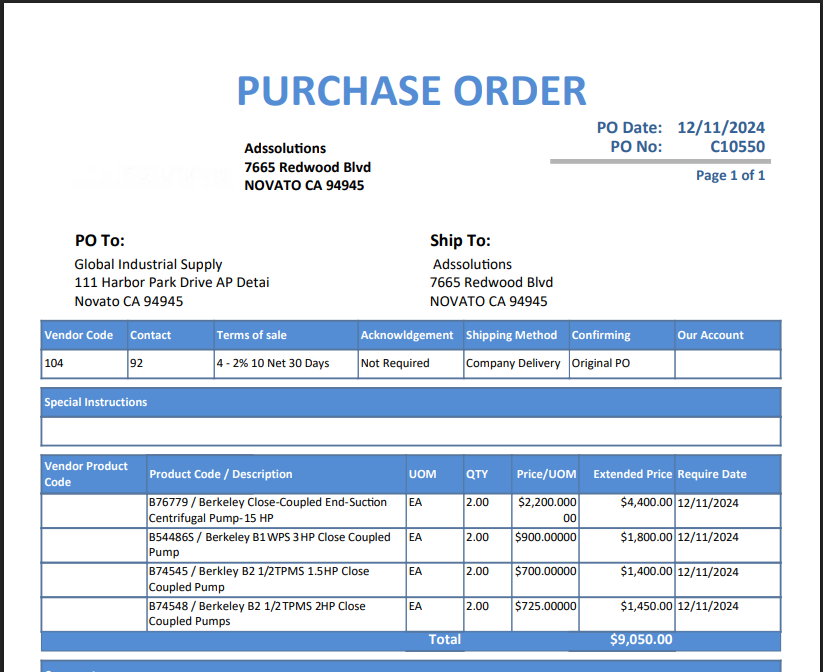
- The same ability to re-sort the lines is available on a PO.
- Create PO No C10550.
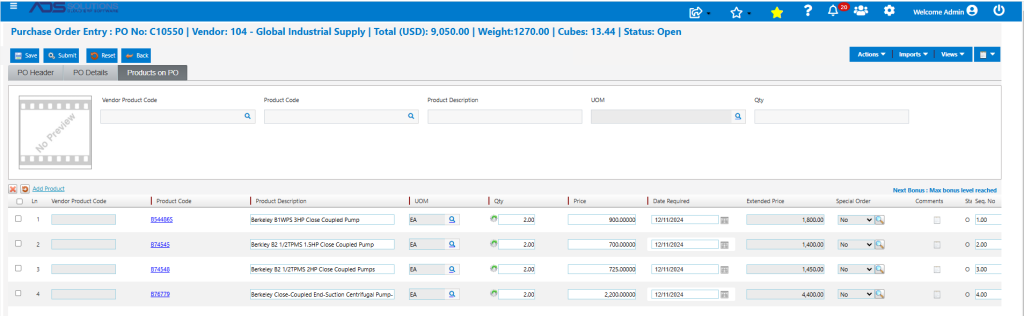
Re-Sort PO
- Now change Seq No of B76779 from 4 to 0.5 to move this line to the top.
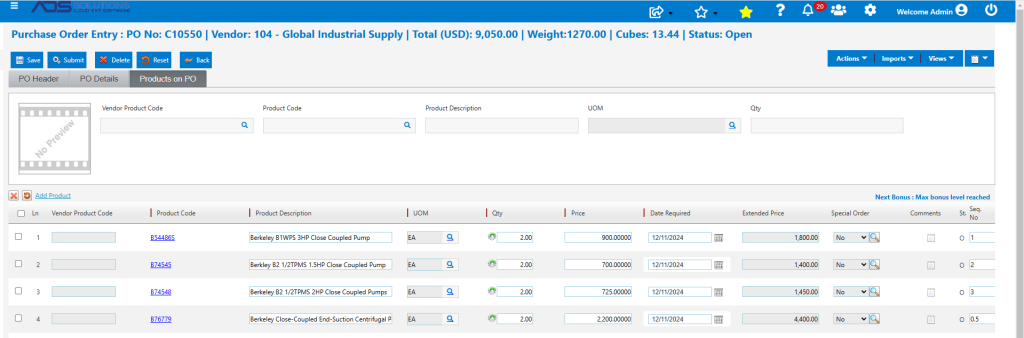
- Then re-sort the PO then save the PO. Product B76779 is now on top.
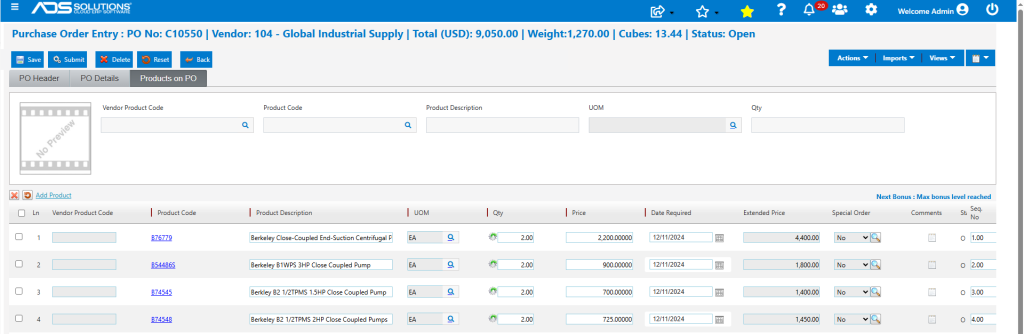
Print Re-Sorted PO
- Print the PO form.