
Accolent ERP has extensive special order functionality. A special order links a sales order line item directly to a PO. The special order line item can be filled only from the linked PO which can be created automatically. When the linked sales order is moved to shipping, it is moved to a backorder and held until the linked PO is received. Note that all special Order items must be flagged as Inventory items since even if items are drop shipped, they must be notionally received into Inventory and then go out again. Unlike other inventory transactions that take the sales order cost from the Average Cost, special orders get the sales order cost directly from the linked PO.
Special Orders and PO Linking
- A special order is a sales order that is linked with a PO
- The linking is done line-by-line so that each sales order line is linked to a PO line
- Once linked the sales order line can only be filled from that specific linked PO line
- The sales order MUST be created first before the PO
- Once the sales order is created there are two options to create the linked PO:
-
- Auto PO – from the sales order there is a capability to automatically create the PO, or
- Create PO and Link – after the sales order is created, a PO can be created separately and then from the PO Imports menus, the user can import either (i) Special Order Products or (ii) Special Orders for this Vendor
Entering sales orders for Special Order Products
- When a sales order is created that includes Special Order products, the user has the option to link the sales order to a PO
- The user may decide not to link the PO (e.g., if there are multiple Special Orders that can be put on a single PO, or if it is a policy that POs are created only by the Purchasing Department)
- Once created, the Special Orders will be back-ordered in the normal way, pending receipt of goods from the vendor
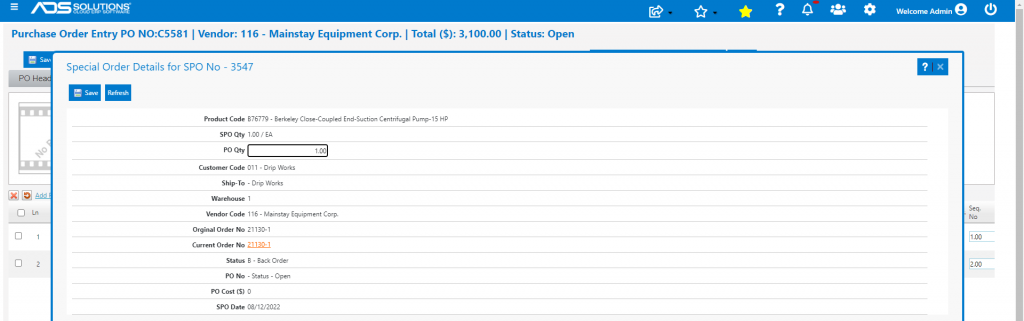
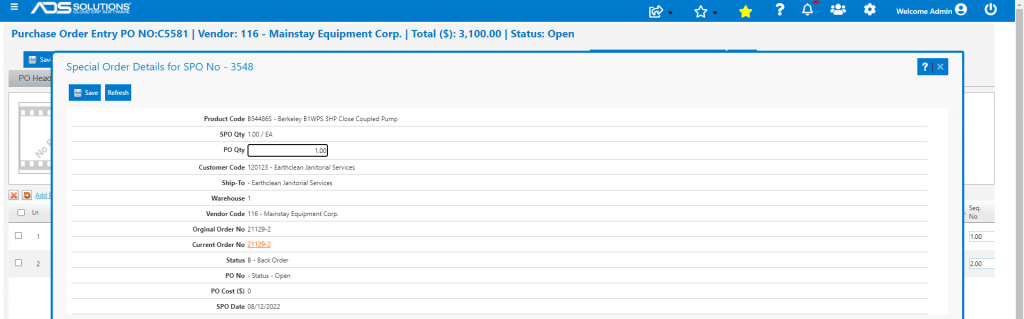
- In this example, two sales orders for two different products were created and became BOs 21129-2 and 21130-1
- The vendor for both these orders is Vendor 116 and the PO can now be created
Unassigned Special Order Back Order Report
- To create the PO to the vendor, use the Unassigned Special Order Back Order report to show all back-ordered Special Orders where the PO has not yet been linked
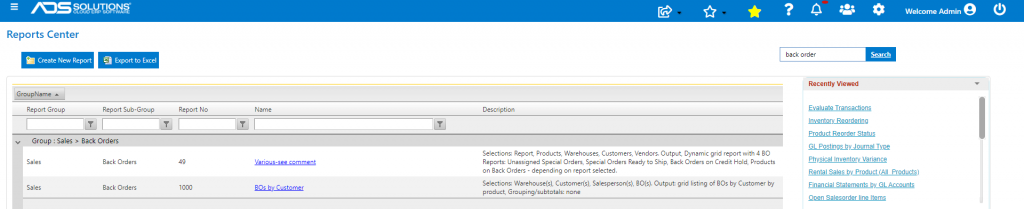
- Open Back Order report 49
- Select the Unassigned Special Order Back Order Report
- Sort this by the Customer or Vendor or Product Code or BO No as appropriate

- With this list, unassigned special order products on sales order may be added and linked to the PO
- Products may also be imported into a PO using the PO Imports
Creating the PO for Special Orders Using the PO Imports
- Create PO C5581 to Vendor Mainstay Safety Supplies
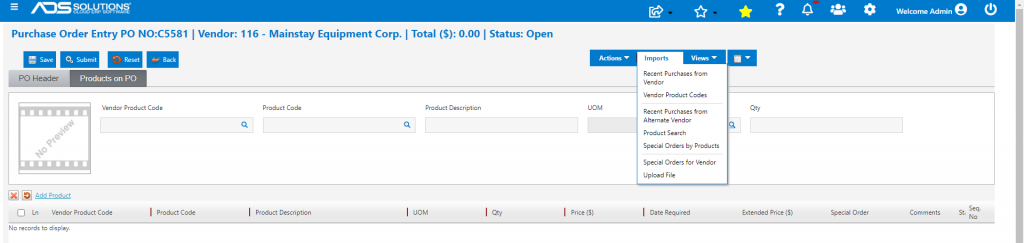
- Add products through View > Imports > Special Orders by Products or Special Orders for Vendor
- Note that once the Warehouse is selected on the general tab of the PO, the imports will show backorders only for that Warehouse
- Select “Yes” in the Import column for products to be imported
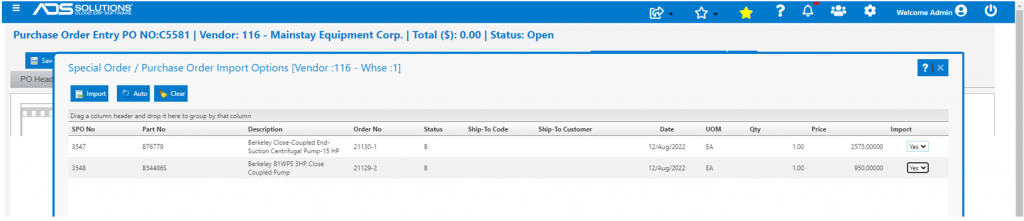
- The two different BO lines will be consolidated on PO C5581
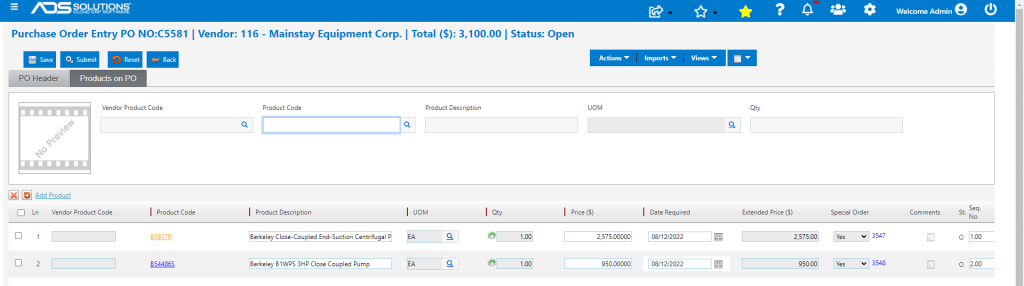
- Sales orders and PO are now linked
- Click on the SPO hyperlinks to verify
- Click Submit to send the PO to the vendor
- When PO C5581 is received, the BOs will automatically be moved to shipping and can then be invoiced to the Customers