Accolent ERP supports the creation of master orders delivered in multiple shipments. This is commonly used in construction projects where an order may be entered for the full project requirements, but goods are delivered in stages over the life of the project. To use this, enter the line items on the order with different desired delivery dates. Then on any given delivery date all those line items may be selected and partially shipped. The original order remains in order status and the partially shipped items are split off and moved to fulfillment and can be shipped and/or delivered.
Create Master Order
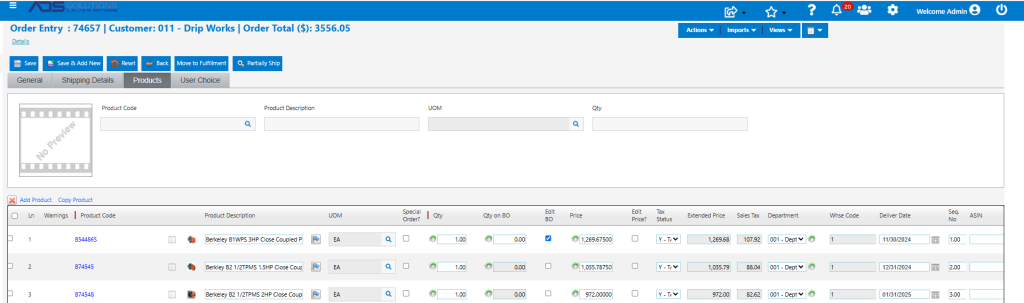
- Create order 74567 with multiple lines each with a different Deliver Date.
- Set the header-level Requested Date field at or slightly before (e.g., 11/25/24) the first Delivery Date (e.g., 11/30/24).
- The Requested Date appears on the List Orders screen and can be used to keep track of the next Delivery Date.
Create Partial Shipments off the Master Order
First Delivery Date
- Select all line(s) with first Delivery Date (in this example, line 1) to partially ship.
- Note that line items that have backordered quantities or that are special orders cannot be partially shipped.
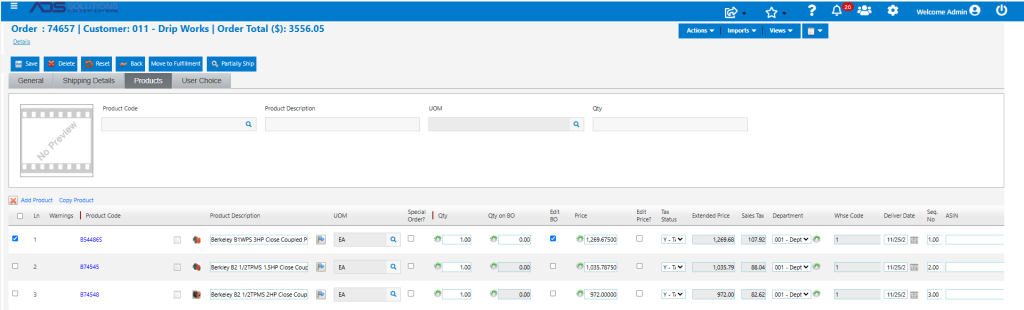
- Then click the Partially Ship button.
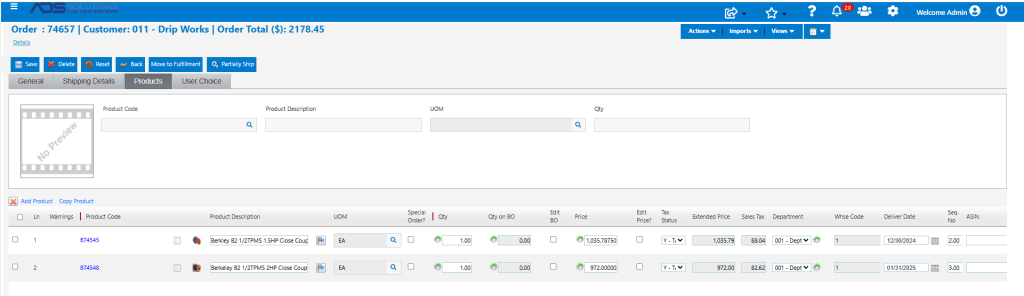
- The first Delivery Date line(s) (in this example, line 1) are then split off from order 74657 and moved to fulfillment as 74657_P1 (the underscore PI designating the first partial shipment).

- The partial shipment order 74657_P1, contains only the first Delivery Date line(s), (in this case line 1).

- The first Delivery Date line(s) can now be fulfilled and moved to invoice.
- Order 74657 remains in order status but now with only 2 lines remaining.
- Change the order-header Requested Date field to 12/24/24, slightly before the second Delivery Date.

- The order 74657 remaining lines have the second and third Delivery Dates.
Partially Ship Subsequent Delivery Lines
Second Delivery Date
- As the new Requested Date nears, select all line(s) to be delivered on the second Delivery Date (in this example, line 2), and again click the Partially Ship button.
- All selected lines will be split off and moved to fulfillment as 74657_P2.
- As before, the remaining lines will remain on order 74657, which will remain in order status.
- Reset the Requested Date to some date slightly earlier than the third Delivery Date.
Third Delivery Date
- Then as the new Requested Date nears, select all line(s) to be delivered on the third Delivery Date (in this example, line 3), and again click the Partially Ship button.
- All selected lines will be split off and moved to fulfillment as 74657_P3.
- Continue in this way until all order lines have been delivered.
Fulfill, Ship, and Invoice the Partial Shipments
- Each of the partially shipped orders may be picked, packed and shipped, then invoiced separately.
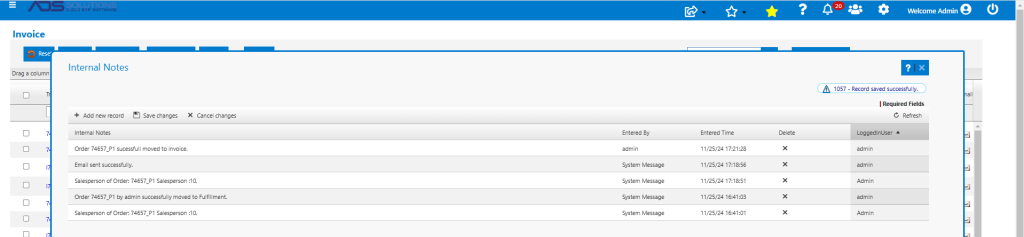
- The Internal Notes for the original order notes when the partial shipments were processed.

- Similarly, on each partial shipment, the Internal Notes records the actions taken on that partial shipment.