The Accolent ERP Self-Service Portal allows Customers’ employees (“End-Users”) to place orders, review the status of their orders, look up their prior transactions, review their Statements and pay invoices. This allows the Accolent user to deliver better service to its Customers with fewer sales and service personnel, increasing efficiency and reducing cost. The Self-Service Portal is a separate website that is linked to Accolent ERP and allows access to only those Customers and their End-Users that have been approved for Self-Service Portal access. Customers will get the same pricing, terms, shipping methods, etc., on the Self-Service Portal as they would get in Accolent ERP. The Self-Service Portal requires some initial set-up and configuration.
Self-Service Portal
- An Accolent ERP user can provide its Customers with access to the Self-Service Portal.
- The Self-Service Portal is a separate website connected to the Accolent ERP user’s system.
- Customers and their End-Users with permissions to do so can log into the Self-Service Portal to view products, place orders, review orders, look up prior transactions, review their Statements and select and pay invoices.
Registering End-Users
- Customers first need to be approved for access to the Self-Service Portal.
- Once a Customer is approved, its End-Users will register on the Self-Service Portal and create their usernames and passwords.
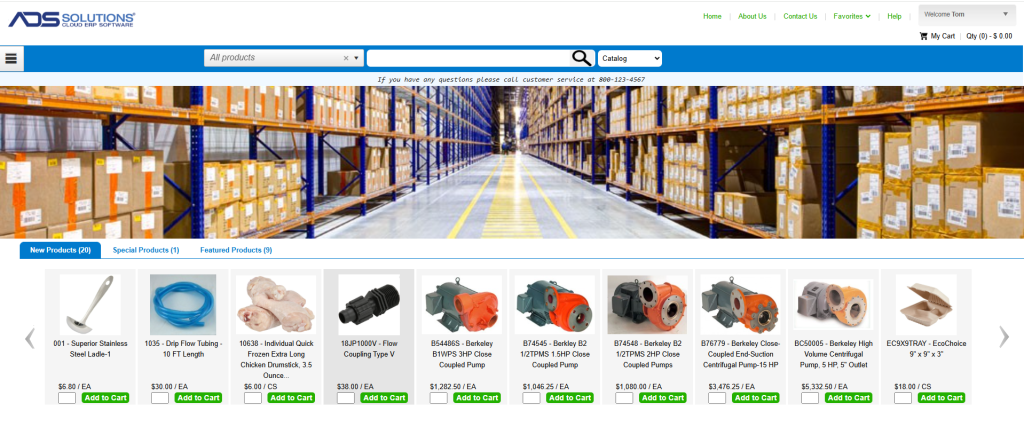
- Once an End-User registration is approved, the Accolent ERP user can control the permissions and access to various parts of the system granted to this End-User.
- End-Users may be authorized to place orders or to require approval before their orders are submitted; if an End-User requires approval, orders will go to Pending Orders until released to Accolent ERP by an authorized approver.
- End-Users can order from the Catalog or from an Order Guide.
Products and Prices Displayed
- To make a product available on the Self-Service Portal, the product’s master record in Accolent ERP is marked as allowing Self-Service Portal display.
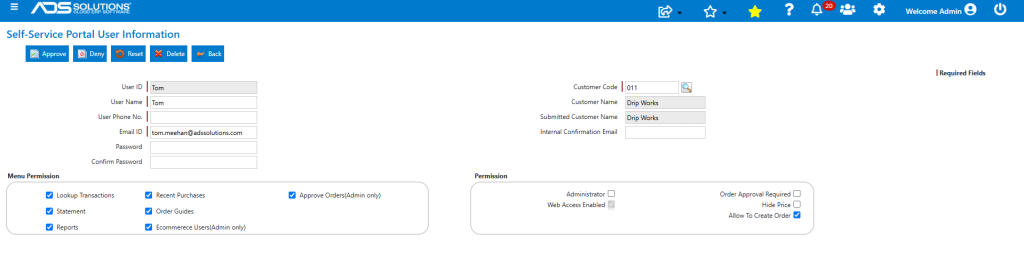
- Products may also be designated as New, Featured or Special products to be displayed on the Home page of the Self-Service Portal.
- Marketing descriptions, which can include multi-paragraph, formatted, HTML text, bullet points, etc., and a spec sheet can be set up for Products and these will appear on the Self-Service Portal.
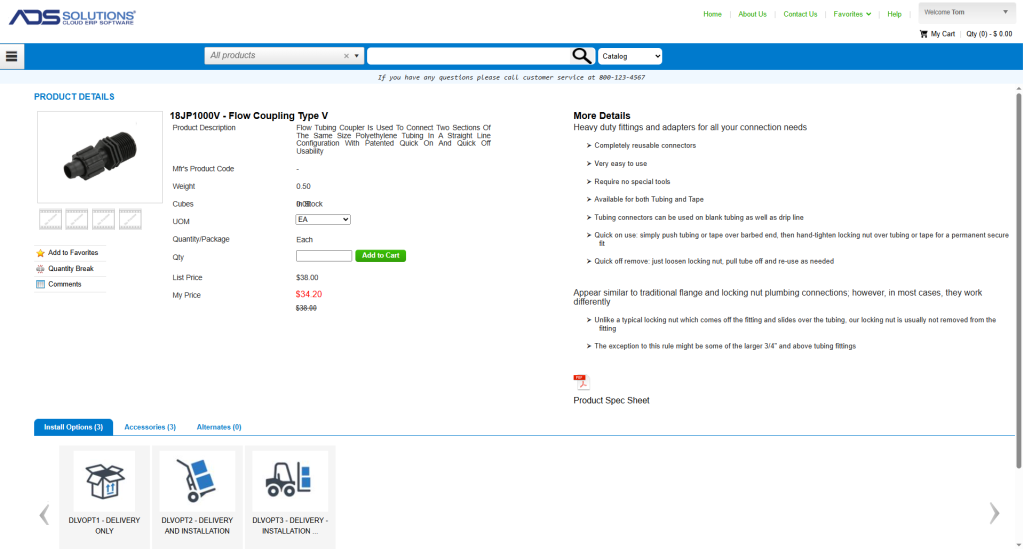
- Web comments may also be used for product specifications or other text which is also displayed on the Self-Service Portal.
- All prices on the Self-Service Portal reflect the same pricing the Customer would get if its order were entered directly in Accolent ERP.
- Any orders placed in the Self-Service Portal by a Customer’s End-Users will reflect the same terms and conditions as the Customer would obtain if the order were placed directly in Accolent ERP.
- The Self-Service Portal can be configured to show the availability and quantity in stock of a selected item or not.
Placing Orders
- End-Users can search for and then select items to be placed in the Cart.
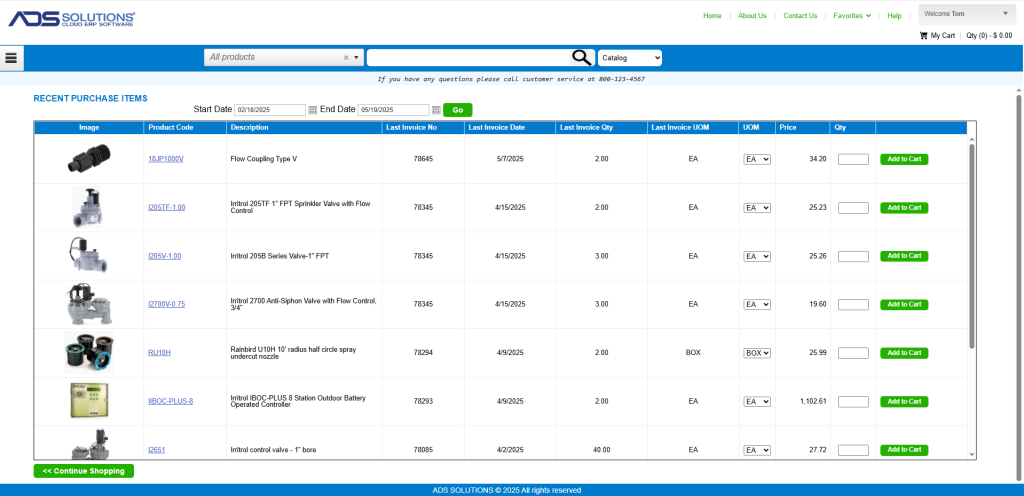
- End-Users can also order from Order Guides or their Recent Purchases.
- All Accessories, Alternate Products and Install Options set up in Accolent ERP will also be available on the Self-Service Portal.
- Once the order is marked as completed the End-User will be asked to verify and provide shipping information.
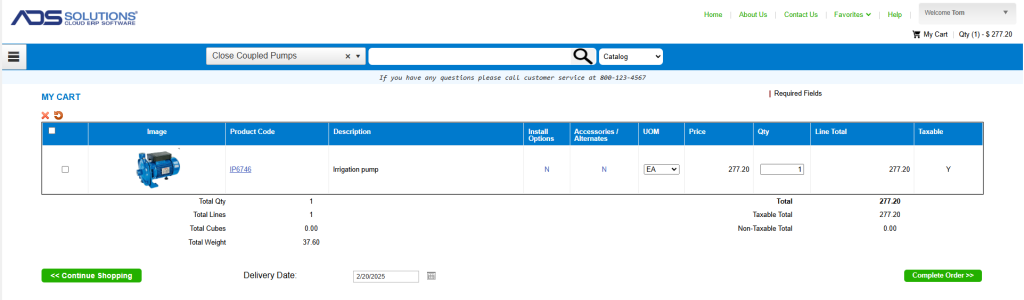
- The End-User will be given the option of paying for the order or, if the Customer has established terms, of putting it on account.
Order Guides
- Order Guides are lists of specific items that are set up for the Customer’s End-Users to order from.

Lookup Transactions
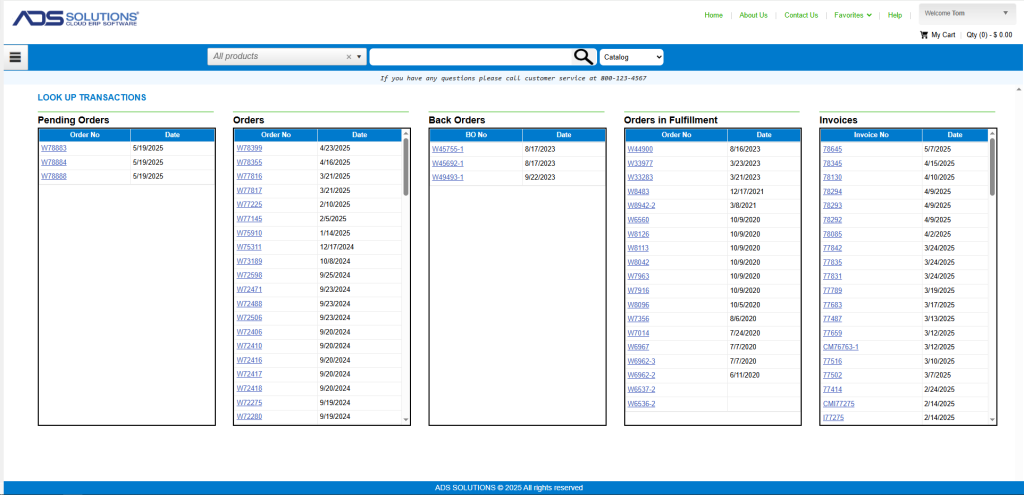
- When orders are completed in the Self-Service Portal, the orders immediately appear in Accolent ERP.
- The completed orders can also be seen from the Lookup Transactions screen in the Self-Service Portal and printed if desired.
- As orders are fulfilled in Accolent ERP, order statuses will be immediately updated in the Self-Service Portal.
Access to Account Statement
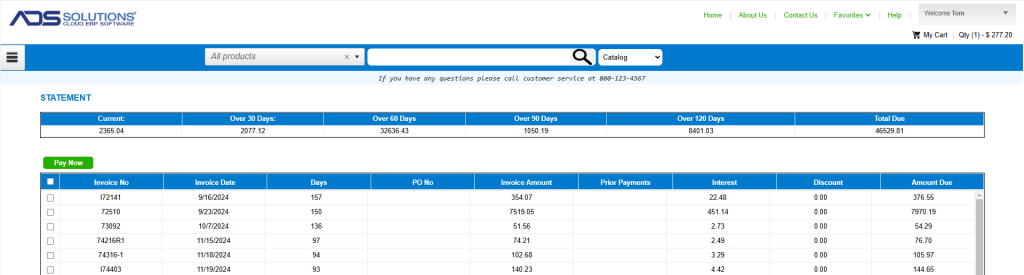
- End-Users can access their Statement from the Self-Service Portal.
- End-Users may select certain invoices for payment from the open invoices grid and pay these directly from the Self-Service Portal.
Reports
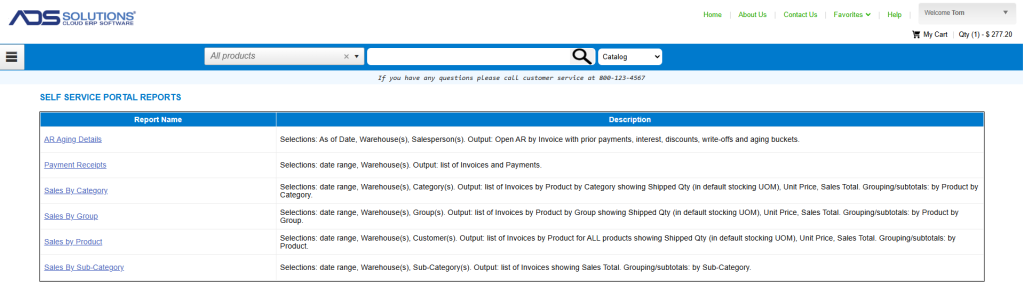
- An End-User also has access to several reports from the Self-Service Portal that show purchase history, Accounts Receivable details and payment details for the Customer the End-User is associated with.
Recent Purchases
- An End-User can access the Customer’s recent purchases for a selected date range.
- Orders can be easily entered from the Recent Purchases screen just as from the Order Guide.
Approve Orders
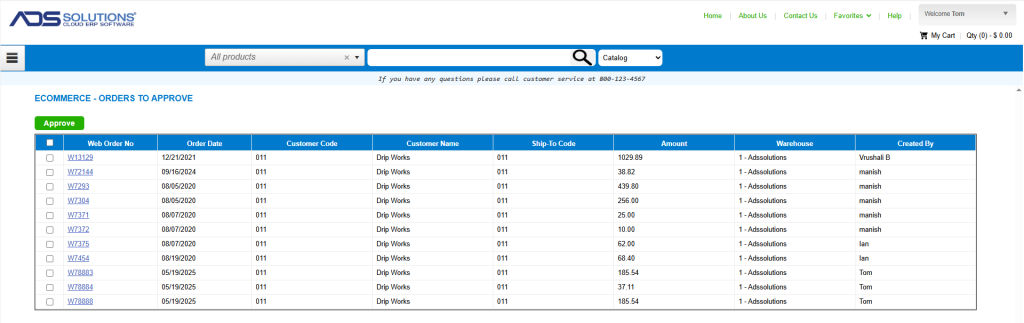
- The Customer can designate certain End Users as requiring Approval of any orders they place. Until these orders are approved, they will remain on the Self-Service Portal and be displayed on the eCommerce Orders to Approve screen but will not be released to Accolent ERP.
- An End-User with Approval rights can either approve orders as entered or click on any specific order to open, edit and then approve the order.