
Accolent ERP fully supports Special Orders which are sales orders for special order items that are automatically linked to POs. Once linked a sales order can only be filled from its linked PO. On occasion, after the PO is received and the Invoice sent, it may be necessary to look up the PO from the Invoice. The PO can be easily looked up from its linked invoiced special order.
Creating a Special Order
- Create Order 74776 for special order products.
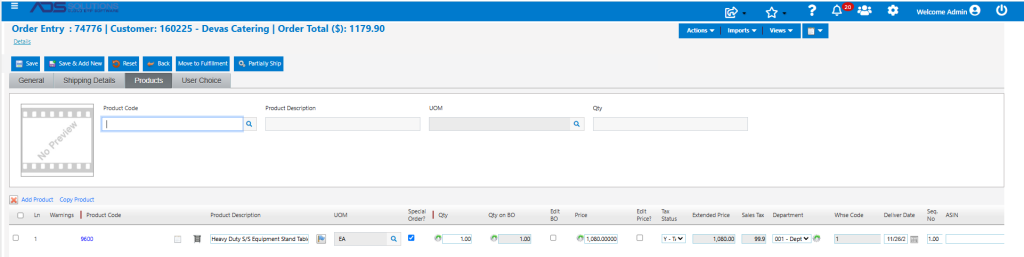
- Move to fulfillment brings up the Special Order Purchasing Options screens.
- Select whether or no this is a Drop Ship and Auto PO.

- Created PO No C10500 and moved the order to back order pending receipt of the PO.
- Open PO No C10500 and Submit to send to Vendor.
Receiving the PO and Invoicing
- Receive PO No C10500 on Receipt 10450.
- Brings up the prompt that order 74776-2 can now be invoiced.

- Click on the Ship Confirm icon to open the order and Move to Invoice.
- Invoice 74776-2 has been created.

Look up Linked PO from Invoice
- To find the PO linked to a special order invoice, click on the Invoice No hyperlink from the List Invoices screen.
- In the Invoice Transaction pop-up click on Special Order Details.
- Shows the products on the invoice together with the linked PO No.
