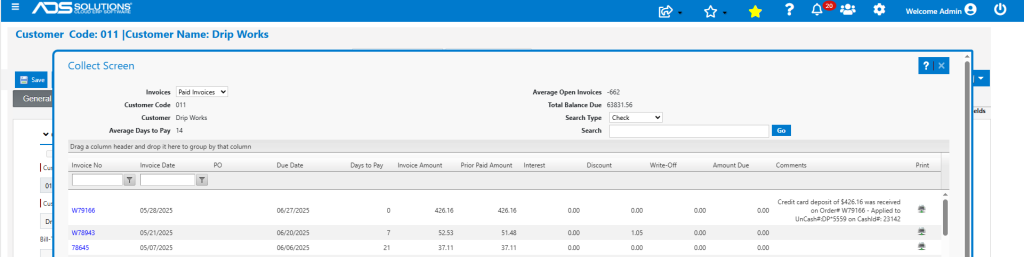
The Accolent ERP Self-Service Portal allows Customers’ employees (“End-Users”) to place orders, review the status of their orders, look up their prior transactions, review their Statements and pay invoices. This allows the Accolent user to deliver better service to its Customers with fewer sales and service personnel, increasing efficiency and reducing cost. The Self-Service Portal is a separate website that is linked to Accolent ERP and allows access to only those Customers and their End-Users that have been approved for Self-Service Portal access. Customers will get the same pricing, terms, shipping methods, etc., on the Self-Service Portal as they would get in Accolent ERP. Customers can pay for orders as they are created. Customers can also see their open invoices and pay these directly from the Self-Service Portal. Like Accolent ERP, the Self-Service Portal is fully integrated with Fiserv, one of the largest global payment processors, and can take payments by credit card or ACH/eCheck.
Paying for Orders
- Using the Self-Service Portal, End-Users can put items in the Cart.
- Then when satisfied, select a Ship-Via or a Shipping method.
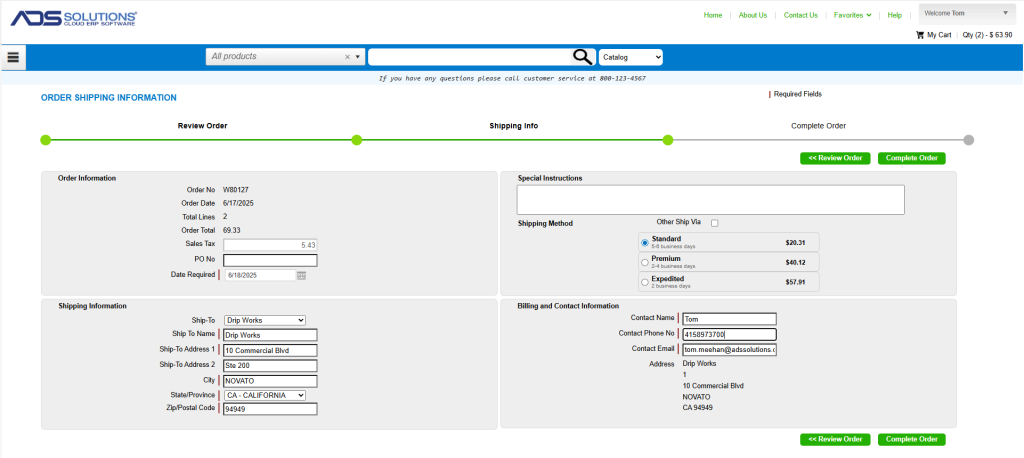
- Then, click Complete Order.
- On completing the order, the End-User will be offered the choice of paying at this point.
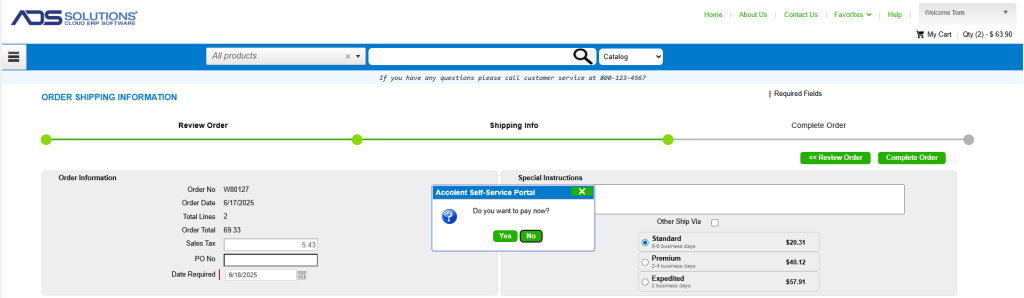
- To pay for the order select “Yes,” then enter the credit card information, or select a saved tokenized credit card previously stored by the End-User.
- Customers with established credit terms and not marked as COD, can select “No” to put the transaction on the Customer’s account.
- Selecting “Yes” will launch the Fiserv virtual terminal and Customer can pay by credit card or ACH/eCheck.
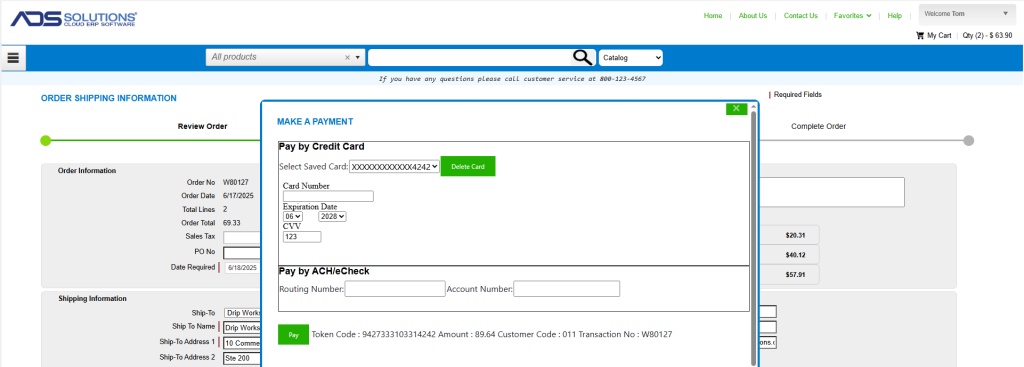
- Once the Token Code is populated, click Pay to get the Approval.
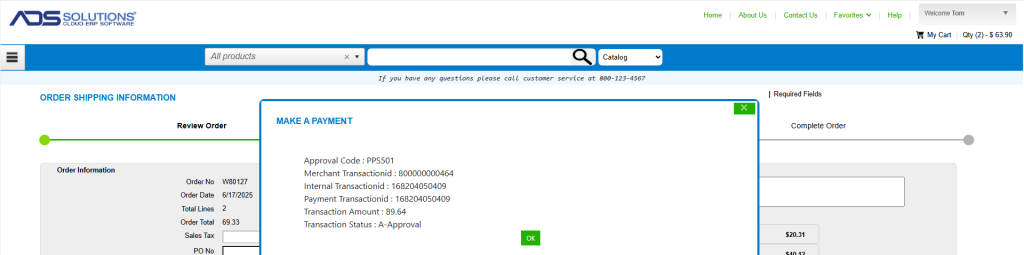
- Successfully creates order W80127 which has a linked Customer Deposit for the payment that was taken.
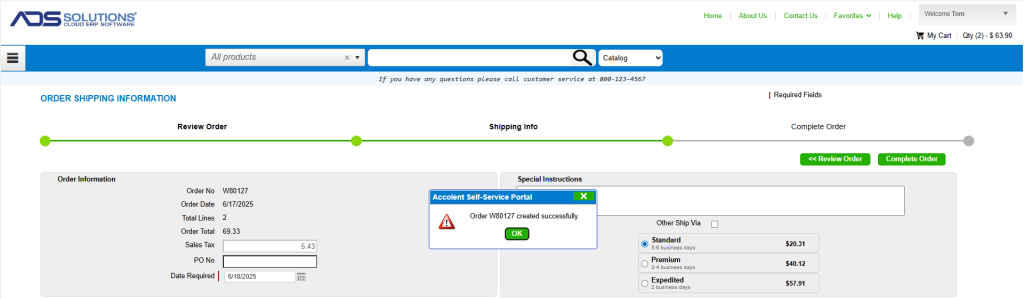
- Order was automatically released from Credit Hold since payment was taken in full.

- From Accolent ERP, fulfill the order, then invoice.
- This brings up the Apply Payment screen that shows the payment that was taken on the Self-Service Portal.
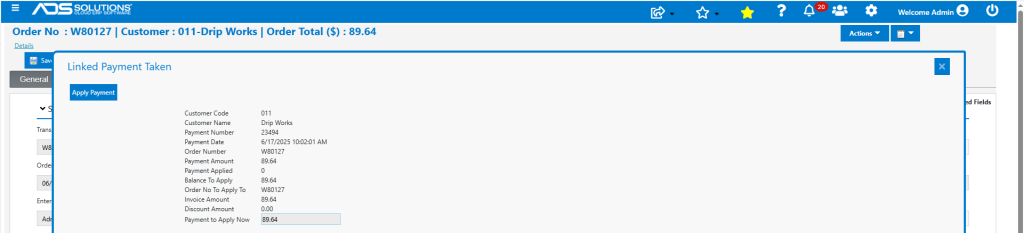
- Apply Payment. Invoice W80127 is paid in full.

Paying Open Invoices
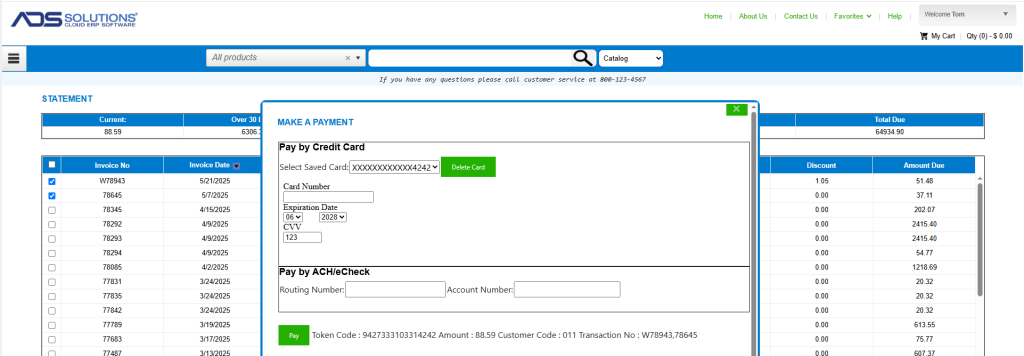
- From the Self-Service Portal Statement screen, End-Users can select and pay open invoices.
- For example, the End-User can select invoices W78943 and 78645 to pay.
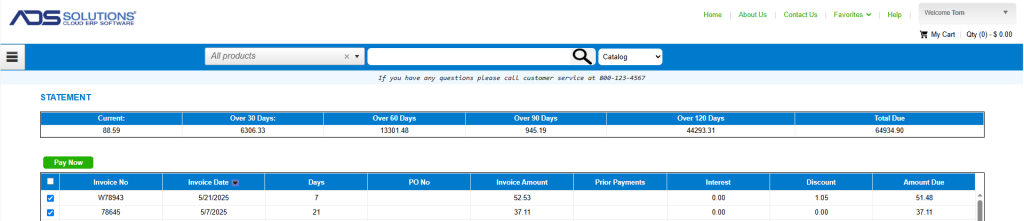
- The Pay Now button launches the Fiserv payment terminal for payment of these 2 invoices selected.
- Completing the payment will give a success message, the paid invoices will be removed from the grid and the payment will be reflected in the Statement balances.
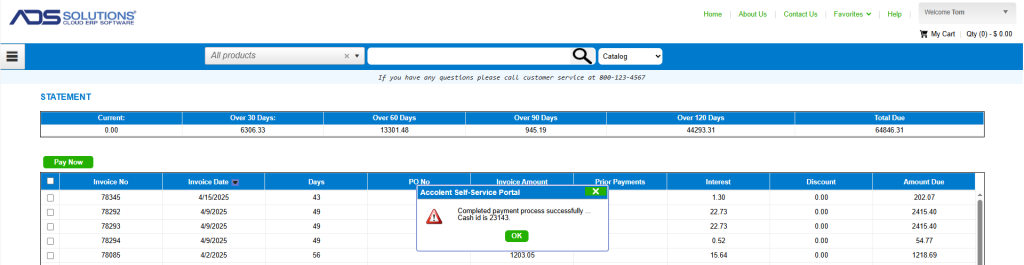
- Then go to Accolent ERP to see that the invoices are marked as fully paid.