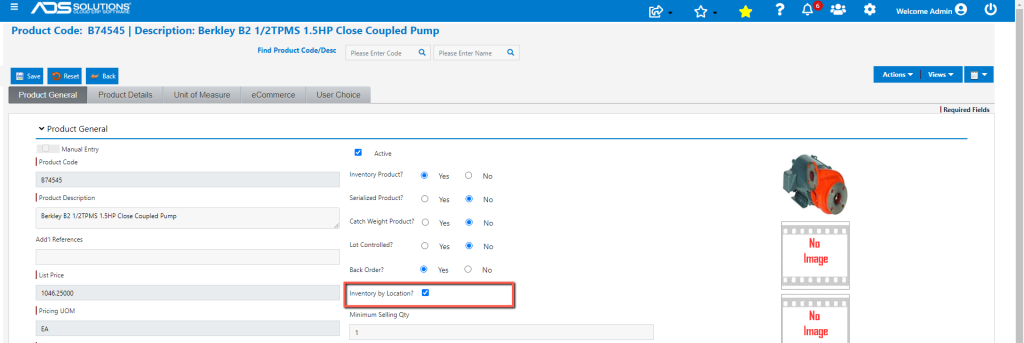
Accolent ERP requires two steps to create Product Locations. First, set up the warehouse Locations in the Value List. Then when Locations have been set up, from the product master, associate the Product with one or more Locations and designate one Location as primary. If desired, track inventory of the Product by Location.
Set up Locations
- Go to Settings > Value Lists > Product Only Lists > Locations.

- Click New to set up a Location or open an existing Location.
- A Location Code can have up to four segments which could correspond to the traditional Row, Aisle, Shelf, Bin, for example, or any other numbering system desired.
- Each segment can be up to three alpha-numeric characters.

Associate a Product with Locations
- Go to Inventory/Products > Products > List Products, to select the product, for example, Product B74545.
- Then select Actions > Location.
- Enter one or more Locations for the Product; select one Location as the primary location.
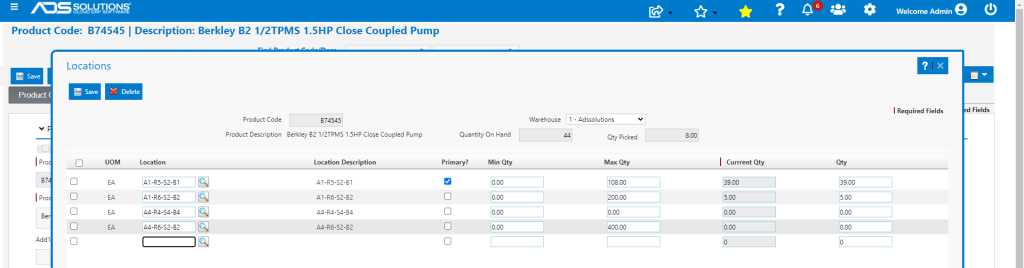
- The product is now associated with the Locations entered.
- These Locations will print on both the Pick Ticket and the Put-Away Ticket for this Product.
Tracking Inventory by Location
- Unless the Product has the Inventory by Location? checkbox selected, the inventory quantities will not necessarily match the quantities shown on the Location screen.
- Tracking Inventory by Location requires specifying which Location a product is picked from or put-away to on every transaction.