
Accolent ERP is integrated with Fiserv, one of the largest payment processors globally. By automatically processing Level 2 and Level 3 data, Fiserv optimizes interchange charges ensuring the lowest possible rate on every transaction. The payment acceptance will automatically be recorded in Accolent ERP. The integration allows payment acceptance by credit card or ACH/eCheck. Payments may also be taken remotely by including a Pay Now button in Invoice transmittal emails. Accolent ERP allows Credit Cards to be securely saved as tokens for reuse with no PCI compliance scope impact.
Tokenized Credit Card Numbers
- When you enter a Credit Card number, Fiserv generates a tokenized card number that starts with a 9, followed by the first two digits of the card then ten obscured digits and ending in the last four digits of the card.
- This tokenized card number is representative of a cardholder’s information, but it cannot be decrypted and is only usable on Fiserv’s gateway.
- Because of these protections, storing the tokenized card doesn’t affect your PCI compliance scope.
- Once stored, the token and the expiration date can be used for future transactions by that customer and will be available as a dropdown to be selected from the Accolent ERP Take Payment screens.
Save Credit Card Token
- Create order 3566 for Customer 160225 for $143.50.
- Take payment 1707 for $140.63 on this order, net of early payment terms discounts.
- There are no saved cards for this Customer, so enter the information for MasterCard card number 5454545454545454.
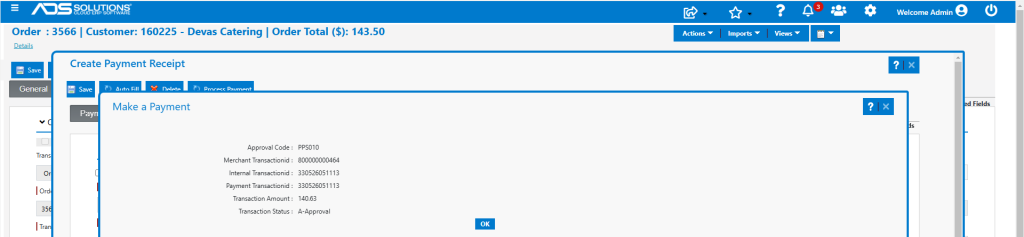
- Processing the payment automatically saves the Credit Card token against this customer.
Save New Credit Card Token
- Now take payment 1708 on order 3742 for this same Customer.
- Shows obscured data for card just saved.
- A user can now simply select from the dropdown to take payment with this card.
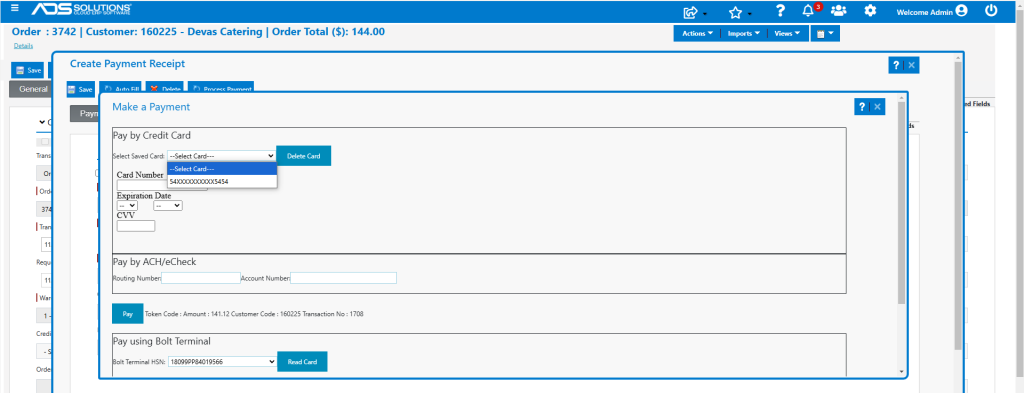
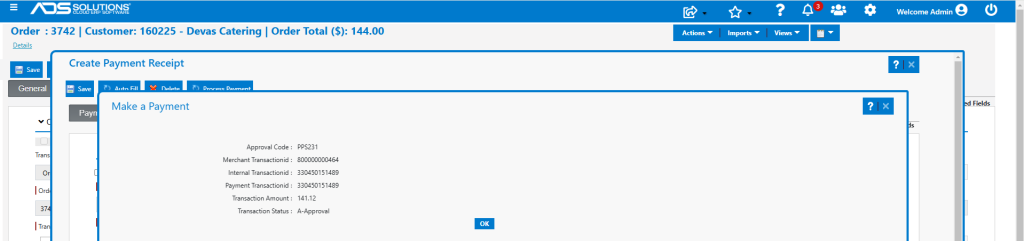
- Instead, enter information for a new Visa card 4242424242424242.
- Second card token is automatically saved on this customer.
Delete Saved Credit Card Token
- Create order 3737 for this same Customer.
- Both saved card tokens are now available to take payment.
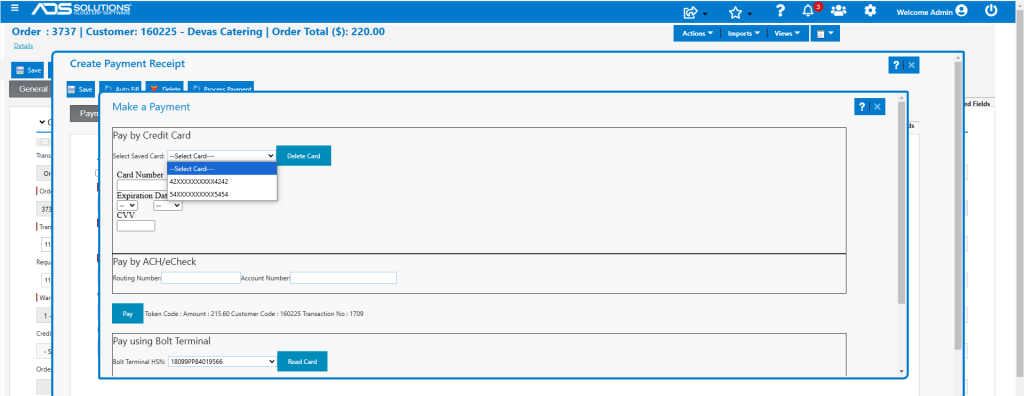
- To delete a saved card, select it from the dropdown and click Delete Card.
- For example, delete the most recent card saved from Accolent ERP.
- The original saved card is now the only card available.
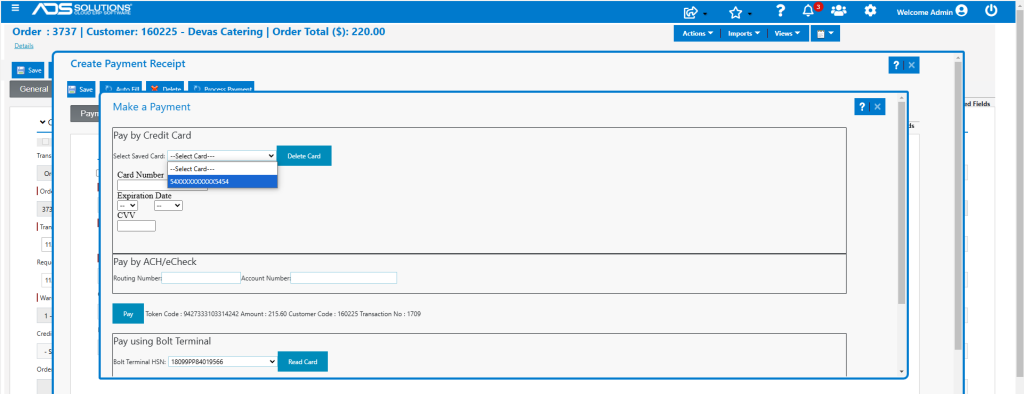
- Note that a previously saved card should also be deleted in the Fiserv admin panel as well as in Accolent ERP to fully get rid of it.