
Accolent ERP allows for adjusting inventory quantities usually, but not necessarily, after completing a physical inventory count. If you need to adjust inventory quantities, see: Adjusting Inventory Balances. Much more rarely and perhaps not at all, there may be a situation in which it is necessary to adjust the average cost of a product.
Look up Average Costs
- Go to Inventory/Products > Products > List Products and select product code AF-ECO.
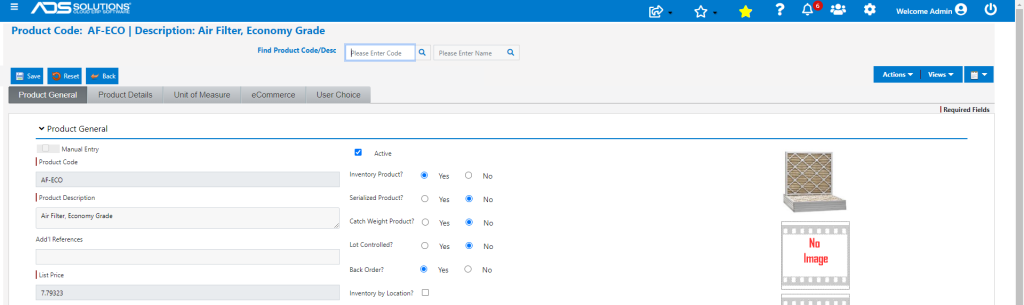
- From Actions > Cost History, look up the average cost for the product of $5.13379 with an ending QOH of 872.

Modify Average Cost
- Go to Price/Cost > Adjust Average Cost.
- The Average Cost was $5.13379 with QOH of 872.00.
- Adjust Average Cost to $5.00000 for Warehouse 1 – this is a reduction of $0.13379 on all 872 QOH, for a total write-down of $116.66.
- Note that the GL Accts will default in once the warehouse is selected, however, these can be overwritten if desired.
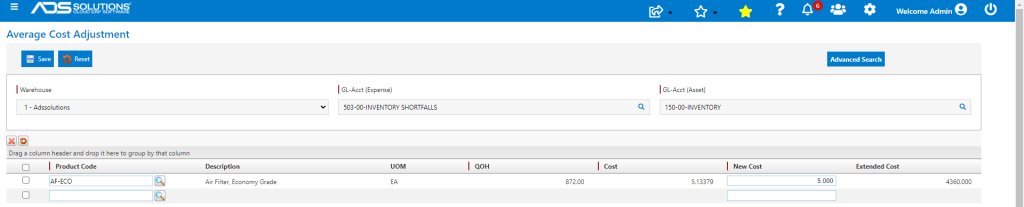
- Click Save, created Manual Inventory Adjustment Receipt 9447.

Verify Average Cost Adjustment
- Go to Product AF-ECO then Actions > Cost History screen which shows adjustment 9447 in two steps: the net effect of which is the average cost is reduced to $5.00000.

- Go to Actions > Cost, the updated Average Cost is now $5.00000.

- Go to Views > Ledger, which shows QOH unchanged at 872.

Review GL Posting
- Go to GL > Manage General Ledger > Evaluate Transactions, which shows the posting of this transaction:
- Debited 503-00 Inventory Shortfalls for (0.13379 x 872) = $116.66, and
- Credited 150-00 Inventory for $166.66.
