
Accolent ERP is integrated with Fiserv, one of the largest payment processors globally. As part of the Accolent ERP integration with Fiserv, payment transactions may be voided or refunded to the credit card that was originally charged. If the original charged transaction has not yet been settled, the refund request will direct the user to void the original charge. If the original charge has already been settled, then the refund request will refund the original charge to the customer’s credit card. Accolent ERP records the initial payment and subsequent reversal and shows both the Invoice and Credit Memo as paid.
Create Order or Invoice and Take Payment
- Create Order 77253 for $111.32.
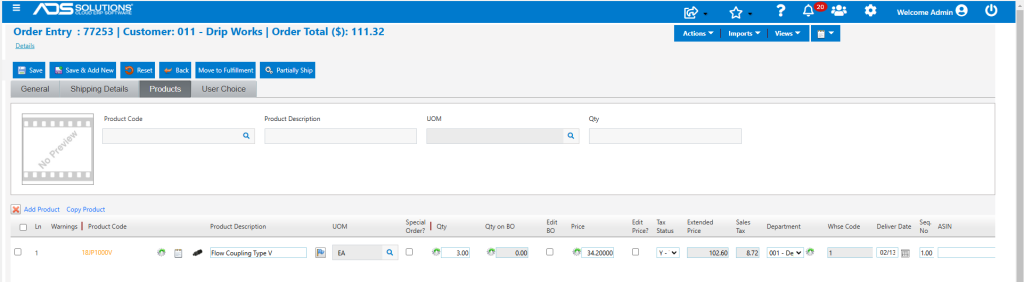
- Take payment 22609 for $109.09 net of discount on a credit card.
- Select Payment Type Credit Card and Credit Card Type, then click Process Payment.
- Fill in card details or select a saved card then click Pay.
- Once the token code is generated, click the Pay button and get approval
- Payment Id 044527071298
- If accepted, the screen gives an Approval Code, click OK.
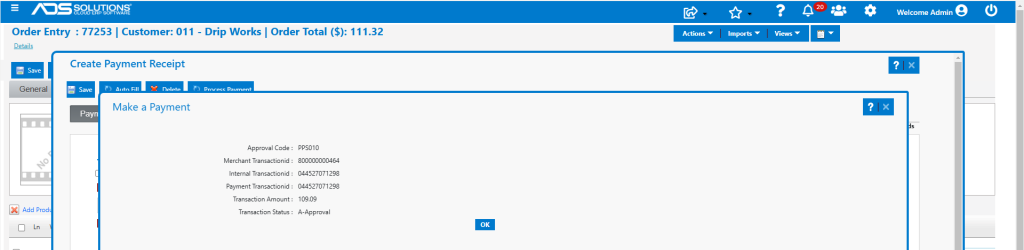
- Then Save the screen to Create Payment Receipt.
- Move order 77253 to fulfillment and invoice, then click Apply Payment.
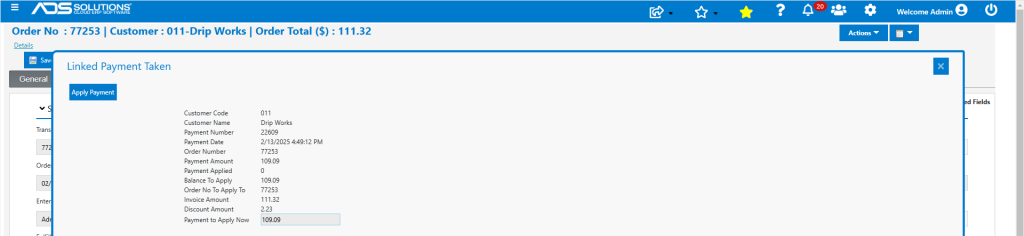
- The invoice is now paid in full.
Create Credit Memo and Refund/Void Credit Card Charge
- If the customer returns shortly and wants to return goods, create an immediate credit memo CMI77253.
- Charge a 2.5% restocking fee to offset the early payment discount given.
- Save to create CMI77253 for $108.76 which includes a restocking fee of $2.56 charged.

- To pay CMI77253, go to Sales > Credit Memos > Create a Customer Refund.
- Select Credit Memo to refund, select Payment Type of Credit Card Only.
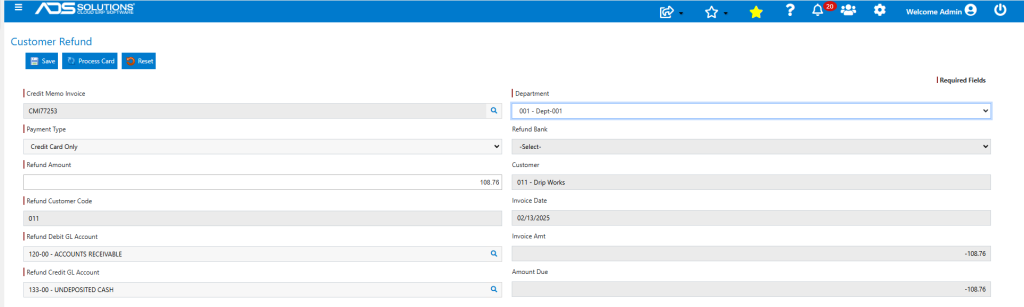
- Be careful to select the right GL Debit Account depending on whether this is a check or a refund in cash or to a credit card.
- For a refund by check, the GL Debit Account will be Cash in Bank, and a check will be created drawn on the refund bank selected.
- For a refund in Cash or to a Credit Card, a negative payment receipt will be created, and the GL Debit Account will be Undeposited Cash as for other payment receipts – these negative payment receipts will then need to be deposited.
- When satisfied, Process Card.
- Enter card details or use a saved card, then scroll down to the Refund/Void button.
- If a transaction has been settled, then it can be refunded; if the transaction has not yet settled, it can be voided.
- The screen will alert the user as to whether the transaction needs to be refunded or voided.
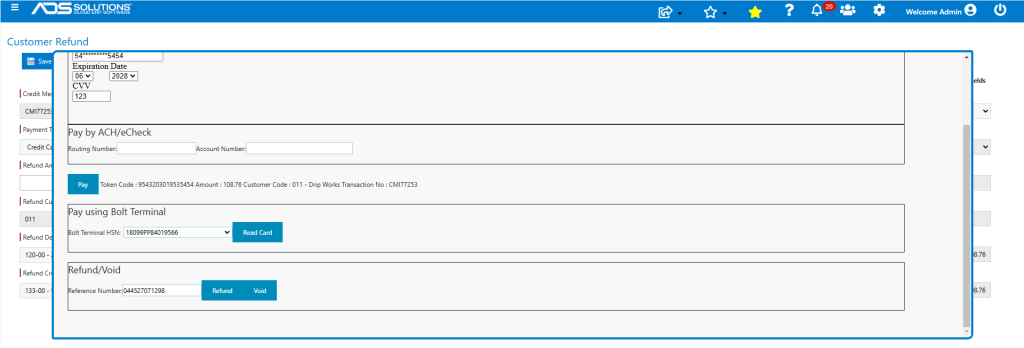
- Click on the Refund button for example.
- In this case the transaction has not been settled, so a Void can be issued.
- The following message will come up.
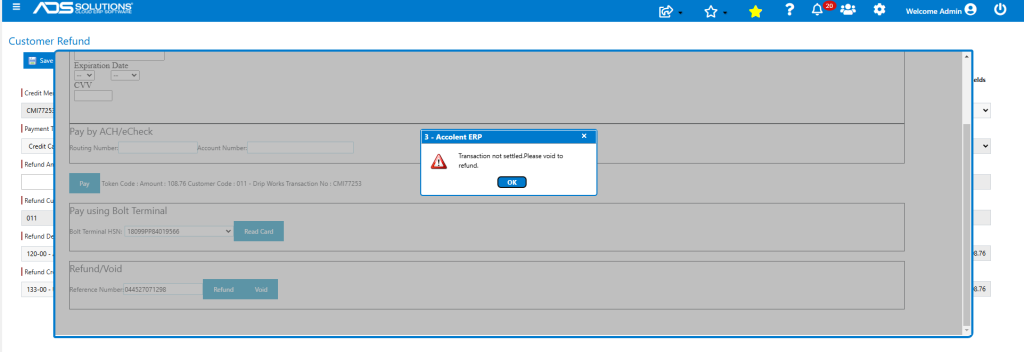
- Close the pop-up message. Then select Void and get the Approval.
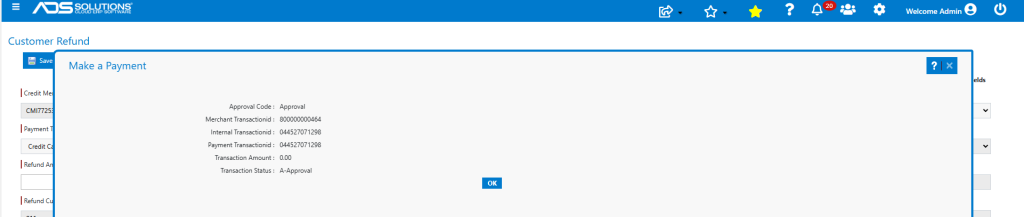
- Click OK to Save the Void.
Accolent ERP Records Updated
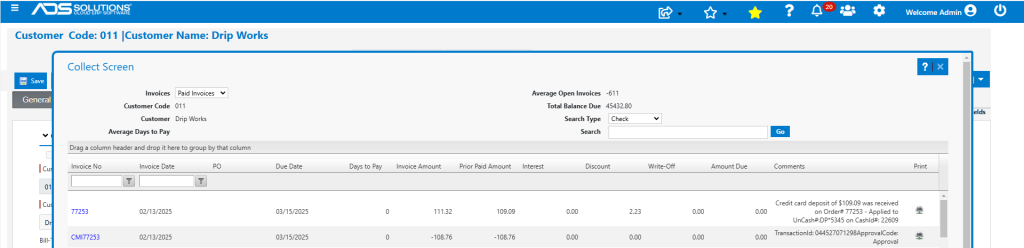
- All transactions automatically update details in Accolent ERP.
- The account for Customer 011 shows the initial payment 22609 for $109.09.
- The Void payment 22610 shows the refund of -$108.76 net of the restocking fee.

- Both Invoice 77253 and CMI77253 show as paid.
Customer Refund instead of Void
- If the transaction had already settled (typically batches settle the next day), the transaction may be Refunded.
- In this case the user will click Refund instead of Void.
- The Refund transaction will be processed in the same way as a Void.
- The transactions will be updated in Accolent ERP in the same way.