
Accolent ERP is integrated with Fiserv, one of the largest payment processors globally. By automatically processing Level 2 and Level 3 data, Fiserv optimizes interchange charges on credit card payments ensuring the lowest possible rate on every transaction. The Accolent ERP integrated payments allows for acceptance of payments through Fiserv for multiple payment methods: (i) Card Not Present, (ii) Card Present, (iii) ACH/eCheck payments, (iv) remote payments using the Fiserv hosted payment page (HPP) and (v) linked eCommerce store payments. Card Not Present and ACH/eCheck transactions can be taken using the virtual payment terminal inside Accolent ERP. For Card Present transactions, Fiserv also includes a full line of BOLT/Ingenico terminals that can be connected to Accolent ERP. The HPP and eCommerce payments require separate pages/plug-ins linked to Accolent ERRP. In all cases, the payment acceptance transaction will automatically be recorded in Accolent ERP.
Benefits of Integrated Payments
- There are multiple benefits of using Accolent ERP/Fiserv integrated Credit Card or ACH/eCheck payments, including:
- Minimizing interchange fees,
- Increasing cash flow by making it easy to get paid immediately using a Pay Now button on invoice transmittal emails,
- Complete omni-channel solution,
- Minimizing your costs of PCI-compliance and liability with industry-leading security,
- Automatically capturing payment details eliminating human error, and
- Speeding reconciliation with extensive reporting tools and e-statements.
- See this wiki: Accolent ERP Integrated Payments for further details.
Authorize or Authorize and Capture
- First go to Settings > System Configuration and set up whether you want to Capture payments.
- All payments automatically Authorize, which essentially puts a hold on the customer’s credit card.
- To have Fiserv process the payments they have to also be set to Capture.
- To automatically Authorize and Capture at the same time, set the Fiserv Capture to Y.

- Transactions not set to Capture can be manually Captured from the Fiserv CardPointe portal.
- To do this, log in to the Fiserv CardPointe then click on Reporting then click on the transaction that needs to be captured.
- This will bring up a new screen and one of the button choices at the top should be Capture, click on that to default the entire amount.
- Once captured, the payments will be processed and funded.
Take Payment on an Order or Invoice
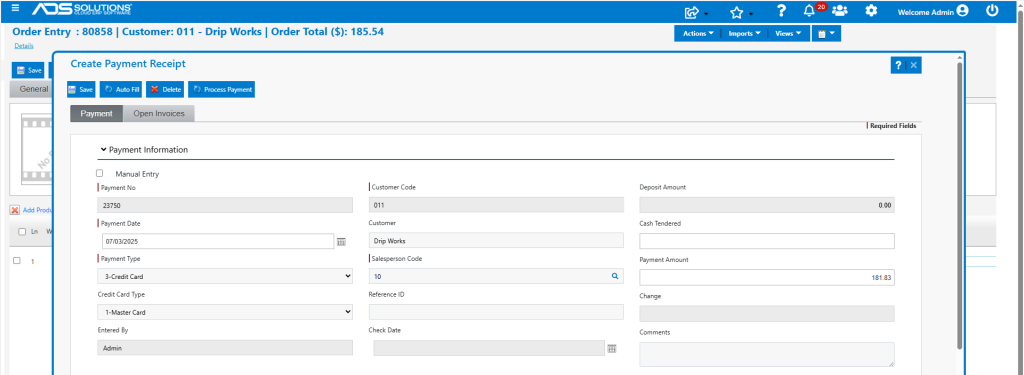
- From an order or invoice, go to Actions > Take Payment.
- Select Credit Card Payment Type (e.g., Master Card) and a new Process Payment button will appear.
Credit Card Not Present
- For a payment where the credit card is not present, click Process Payment.
- Enter credit card details on the secure, tokenized virtual terminal.
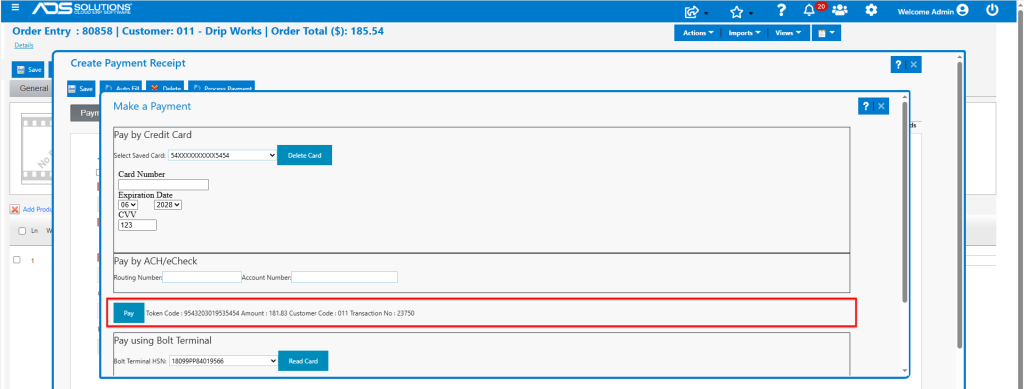
- Click Pay to complete the transaction.
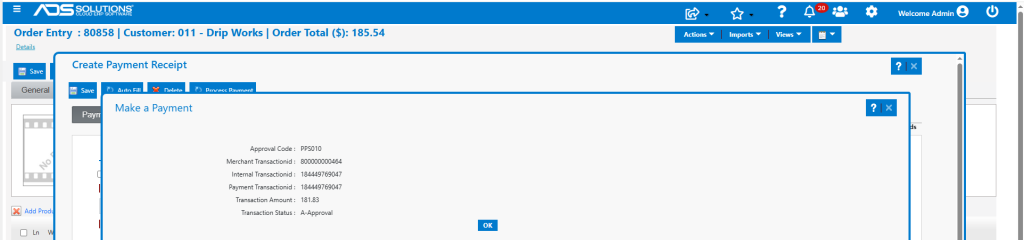
- The transaction is tokenized for maximum security and only the token not the actual credit card number is saved, minimizing PCI-compliance issues and liability for stolen card numbers
- The saved token can be used just as a saved credit card number but is completely secure. When you take a payment from a customer, the tokens representing all the credit cards previously used by the customer are automatically shown to select from. See this wiki: Saving Credit Cards with Integrated-Payments.
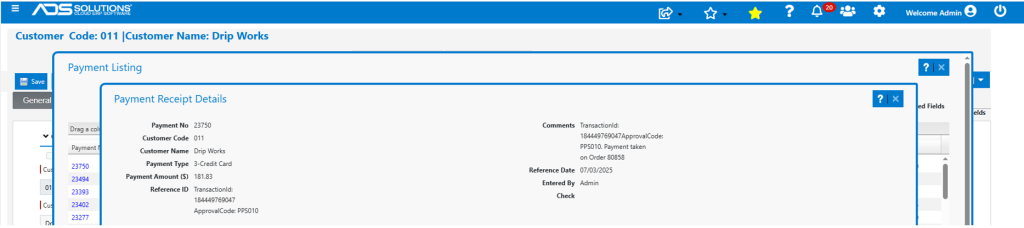
- Click Save and the payment receipt information is automatically recorded to Accolent ERP.

- Tokenized ID and Approval Code are automatically recorded.
Credit Card Present Transactions
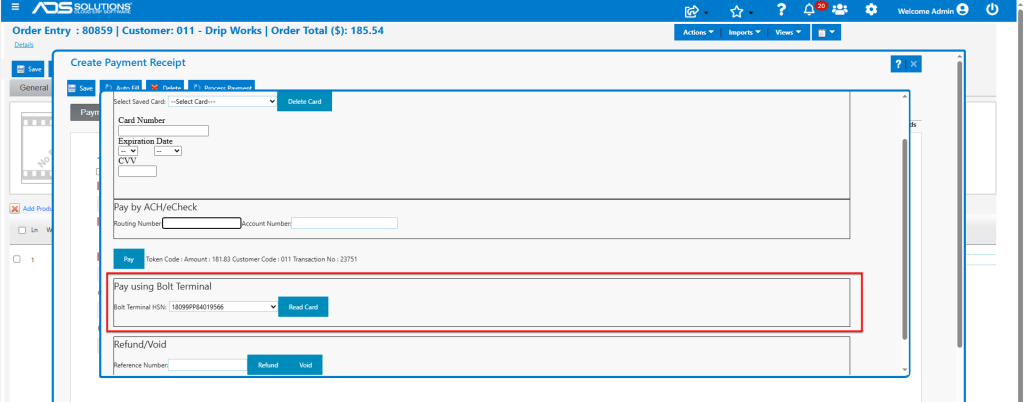
- Fiserv has a full line of Ingenico card terminals that support swiping, chip reading, dipping, etc.
- When you click Read Card, customers will be asked to confirm the amount on the terminal and present card.
- The same approval screen is obtained, and the transaction is automatically recorded in Accolent ERP in the same way as for Card Not Present transactions.
ACH/eCheck Payments
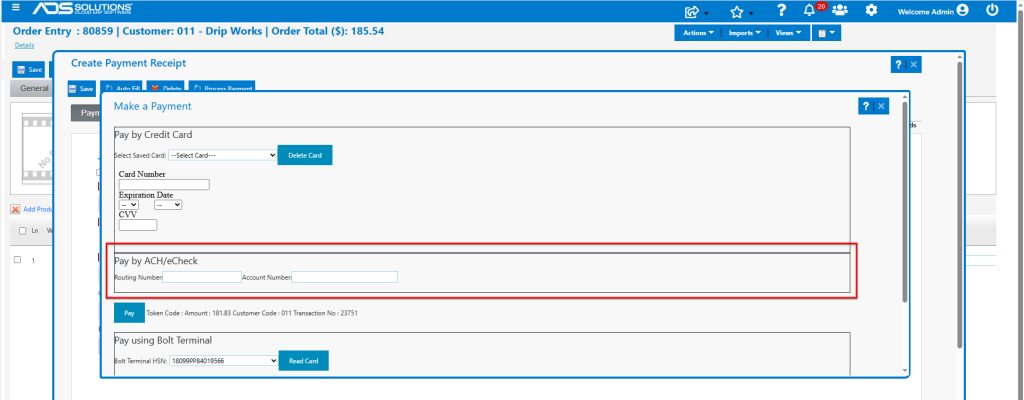
- To receive ACH/eCheck payments, enter payment details and select Payment Type ACH/eCheck then click Process Payment.
- Then enter Routing Number and Account Number and click Pay button.
- The same approval screen is obtained, and the transaction is automatically recorded in Accolent ERP in the same way as for Card Not Present transactions.
Pay Now button on Invoices or Statements
- When sending Invoices by email, you can include a Pay Now button.
- This is how the email appears in the reading pane.
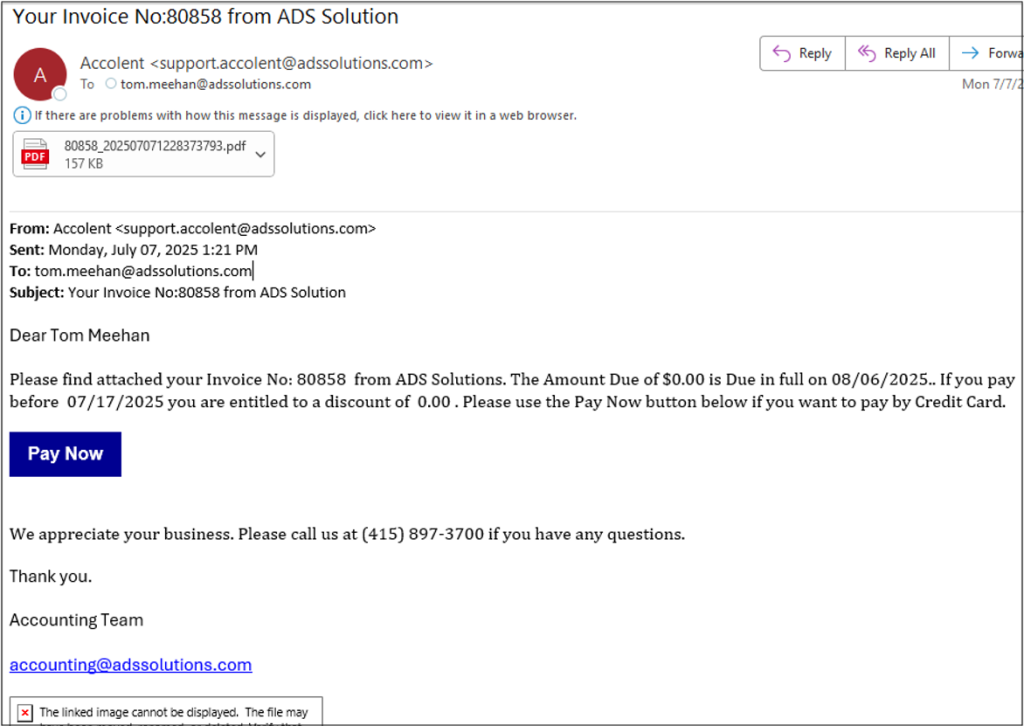
- When a customer clicks the Pay Now button, it opens the Fiserv hosted payment page (HPP) screen
- The screen will auto-populate the Invoice No, Customer Code and Total Amount Due.
- Note that the HPP page can only read the invoice amount and terms but cannot reflect any prior payments that are not shown on the invoice.
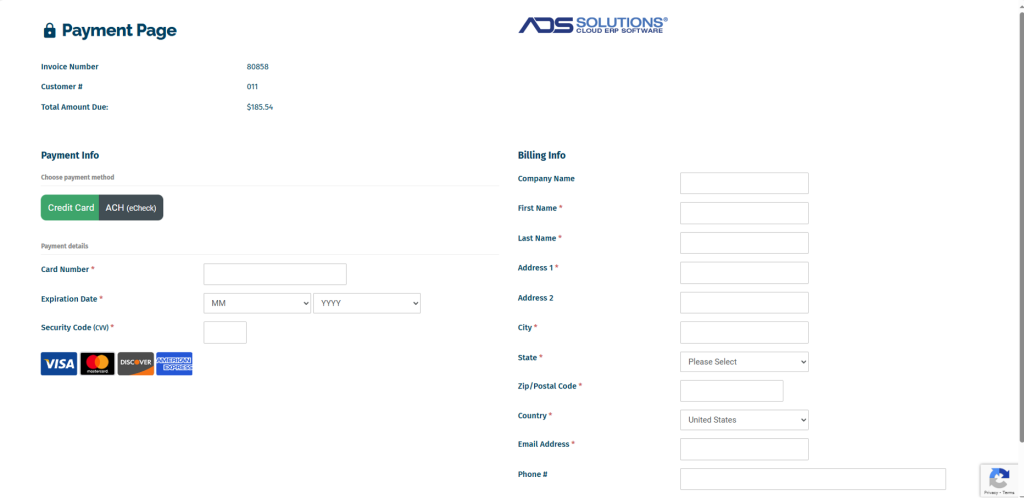
- Upon completion, the customer’s payment is automatically recorded in Accolent ERP just as for transactions initiated from within Accolent ERP.
Payments from eCommerce Stores
- Most eCommerce stores require a Payment Gateway plug-in to take payments. The Payment Gateway plug-in can be connected to a Payment Processor and Merchant Account.
- Fiserv has plug-ins for some but not all eCommerce stores, that include the Payment Gateway already connected to the Fiserv Processor and Merchant Account.
- If a Fiserv supported payment plug-in exists, that can be used to connect the eCommerce store payments to Fiserv and nothing further is then needed to connect to Accolent ERP.
- Alternatively, Accolent ERP is also integrated with Authorize.Net the most widely used Payment Gateway, that provides plug-ins for almost all eCommerce Stores.
- Linking the Authorize.Net Payment Gateway to the Fiserv Payment Processor and Merchant Account can be done quickly and easily upon request to Fiserv.
- Once linked and the Authorize.Net plug-in installed, eCommerce transaction payments will be automatically recorded in Accolent ERP just as for transactions initiated from within Accolent ERP.