
For Restaurant Supply distributors, Accolent ERP provides an easy linkage with AutoQuotes (“AQ”). Using AQ, distributors can create AQ Projects and then download these as pre-configured CSV files. These CSV files (“AQ Export CSVs”) can be zipped and then imported into Accolent ERP as orders. To create an order in Accolent ERP, first create the order header specifying the Customer, terms, etc., then import the zipped AQ Export CSV. From the AQ Export CSV, the system will first automatically create any new vendors and products that are not already in Accolent ERP. Then the system will automatically create the order lines in Accolent ERP. Once the order is created in Accolent ERP, it can be sent to the Customer, edited and/or moved to fulfillment as needed.
Create AQ Export File
- Create an AQ Project and then export as an AQ Export CSV.
- Save the AQ Export CSV using the zipped file format.
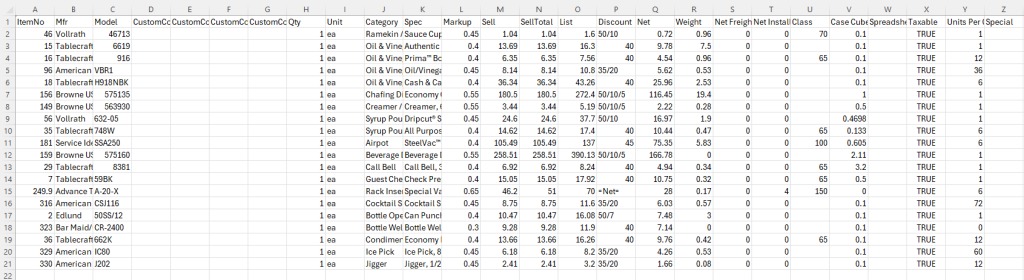
- If any Vendors or Products already exist in Accolent ERP, enter the Vendor Code in CustomColumn1 (D) or the Product Code in CustomColumn2 (E).
- If CustomColumn1 (D) and/or CustomColumn2 (E) are left blank, the system will assume the Vendor or Product (as the case may be) for that row does not exist and will create it.
- In the case of the Vendor, the system will also check by Vendor Name and if there is an existing Vendor with exactly the same name, it will use that Vendor.
- In the case of the Product, if a product with Model (C) as Product Code already exists, the system will use that Product.
- If an existing Product is used, CustomColumn3 (F), and CustomColumn 4 (G) will be ignored.
CSV Import
- From the AQ Export CSV, Accolent ERP first creates any new Vendors that are not already in Accolent ERP.
- Then Accolent ERP creates any new products not already in Accolent ERP.
- From the AQ Export CSV, Accolent ERP first creates any new Vendors that are not already in Accolent ERP.
- Then Accolent ERP creates any new products not already in Accolent ERP.
- From the AQ Export CSV, rows that have:
- an alphanumeric entry in either Model (C) or in CustomColumn2 (E) are treated as products,
- rows that have Model (C) or CustomColumn2 (E) blank, a non-zero value in Qty (H) and an alphanumeric value in Unit (I) are treated as products that are accessories to the nearest prior product,
- rows that have Model (C) or CustomColumn2 (E) blank, a non-zero value in Qty (H) and a blank entry in Unit (I) are treated as order line comments. These order line comments will be saved on the product master for the nearest prior product, and will appear automatically when that product is put on an order line. NOTE that there may be multiple comment rows related to a specific product, each row will appear in the order line comments with a line break if they are from separate spreadsheet rows.
- If a row has Model (C) or CustomColumn2 (E) blank, a zero value in Qty (H) and a blank entry in Unit (I) it is an internal user note and will be ignored.
- Once any unknown vendors and products are created, Accolent ERP creates the AQ Project as an Accolent ERP order.
Create Order from AQ Project
- Go to Sales > Orders > Create Order.
- Enter Order No 75876 for Customer 160225 on general tab.
- Then go to the products tab and select Imports > AutoQuotes Import.
- Browse to the zipped CSV file and select it, then click Import File.
- This success message is returned showing that 20 line items were imported.
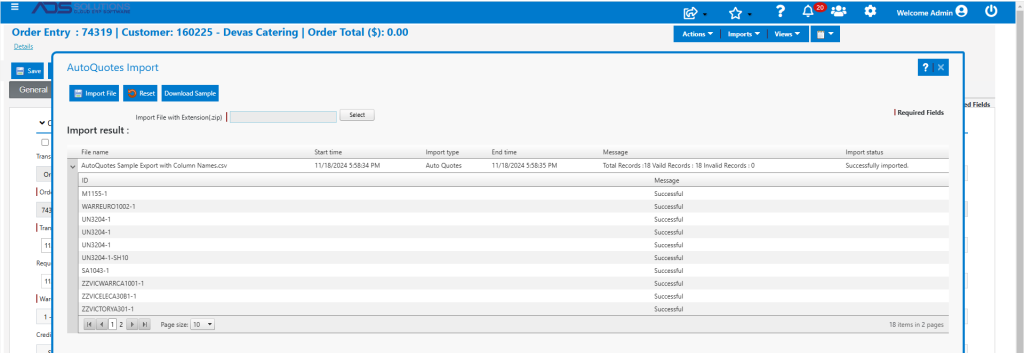
- Accolent ERP successfully imported products into Order 75876 for Customer 160225.
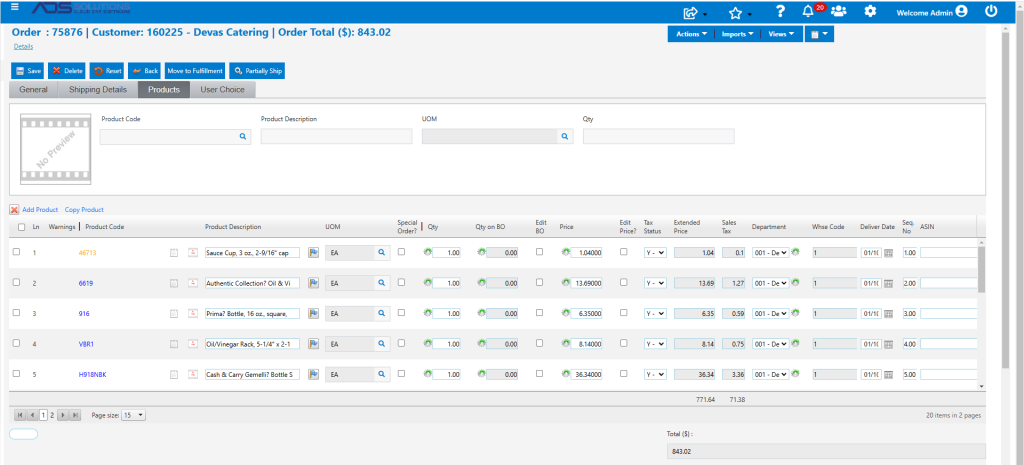
- Since the Customer is taxable and the products are taxable, sales tax is computed and charged on all lines.
- The order prices are taken from Sell (M). Sales Tax is based on the Customer’s tax jurisdiction, in this case 9.25%.
- All products default to Class-S since CustomColumn4 (G) was left blank. This can be changed to identify special order products, if desired.
Printed Work Order
- This is the printed Work Order for the order 75876.
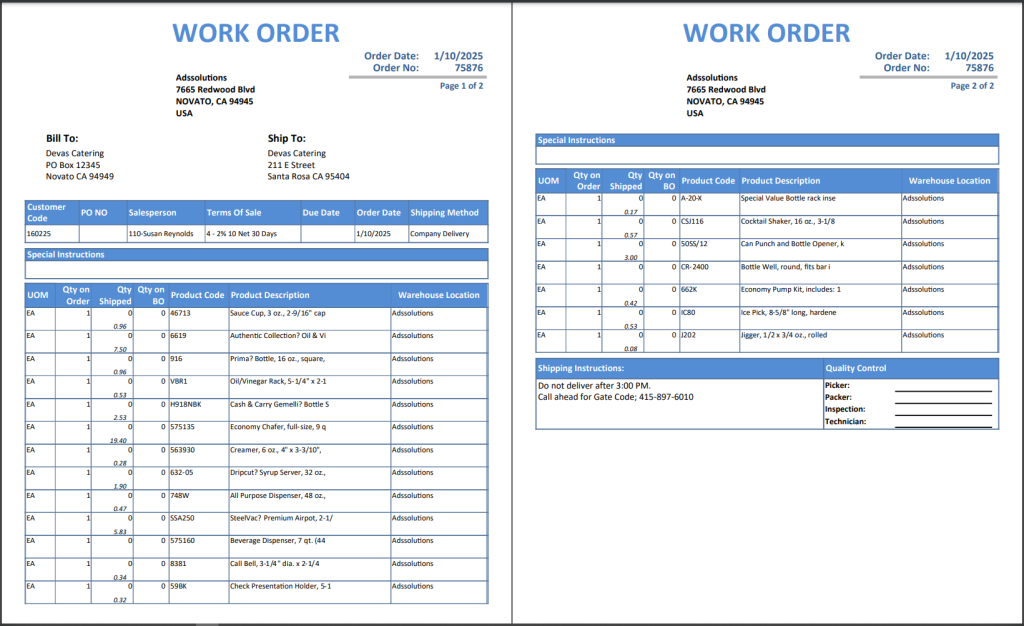
- The order can now be saved then sent to the Customer, modified, if needed, or moved to fulfillment.
Automatically Created Products
- Since CustomColumn2 (E) was blank, the system created all 20 products in Accolent ERP from the CSV.
- Look up Product 46713.
- Note that many of the fields (e.g., Group, Category, Sub-category fields) on the product are based on default values, and so must be verified and corrected in the system before the order is finalized.
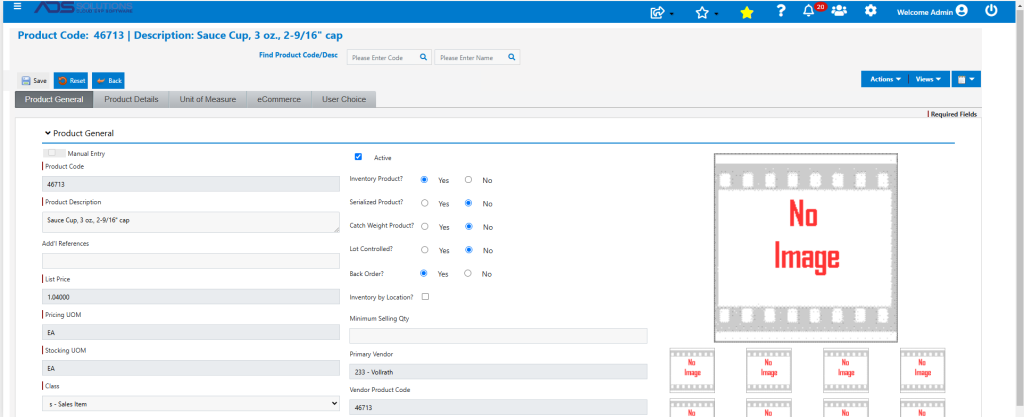
- The product fields are taken from the AQ Export CSV as follows:
-
- PRODUCT CODE — Reads from CustomColumn2 (E) or, if blank, creates new product with Product Code the same as the Model (C), in this case 42713.
- PRODUCT DESCRIPTION — Reads from CustomColumn3 (F) or, if blank, reads first 30 characters in Spec (K) “Sauce Cup, 3 oz., 2-9/16″ cap.”
- PRODUCT CLASS — Reads from CustomColumn4 (G) or, if blank, defaults to product class “S” – Sales.
- CATEGORY CODE — Uses DEFAULT Product.
- SUB-CATEGORY CODE — Uses DEFAULT Product.
- ACTIVE? — Defaults as Y
- INVENTORY PRODUCT? — Defaults as Y.
- SERIALIZED PRODUCT? — Defaults as N.
- CATCH WEIGHT PRODUCT? — Defaults as N.
- LOT CONTROLLED? — Defaults as N.
- BACK ORDER? — Defaults as Y.
- MINIMUM SELLING QTY — Uses DEFAULT Product.
- PRIMARY VENDOR CODE — Reads from CustomColumn1 (D) or, if blank, creates new vendor based on Mfr (B) and enters this as the primary vendor “233-Vollrath.”
- VENDOR PRODUCT CODE — Reads from Model (C) as “46713.”
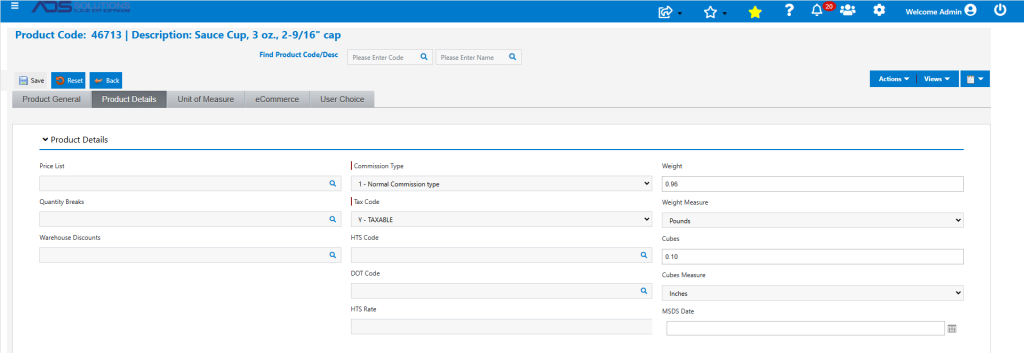
-
- COMMISSION TYPE? — Uses DEFAULT Product.
- TAX CODE? — Reads Y for taxable or N for non-taxable from Taxable (X).
- WEIGHT — Reads from Weight (R).
- CUBES – Reads from Case Cubes (V).
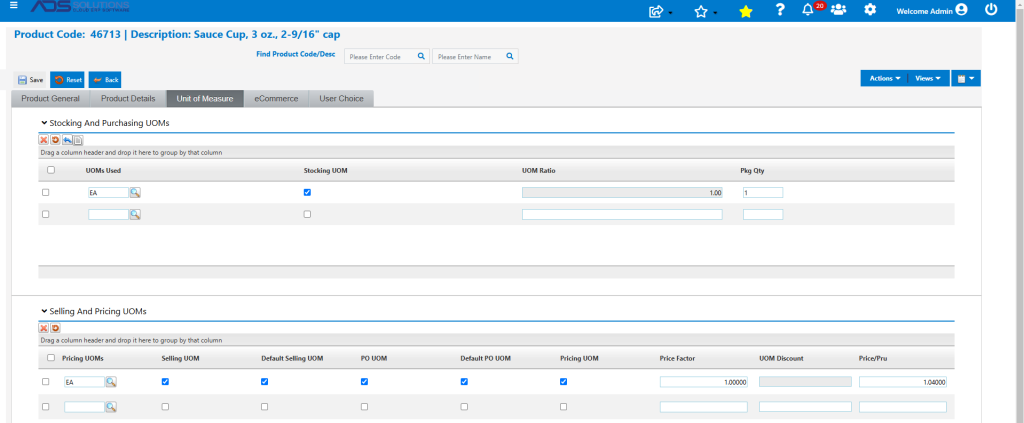
-
- UOM — Reads from Unit (I).
- STOCKING UOM — Defaults as Y.
- UOM RATIO — Defaults as 1.
- SELLING UOM — Defaults as Y.
- DEFAULT SELLING UOM — Defaults as Y.
- PO UOM — Defaults as Y.
- DEFAULT PO UOM — Defaults as Y.
- PRICING UOM — Defaults as Y.
- PRICE FACTOR — Defaults as 1.
- PRICE — Reads from Sell (M) as price of “$1.04.”
- DESCRIPTION 2 — Reads from Spec (K).

-
- ORDER LINE COMMENTS — If Unit (I) is blank and Qty (H) is non-zero, then reads from Spec (K).
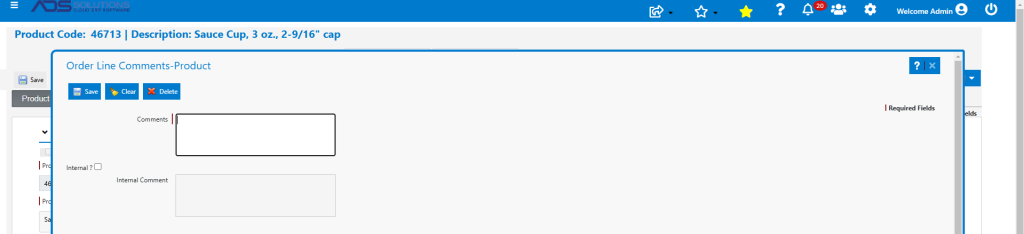
-
- STANDARD COST — Reads from Net (Q) as cost of “$0.72.”

-
- V102-1 COST — Reads Cost type from V102-1 (e.g., Alternate Cost) and reads this from Net (Q).

Automatically Created Vendors
- Since CustomColumn1 (D) was blank, the system created all new vendors and automatically assigned unique Vendor Codes to these.
- Note that many of the fields (e.g., Vendor address fields) on the product are based on defaults and so must be verified and corrected in the system before any PO is generated.
- Created Vendor 233-Vollrath.
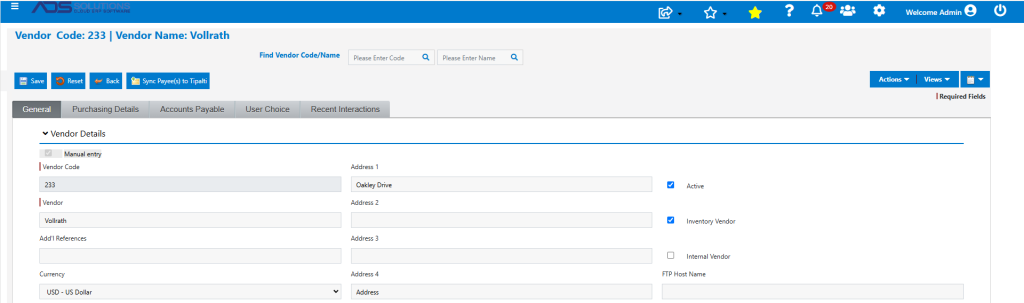
- The vendor fields are taken from the AQ Export CSV as follows:
- VENDOR CODE – Finds existing Vendor Code from CustomColumn1 (D) or, if blank, creates a new Vendor with a system-generated Vendor Code.
- VENDOR NAME – Gets existing Vendor Name associated with Vendor Code from CustomColumn1 (D) or, if blank, reads from Mfr (B).
- SHIPPING ADDRESS – Uses DEFAULT Vendor. Can be changed later.
- COUNTRY – Uses DEFAULT Vendor. Can be changed later.
- STATE – Uses DEFAULT Vendor. Can be changed later.
- ZIP CODE – Uses DEFAULT Vendor. Can be changed later.
- ACTIVE – Defaults to Y.
- WAREHOUSE – Uses DEFAULT Vendor. Can be changed later.
- SHIP VIA – Uses DEFAULT Vendor. Can be changed later.
- TERMS – Uses DEFAULT Vendor. Can be changed later.
- DEPARTMENT – Uses DEFAULT Vendor. Can be changed later.
- Similarly, the system created vendors: 232-Tablecraft, 234-American Metalcraft, 230-Browne USA, 244 Service Ideas, 1096-Edlund, and 235-Bar Maid/Glass Pro.
- Review and correct all Vendors imported.
Subsequent Orders
- Since the Vendor and Products now exist in Accolent ERP, any future AutoQuotes Imports will just skip these.
- All product sales for these Products will now be tracked automatically be Accolent ERP.