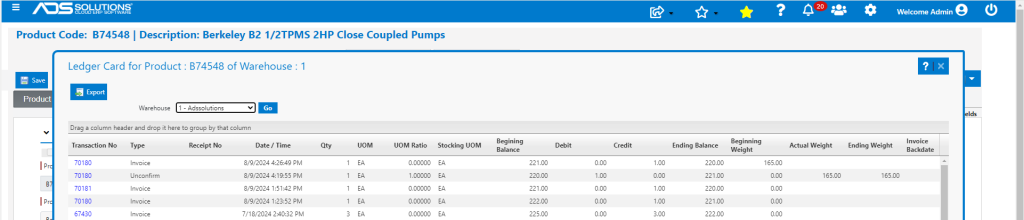
Although not recommended, Accolent ERP allows invoices to be unconfirmed, amended and then reconfirmed. Unconfirming is typically done to correct an error on the invoice. When unconfirming an invoice the system will automatically unpost it from the General Ledger and repost it to the GL when reconfirmed. When an invoice is unconfirmed, it retains the same cost as when first invoiced. If an old invoice is unconfirmed and then reconfirmed at some later point in time, the Inventory Valuation report will not tie-out to the Balance Sheet until such time as the invoice is reconfirmed.
Create Invoice
- Invoice 70180 dated 8/9/24 was created for $1,160.08.

- Assume the invoice missed certain items or these items were called in later.
- The additional items could be put on a separate invoice, or the invoice could be unconfirmed and amended.
Unconfirm Invoice
- To unconfirm the invoice, go to Sales > Orders > Manage Orders > Move Invoice Back to Order.
- Enter the invoice to be unconfirmed.

- Unconfirming the invoice automatically deletes any back orders or rebates associated with the invoice. These will be re-created when the invoice is reconfirmed.
- Upon unconfirming, the system will automatically unpost the transaction from the General Ledger – no action is required from the user to effect this.
- Select whether the invoice should be moved back to order status or to fulfillment. In this case, select move back to order since the intention is to add items.
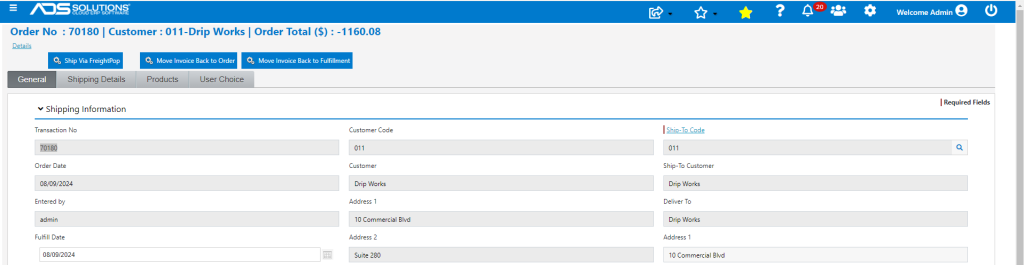
- The invoice will then be moved back to order.
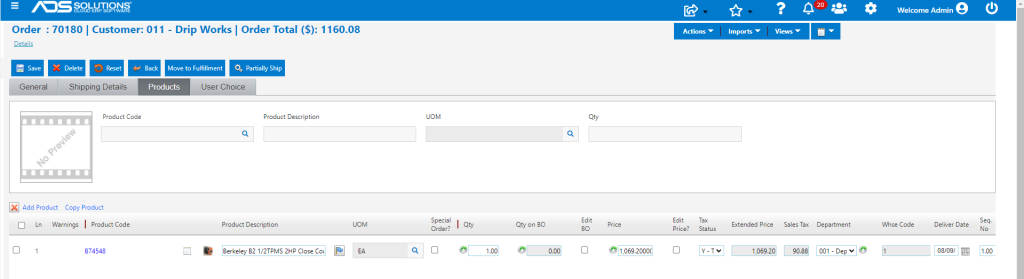
- Add another line to the order to include the additional items.
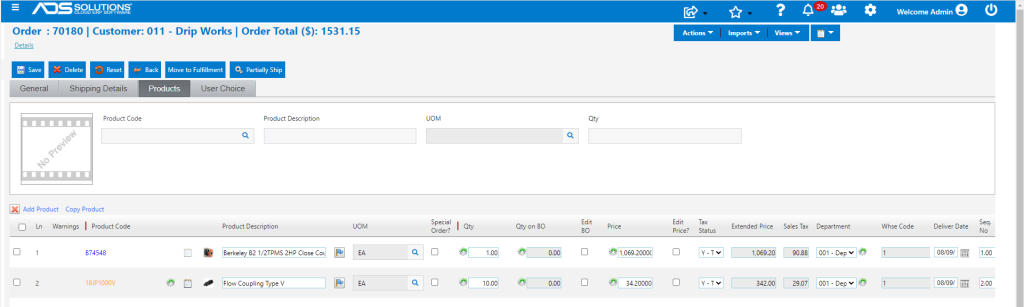
Reconfirm Invoice
- Move order to fulfillment and re-invoice.
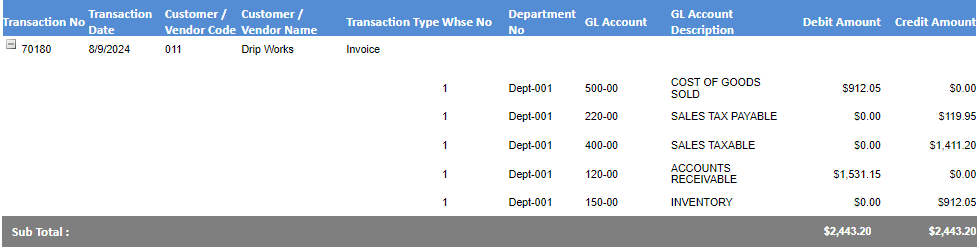
- Order 70180 for $1,531.15 including the additional items has now been invoiced.

- Look up GL posting – original posting was removed and reposted.
- Look up Ledger Card for B74548. Shows the original Invoice, then the Unconfirm, then the Reconfirm.