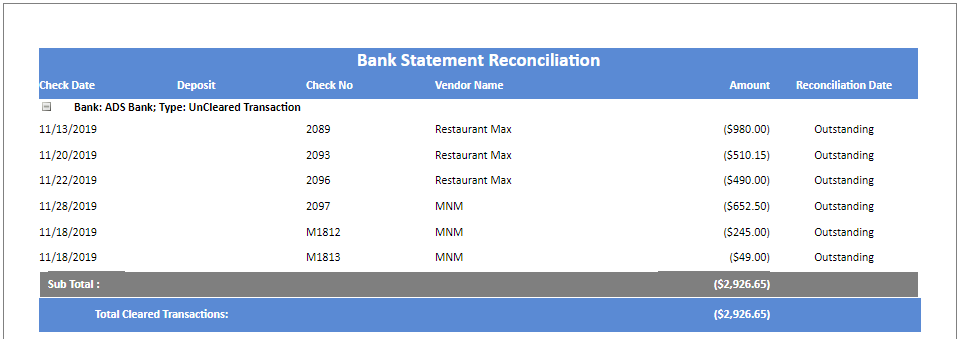
To be able to reconcile each Bank Account, Accolent ERP requires that each Bank Account be set up to post to a unique GL Account. That GL Account will then record all transactions posted to that Bank Account. To reconcile the Bank Statement for that Bank Account, compare the Bank Statement with the transactions recorded to the GL Account and mark all that have cleared the Bank. The Bank Statement Reconciliation process then keeps track of all transactions that cleared as well as those that are still pending.
List Transactions since Last Bank Reconciliation
- Go to General Ledger > Manage Bank Accounts > Reconcile Bank Statement
- Select Bank, Last Statement Date and Last Statement Balance will pre-populate
- Enter Current Statement Date
- Enter Current Statement Balance amount
- Screen will populate with all uncleared transactions that have dates up to and including the Current Statement Date
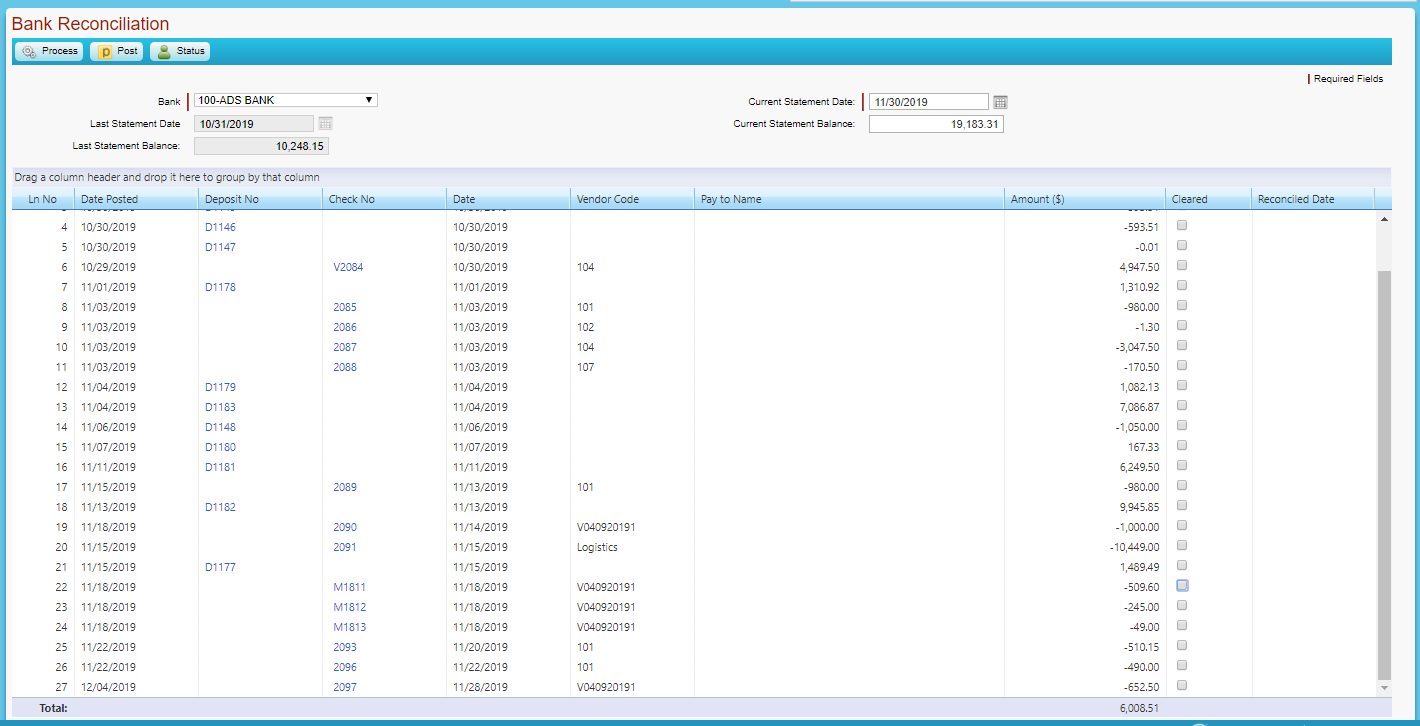
- Click on the Status button to see the total of transactions to be reconciled

Reconcile to Bank Statement
- On the Bank Reconciliation screen, mark all transactions showing on the Bank Statement as Cleared
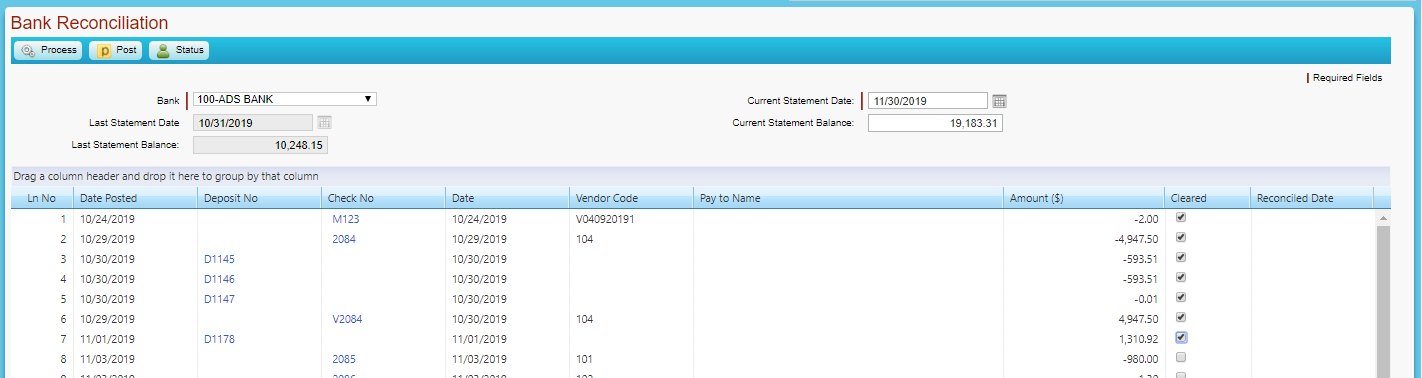
- The Status screen keeps a running total of all reconciled amounts and amount still to be reconciled
- As transactions are being marked as cleared, click on the Status icon at any time to see the difference still to be accounted for

- When the Difference is zero, the reconciliation process will be complete

- Click Process to record
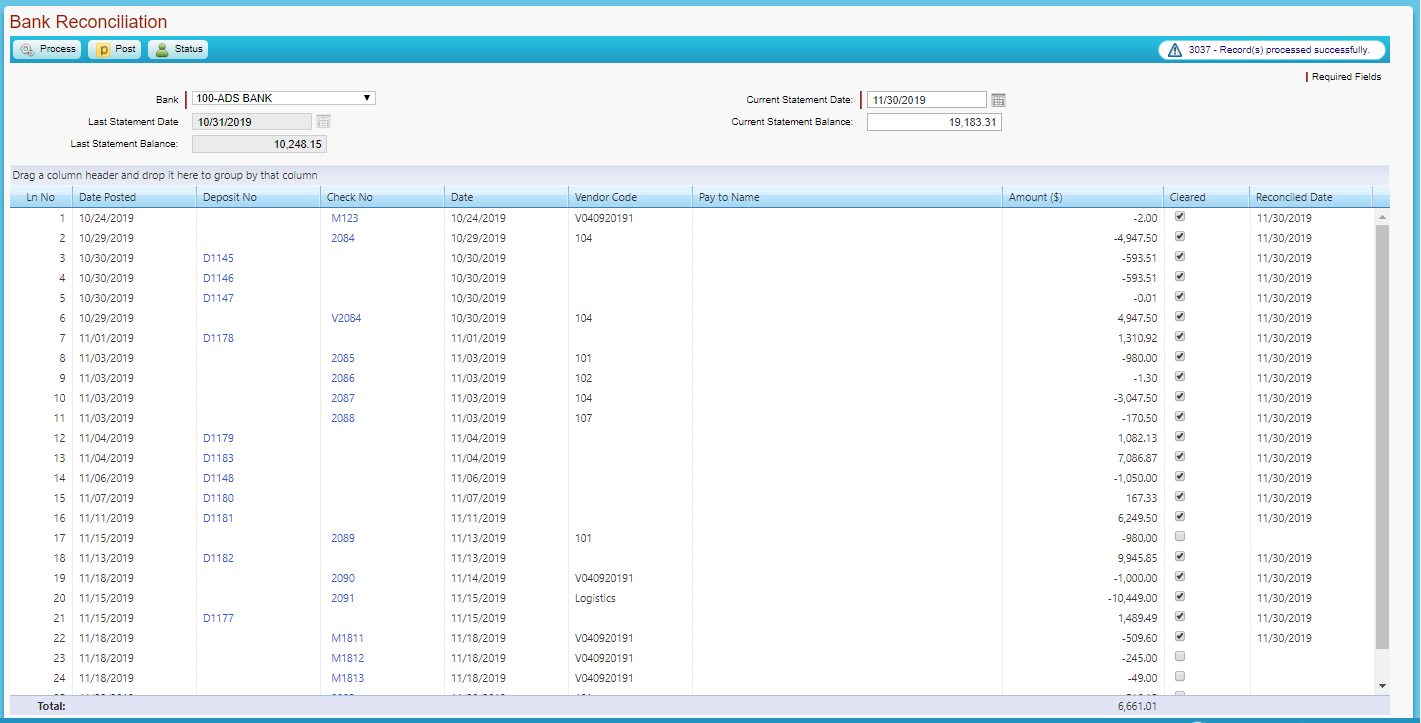
- Click Post to record starting Balance for next Bank Statement reconciliation

Bank Statement Reconciliation Reports
- Go to Reports Center to get the Bank Reconciliation reports
Reconciled Transactions Report
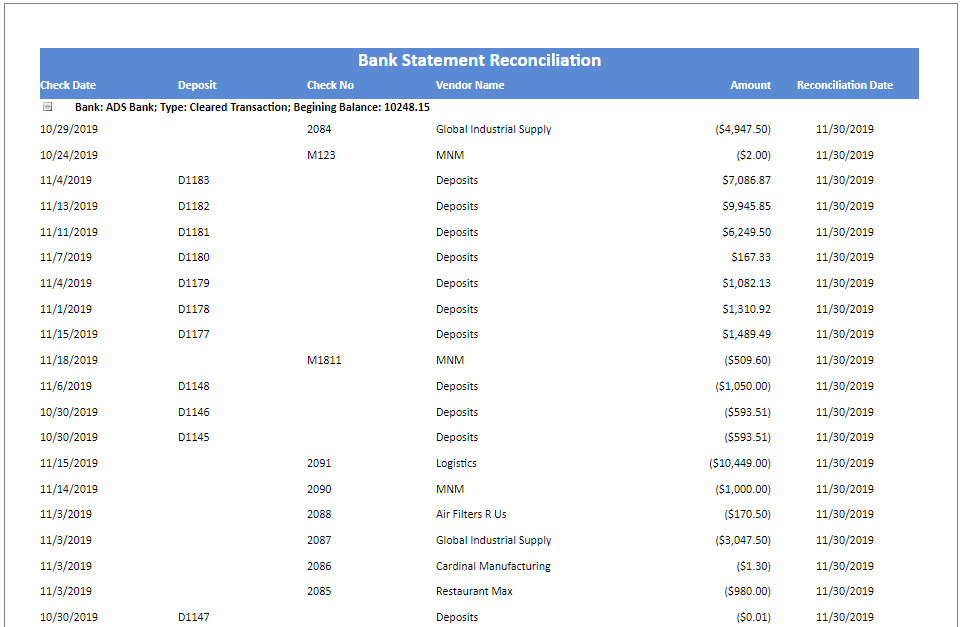
Outstanding Transactions Report