
Accolent ERP tracks Quotes, Orders, Fulfillments and Invoices reflecting the flow of a transaction through the business. Once a Quote is accepted, it can be moved to an Order. Similarly, once the Order is released to the warehouse it can be moved to Fulfillment and once the Order is fulfilled and confirmed as shipped, it can be moved to Invoice.
Create and Save an Order
- Either move a quote to an order or create an order.
- To create an order, go to Sales > Orders > Create Order.
- Create order 65894.
- Enter Bill-To and Ship-To Customer and all the header fields should populate from the customer record.
- Then add product lines.
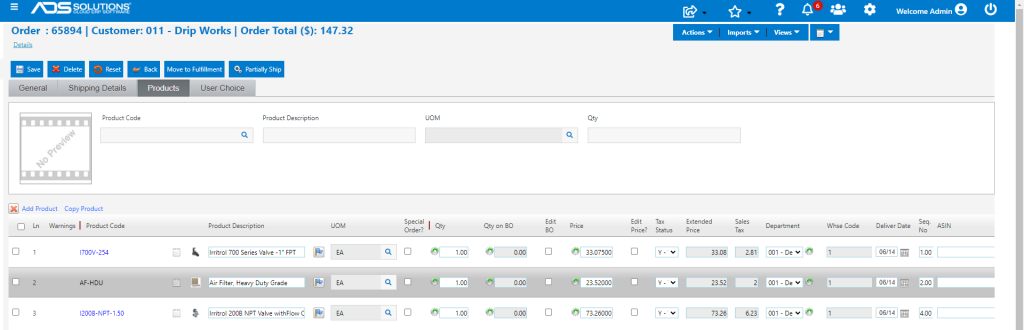
- Any product quantities that are unavailable to be shipped will be shown in the Qty on BO column.
- Depending on the Customer settings back orders will be created for the unavailable products after fulfillment when the order is moved from fulfillment to invoice.
- There are options to also fill unavailable quantities from other warehouses.
- When done, save the record as an order by clicking on the Save button or click on the Move to Fulfillment button.
Move Order to Fulfillment
- When the Move to Fulfillment button is clicked, the order will be moved to fulfillment.
- The user will be redirected to the List Fulfillments screen.
- Depending on the settings, a Pick Ticket may be printed automatically or manually once the order is in fulfillment.
- There are also options to auto email a priced Pick Ticket (also referred to as a Delivery Invoice or a Proforma Invoice) as a customer PO acknowledgement.
- From the List Fulfillments screen, the order may be picked, packed and shipped to the customer.
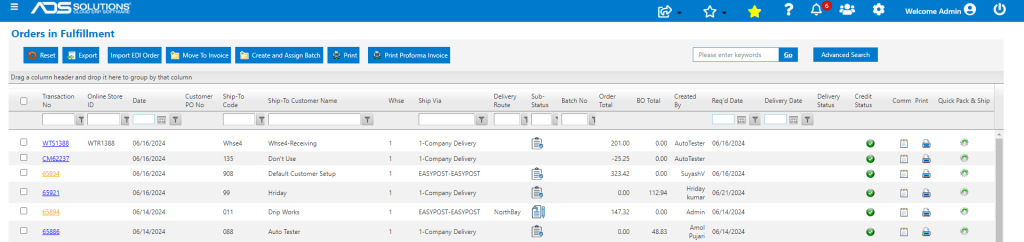
- Once fulfilled, the order may be billed by clocking on Move to Invoice.
Moving an Order in Fulfillment back to an Order
- To move an order in fulfillment back to order status, go to Sales > Orders > Manage Orders > Move Shipping Back to Order.
- Enter the order number to populate all the other fields.
- Then click the Save button to move the record back to order status.
- The order will be able to be found on the List Orders screen.
