
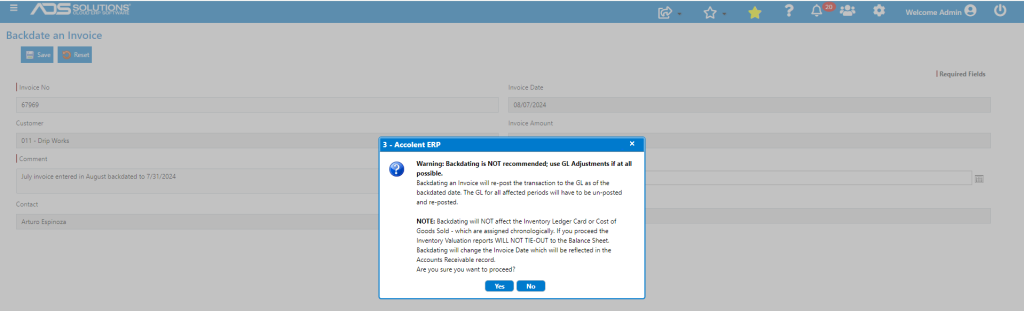
When an order is shipped and the invoice created, the revenue recognition process is deemed completed for US GAAP purposes. At this point, the revenue is recognized, the AR record created, the Average Cost assigned to the products on the order, the Average Cost table updated, the COGS computed, the inventory quantities reduced, and the transaction posted to the General Ledger. Because Average Costs and inventory quantities are assigned in strict chronological sequence, any backdating of the invoice could potentially create issues. Redoing the calculation of Average Costs and Inventory quantities is neither practical nor desirable as all financial records subsequent to the backdated date would change, perhaps meaningfully. Accordingly, it is strongly recommended that backdating of invoices be avoided. If there are legitimate reasons to backdate invoices, Accolent ERP does provide a way for users to backdate invoices – but this should be used sparingly. Any backdating may mean that GL reports may be difficult to tie-out. By deciding nonetheless to proceed, a user assumes full responsibility for this.
GL Posting of Invoices
- When an Invoice is created, the revenue recognition process is deemed completed for US GAAP purposes.
- The transaction is then posted to the GL, which causes:
- The revenue to be recognized and the AR record created;
- The Average Cost to be assigned and the COGS computed; and
- The inventory quantities to be reduced.
Effect of Backdating of an Invoice
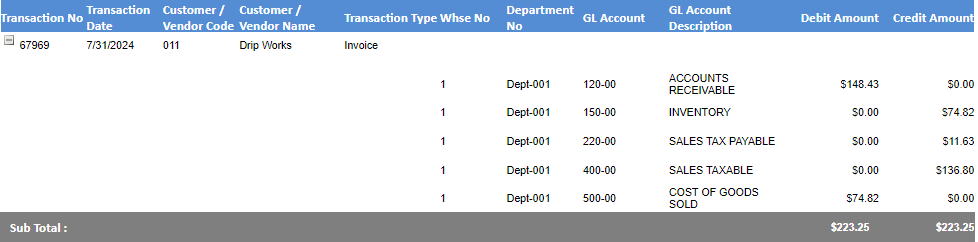
- The effect of the backdating is to remove the original GL Posting and make the same posting as of the backdated date.
- The inventory Ledger Card and Average Cost history are unaffected.
- As a result of the backdating, GL reports, in particular, the Inventory Valuation report and Balance Sheet will be off until you get back to the original invoice date.
Backdating an Invoice
- Although not recommended, if an Invoice has not been paid, it may be backdated.
- To backdate an invoice, go to General Ledger > Manage General Ledger > Backdate Transaction.
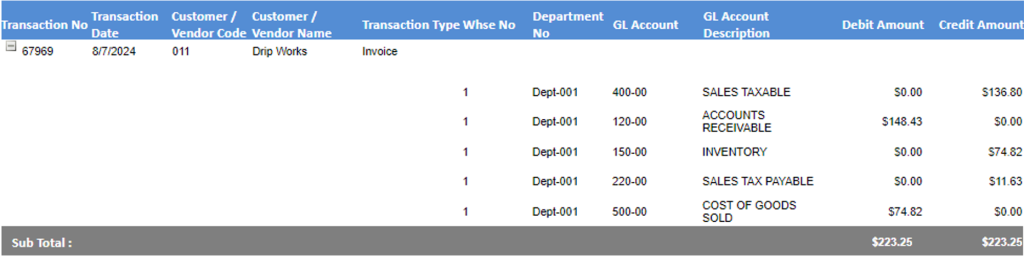
- This is GL Posting for Invoice 67969.
- Now go to General Ledger > Manage General Ledger > Backdate Transaction.
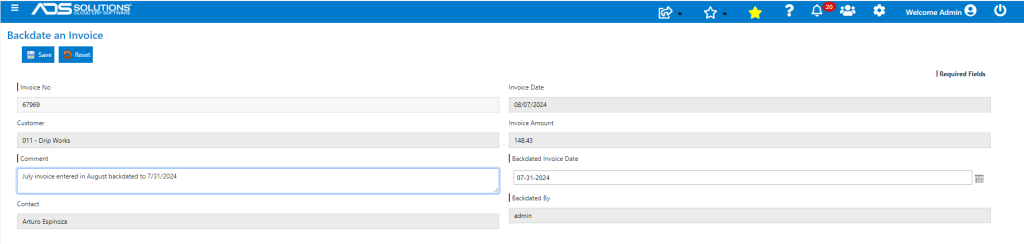
- Select Invoice 67969 to backdate from 8/7/2024 to 7/31/2024, then Save.
- A pop-up will warn the user of the consequences, click Yes to proceed.
- If successful, a message will be displayed to this effect.
- Look up the new GL Posting, which is the same as the original posting but now dated 7/31/24.
- The system will automatically update the balances after a back-dated transaction – no action is required from the user to effect this.
Ledger Card and Average Cost
- The Ledger Card for 18JP1000V continues to show the transaction as of 8/7/2024.
- However, it can be seen that the invoice was backdated to 7/31/2024.

- Similarly, the Average Cost history for this product continues to show that transaction on 8/7/2024.

AR Aging Impact
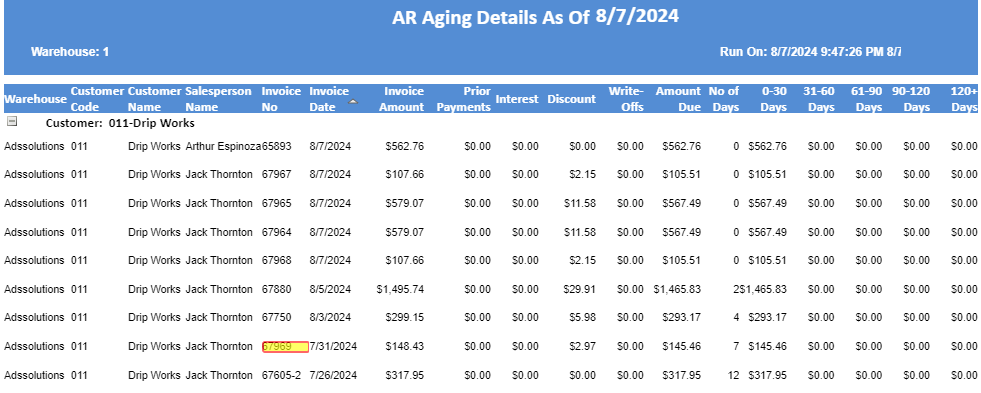
- The date of the Invoice was actually changed and so the AR Aging will now show the transaction as of 7/31/2024, the backdated date.
Backdating Paid Invoices
- Invoices that have already been paid cannot be backdated; the system will give a message to that effect.
- If the invoice must be backdated, the payment will first have to be reversed.
- Then after the payment has been removed, the invoice may be backdated.