
Accolent ERP tracks Quotes, Orders, Fulfillments and Invoices reflecting the flow of a transaction through the business. Once a Quote is accepted, it can be moved to an Order. Similarly, once the Order is released to the warehouse it can be moved to Fulfillment and once the Order is fulfilled and confirmed as shipped, it can be moved to Invoice.
Create and Save an Order in Fulfillment
- Select Sales > Fulfillment > List Fulfillments.
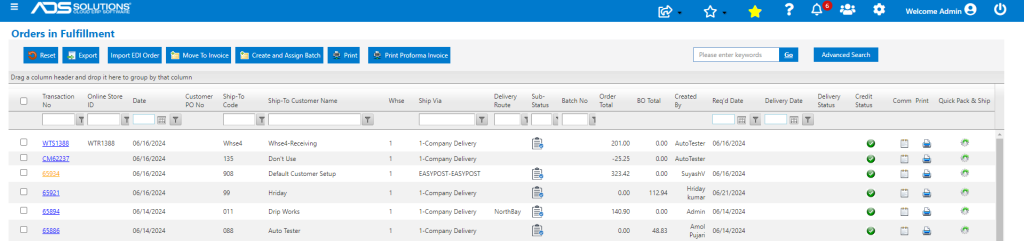
- Select order 65894 to process.
- The Fulfillment process includes the standard picking, packing and shipping operations.
- These fulfillment operations can be performed individually by order or as batch processes.
- Fulfillment sub-statuses for Ready to Pick, Pick Printed, In Picking, Picked, Packed and Shipped are available to manage orders through these sequential steps.
Picking
- The Pick Ticket can be auto printed when the order is moved to fulfillment, or it can be manually printed from the List Fulfillments screen.
- The order may be picked individually or as part of a batch or using the wireless WMS system.
- A specific picker and path through the warehouse may be assigned if desired.
- Once the order is picked, order 65894 can be opened and the item quantities that can be shipped may be entered.
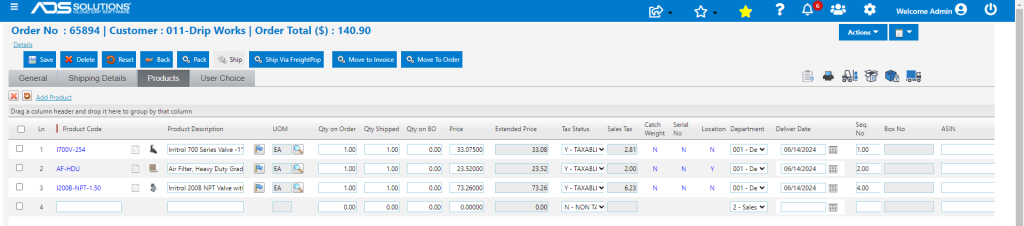
- Items that are not available to be shipped may be back ordered.
- The back order, if necessary, will be created when the order is moved from Fulfillment to Invoice.
- If desired the order may be Packed and Shipped, or these processes can be skipped and the freight charges entered manually.
Packing
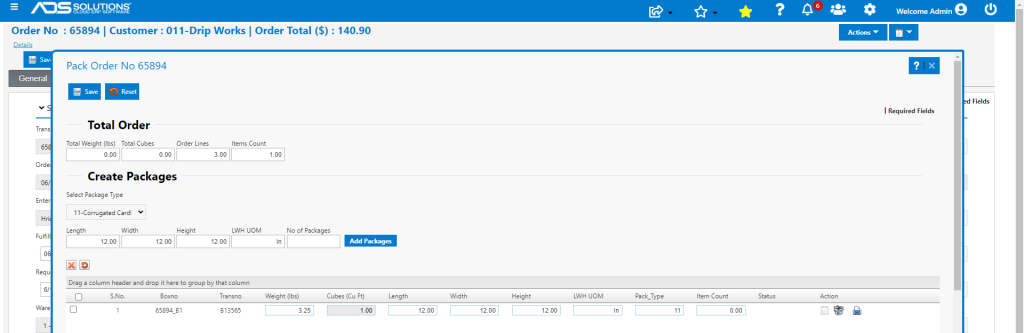
- Using the Pack screen, the items to be shipped may be packed in one or more boxes.
- Packing lists can be printed for each box and included.
- There is also a Quick Pack and Ship capability designed for single box orders that can be accessed directly from the List Fulfillments screen.
Shipping
- When the order is packed (i.e., boxed) the order may be shipped.
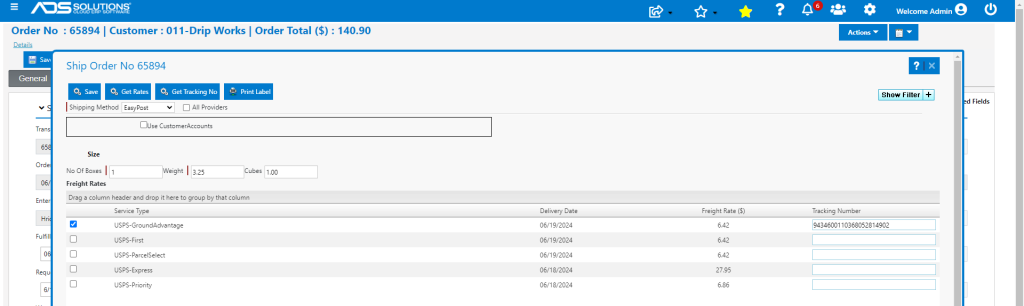
- Using the Ship screen, a shipping carrier and service may be selected.
- Then the freight charges may be determined, tracking numbers obtained and shipping labels printed.
- LTL, FTL, Air and other shipping options are also available through a full integration of Accolent ERP with FreightPOP, a leading TMS system.
Move Order in Fulfillment to Invoice
- When done click on the Move to Invoice button.
- The Order will move to Invoice and redirect to the List Invoices screen.
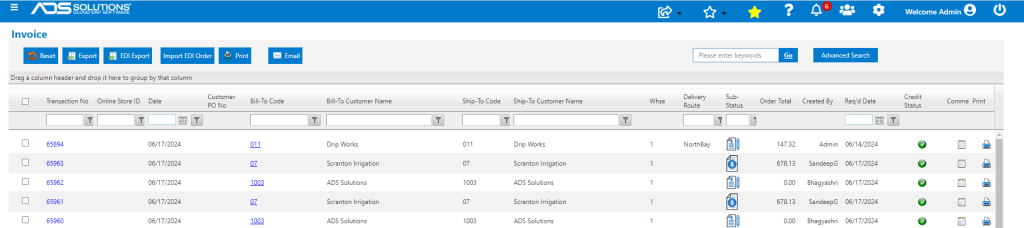
- Once invoiced there are several further sub-statuses available to designate orders Invoiced, Sent to Customer, and Paid.
- Invoices may be automatically sent to customers or printed manually and emailed.
- Invoices can be sent one at a time or by selecting multiple to send.
Moving an Invoice back to a Fulfillment or Order
- To move an Invoice back to a Fulfillment or Order, go to Sales > Orders > Manage Orders > Move Invoice Back to Order.
- Enter the transaction and select where it is to be moved.
- Click Save to move the transaction as selected.
