
Special Pricing is applied on top of the other product discount schemes but not on top of Contracts and Promotional Pricing. Special Pricing for a customer may be set up for specific products, or by specific categories, or to give an overall discount. When a customer has multiple Special Pricing discounts, only one will be applied to each order line in the priority of product, category or overall discount. Special Pricing profiles may be shared between multiple customers.
Entering Special Pricing
- Select a customer then Actions > Special Pricing.
- Special pricing is added to the discounted price that has been calculated after all other pricing discounts have been calculated, except Contract Pricing and Promotional Pricing.
- Special Pricing may work as an extra incentive, or it may be the only discount on a customer.
- From the Special Pricing menu, user can enter specific product codes, specific categories or give an overall discount. Note that for each line only one of these will be applied, either the product discount, or the category discount or the overall discount in that order.
- Special Pricing discount profile for a customer can be created and shared with other customers.
Special Pricing by Product
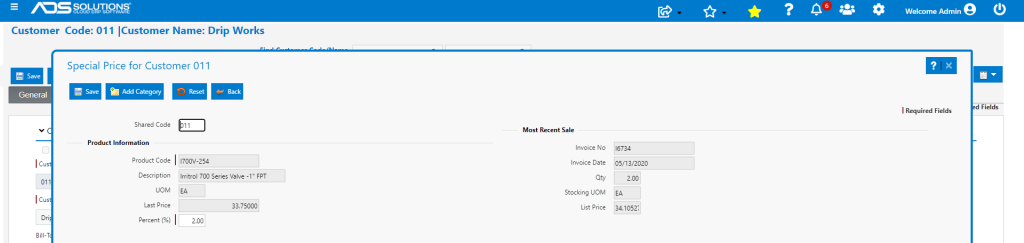
- To set up Special Pricing by product, click on the Add button.
- Enter or select a Product Code, then enter the Discount percent.
Special Price by Category
- To set up Special Prices by Category click on the Add button then on the Add Category button.
- Enter or select the Category and enter the Discount percent.

Overall Special Pricing
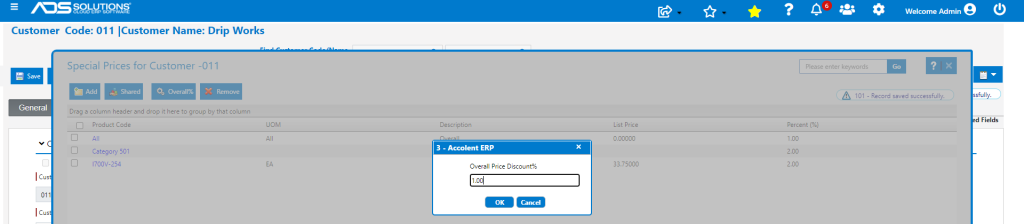
- To set up an Overall Special Pricing discount, go to Actions > Special Pricing then click on the Overall % button.
- Enter an Overall Discount percent of 1.00%.
Create Order
- This is now the Special Pricing set up on Customer 011.

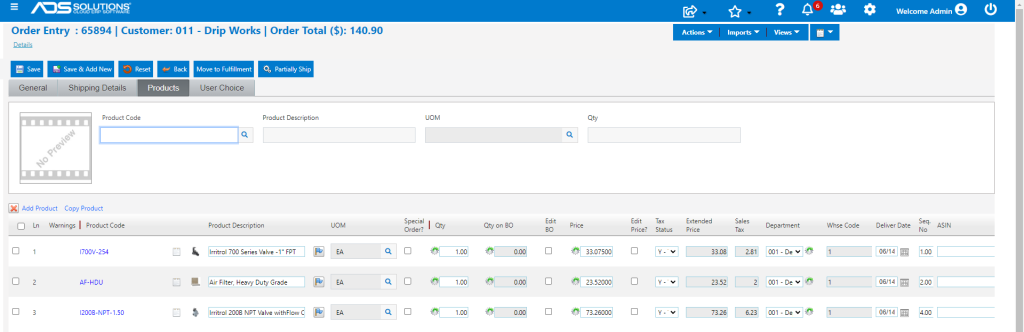
- Create order 65894 for Customer 011.
- Add product I700V-254 and this get the Product Special Pricing discounts of 2% on List Price of $33.75 – so net price is $33.075.
- Add products AF-HDU in category 501, which gets the Category Special Pricing discount of 2% on List Price of $24.00 – so net price is $23.52.
- Add product I200B-NPT-1.50 – this only qualifies for the Overall Pricing discount on List Price of $74.00 – so net price is $73.26.
- If a customer has multiple Special Pricing discounts by product, by category and an overall discount, only one discount will be applied to each order line. The Special Pricing discounts will be applied first by product, then by category then the overall discount.
Shared Special Pricing Profile
- Go to Customer 011 and go to Actions > Special Pricing.
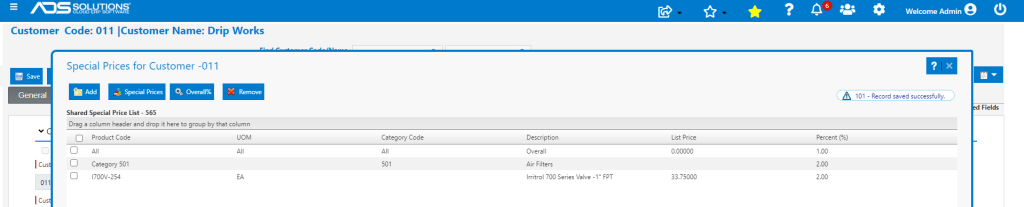
- This pulls up the Special Pricing profile for this customer which shows all the product, category and overall discounts that have been set up.
- To set up this as a Shared Special Prices profile click on the Shared button.
- Then name the Shared Special Price List profile (e.g., 565).
- When saved, the Shared Special Price List appears at the top of the grid.
Copy Special Pricing Profile to Another Customer
- Then go to the Customer to share the profile with e.g., 120123 click Shared and enter the Shared Special Price List profile 565.
- Pulls up the Shared Special Price List profile on Customer 120123.

- This will replicate the Special Pricing profile of Customer 011 on Customer 120123.
- To remove the special Pricing Profile use the Remove button.