
Accolent ERP offers several options for printing Payment Receipts in connection with Immediate Invoices. To print Payment Receipts for Immediate Invoices automatically when payment is taken, set this up in the System Configuration. Then when payment is taken for the Immediate Invoice, the Payment Receipt will automatically print to the default printer set up for Payment Receipts. The Auto Printing System Configuration setting can be overridden on any particular transaction.
Set System Setting
- Go to Settings > System > System Configuration, set Config ID 115 to “Y”.
- This setting determines how the Auto Print Payment Receipts function defaults.
- A setting of “Y” means that Payment Receipts on Immediate Invoices will automatically print to the Payment Receipts printer whenever the payment is taken.
- To turn off automatic printing of Immediate Invoices, change the Config ID 115 setting to “N”.

Set Up Printer Defaults
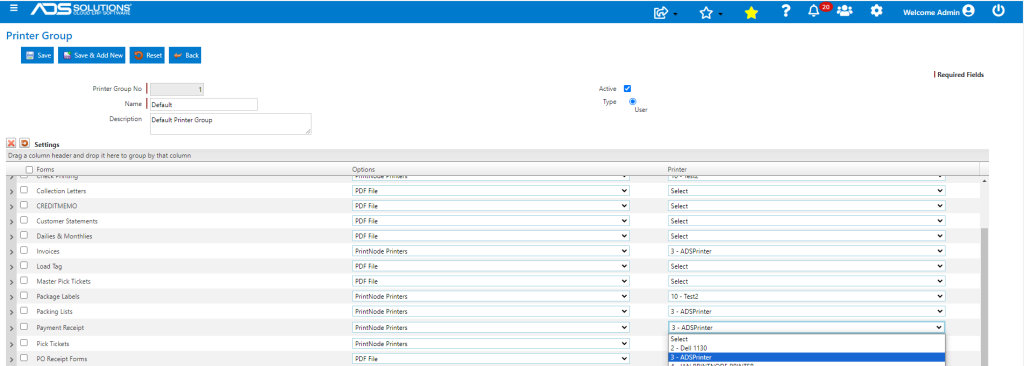
- Go to Settings > Printing & Sending > Printer Groups, select Printer Group.
- Set the Printer for Payment Receipts.
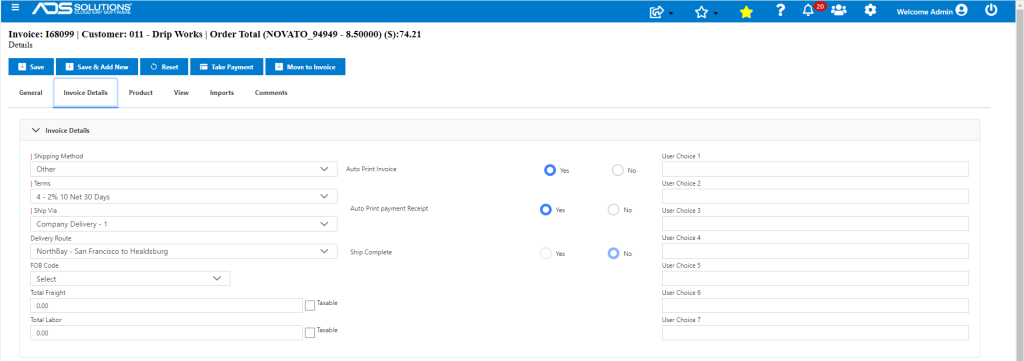
Entering an Immediate Invoice
- Since the setting is to automatically print Payment Receipts, the Auto Print Payment Receipts radio button on the screen will default to Yes.
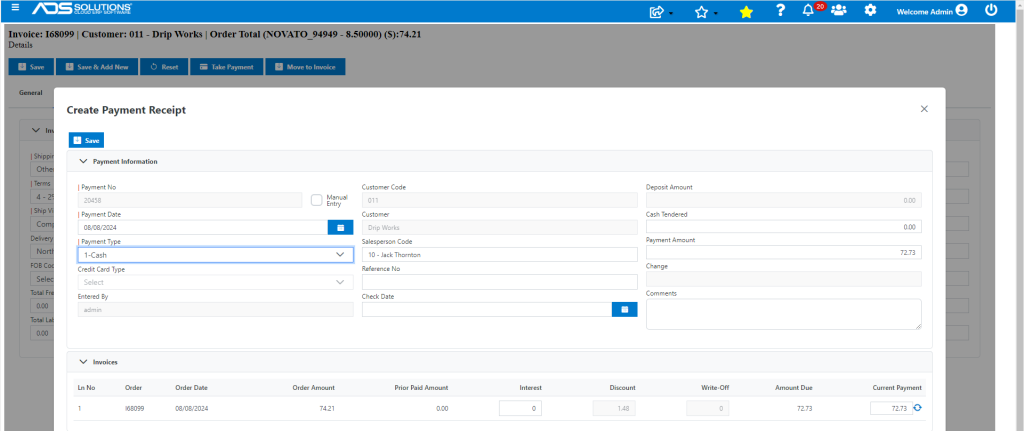
Collecting Payment
- When an Immediate Invoice is entered, click on Take Payment to open the virtual terminal to take the payment.
- If Config ID 99 is set to “Y” to always require payment on Immediate Invoices, the user will be required to collect payment in order to complete the transaction.
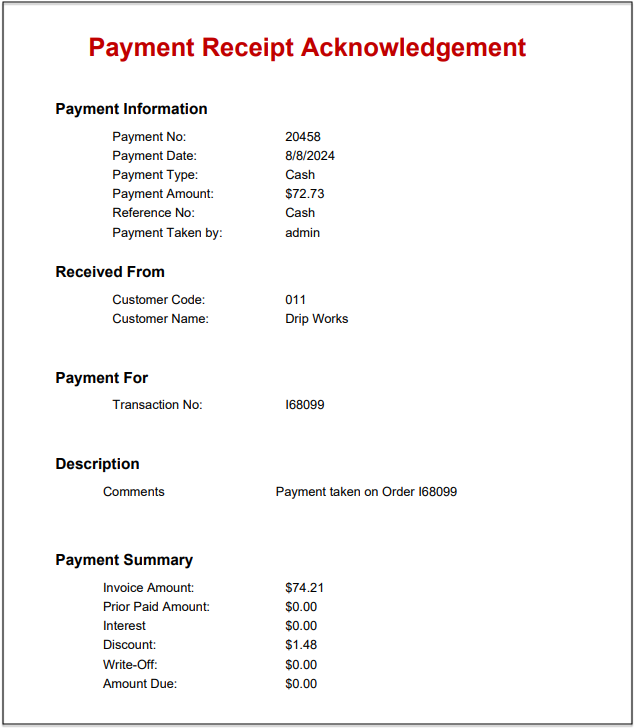
- When a payment is taken, the Payment Receipt Acknowledgement will automatically print to the printer set up for Payment Receipts.
- To stop automatic printing of the Immediate Invoice on any particular transaction, change the radio button setting for that transaction.
- To turn off automatic printing of Payment Receipts for Immediate Invoices, change the Config ID 115 setting to “N”.