
Accolent ERP allows distributors to obtain quotes from multiple vendors on products that can be multi-sourced. Using the Request for Quotation (RFQ) functionality, users can optimize prices and terms for these products. It also allows users to facilitate multi-sourcing, vendor/supplier diversity and reduces exposure to Supply Chain blockages. In addition, it supports business models in which a distributor first acquires the order and then sources and purchases or drop ships the products to fill the order. To use the RFQ system, users first create the list of vendors, then send an RFQ list of products to these vendors. Vendors can respond with quoted pricing and lead times and the system allows selection of the winning vendor for each line item. POs can be automatically created for the winning vendor(s).
Create RFQ
- The RFQ process consists of the following steps:
- Start an RFQ for a selected warehouse,
- Enter list of products to get quotes on,
- Enter list of vendors to be asked to quote,
- Update RFQ with vendors’ responses as these are received,
- Select one or more vendors as winners and create POs, and
- Update Vendor History table if desired.
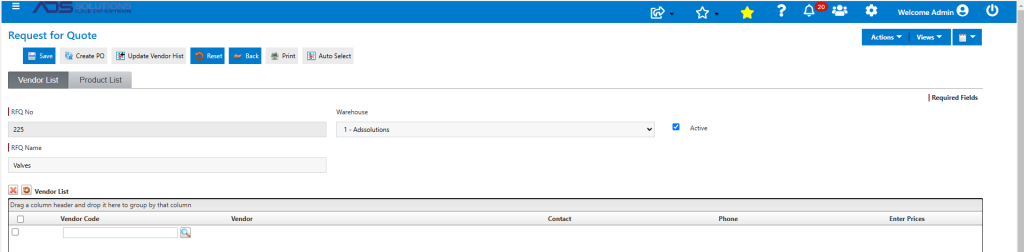
- Go to Purchasing/Vendors > List RFQ, select an existing RFQ or click New to create an RFQ.
- Enter the RFQ Name and Warehouse.
- At this point, either enter vendors or go to the products tab and add products list first.
Enter Products
- On the Product List tab either import or manually enter products.
Import Products
- From Actions, select Product Import from the dropdown options.
- For: Select whether to import products into the RFQ from a Quote, Order, Shipment, Invoice, Back Order, or PO.
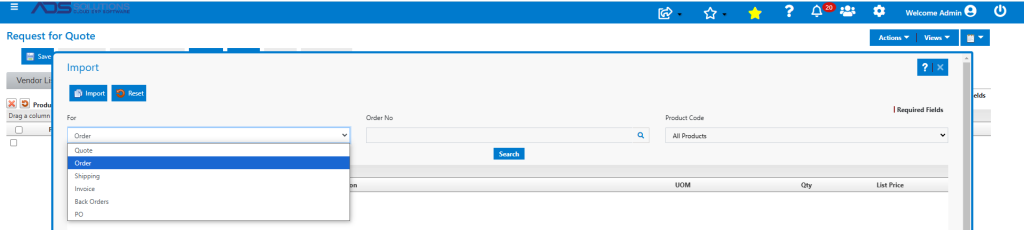
- Transaction No: Enter or look up transaction corresponding to transaction type selection made.
- Product Code: Select from All Products or SPO Products only.
Manually Enter Products
- Users can import products and then manually add further products.
- Manually enter products onto the RFQ.
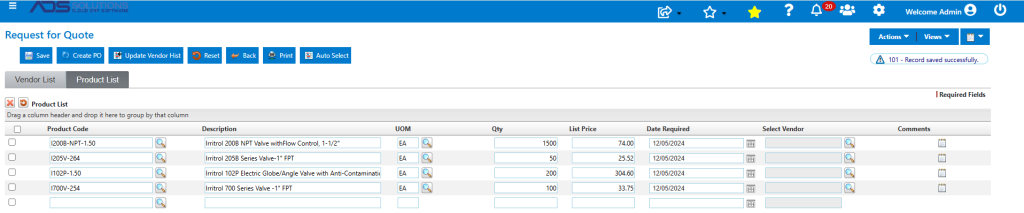
- Use the Actions > Special Instructions to import or add special instructions to the RFQ.
Enter Vendors
- Go back to the Vendor List tab to either import or manually enter vendors.
Import Vendors
- From Actions, select Vendor Import from the dropdown options.
- Vendor Options: Select only Primary Vendors or Primary and Alternate Vendor for Products on the RFQ.

Manually Enter Vendors
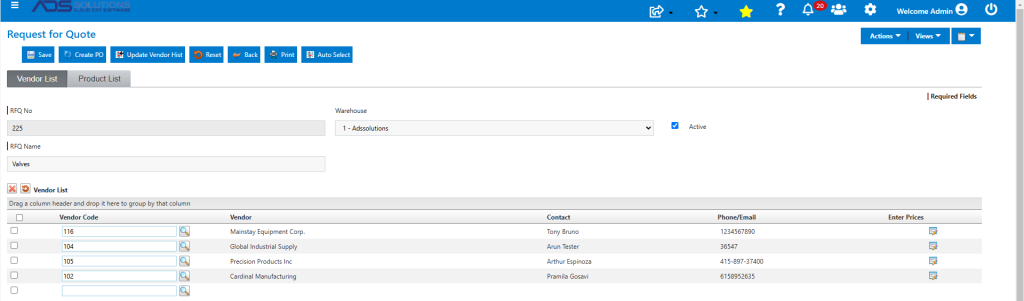
- Users can use the import and manually add vendors as well.
- Manually create a list of vendors to whom to send the RFQ to.
Send to Vendors
- Now that Products and Vendors have been entered, Save the RFQ.
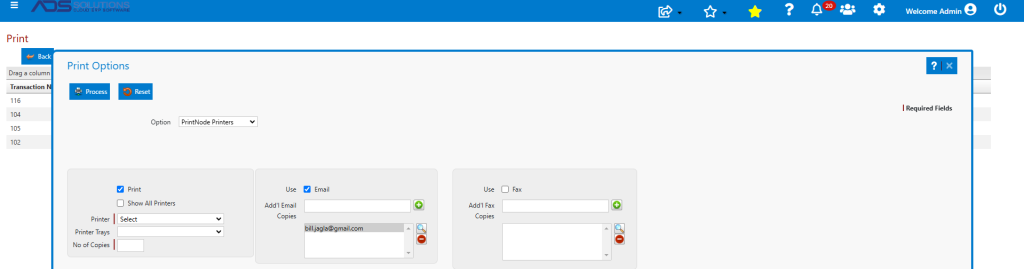
- To send the RFQ, select the Vendors to send to, then click Print to print the RFQ form.
- If the email/fax defaults have been set up, clicking on the Print icon will offer the option to also automatically email/fax to the selected Vendor contacts.

- For example, for Vendor 104:
Record Vendors’ Responses
- To record vendors’ responses, open the RFQ.
- From the Vendors List tab, click on the Enter Prices notepad icon against a particular vendor to enter that vendor’s quote.
- Enter quoted price, freight and lead time. NOTE – Freight should be recorded on a per unit quantity basis.
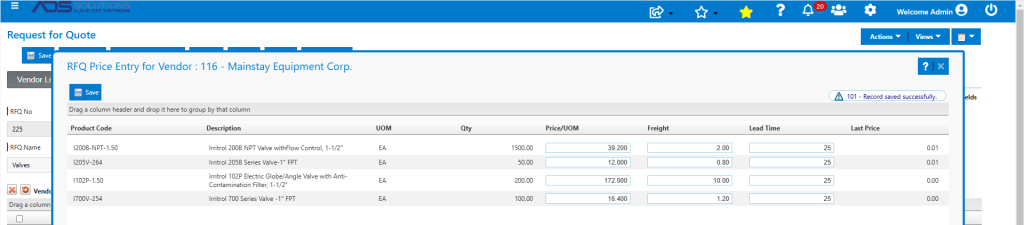
- Record responses as they come in and Save.
Select the Winning Vendor for Each Product
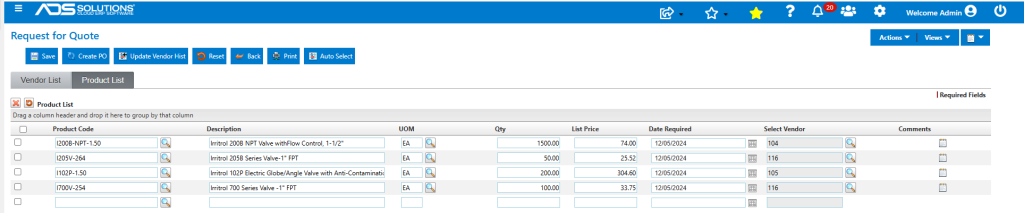
- Go to the Products List tab.
- For each line item on the RFQ, click on the Select Vendor lookup button to see all responses from RFQ Vendors for that product.
- Based on quoted price, freight and lead time, select the vendor for that RFQ line item.
- To automatically select the winning vendor based only on price, click Auto Select.
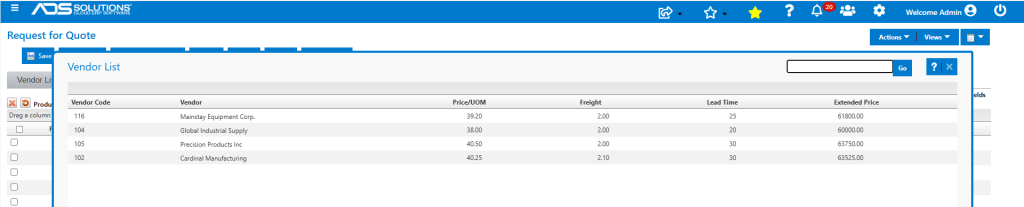
- For example, for the first line item Product Code I200B-NPT-1.50, click on the second row to select vendor 104 – Global Industrial Supply, which has the lowest quoted price and best delivery time.
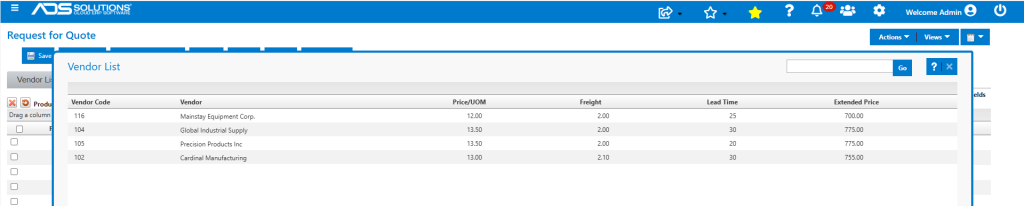
- For the second line item, select vendor 116 – Mainstay Equipment Corp., which has the lowest quoted price and second lowest delivery time.
- For the third line item, vendor 105-Precision Products has the lowest price but a long delivery time.
- Select vendor 116-Mainstay Equipment Corp. instead, which has the next lowest price but much better delivery times.

- For the fourth line item select vendor 116 – Mainstay Equipment Corp., which has the lowest price.

- The overall Vendor Selections are Vendor 104 for Product I200B-NPT-1.50, and Vendor 116 for Products I205V-264; I102P-1.50, and I700V-254.
Create POs for Selected Vendors
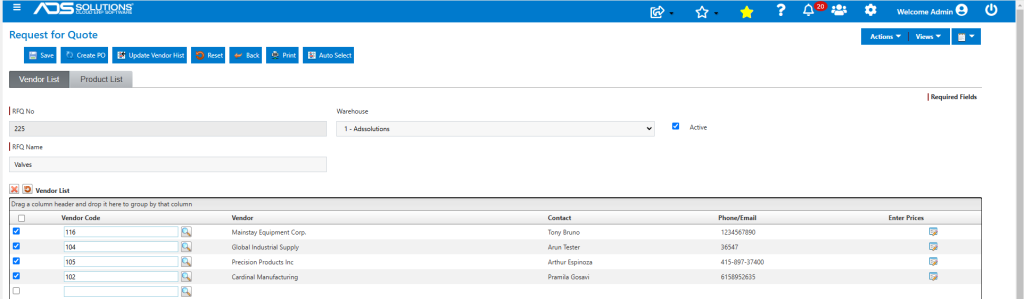
- On the Vendor List tab, select the winning vendors.
- Then click the Create PO button and get the message that 2 POs were successfully created.
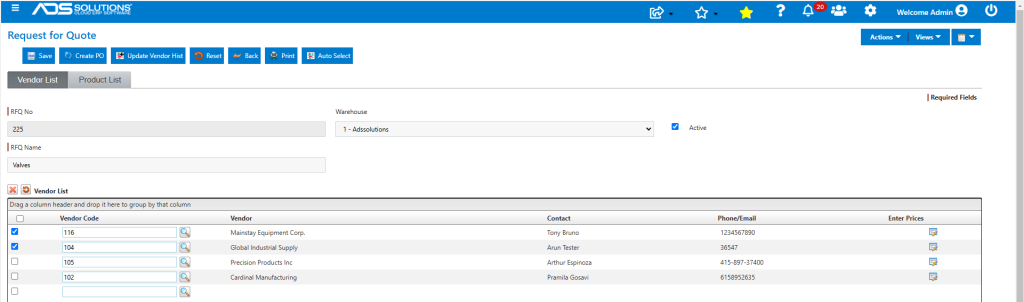
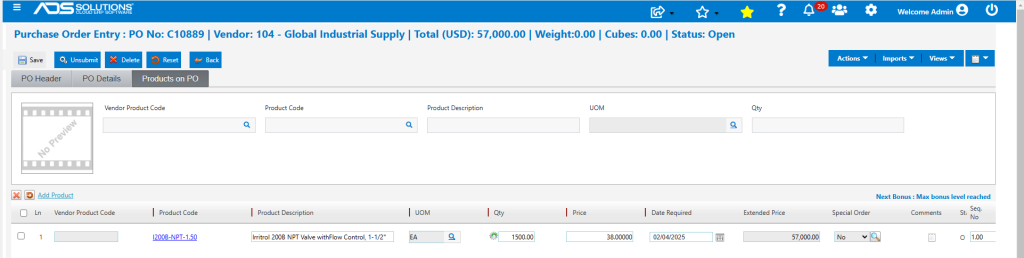
- Created PO No C10889 to Vendor 104-Global Industrial Supply for line 1, Product Code I200B-NPT-1.50.
- Click Submit to send the PO No C10889 to the Vendor.
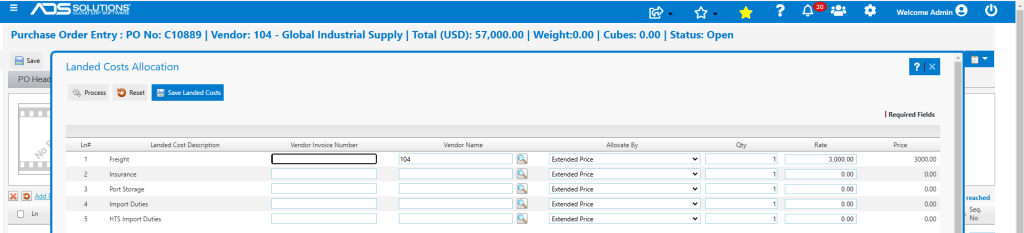
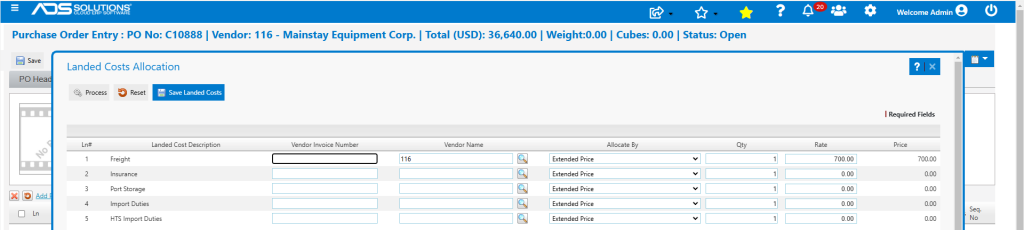
- To record the freight cost of $3,000 which will be paid by the vendor, click on Actions > Landed Cost, enter Freight Cost and click Save Landed Costs.
- Also created PO No C10888 for Vendor 116–Mainstay Equipment Corp. for line items 2, 3 and 4: Products I205V-264; I102P-1.50, and I700V-254.
- Submit the PO No C10888.
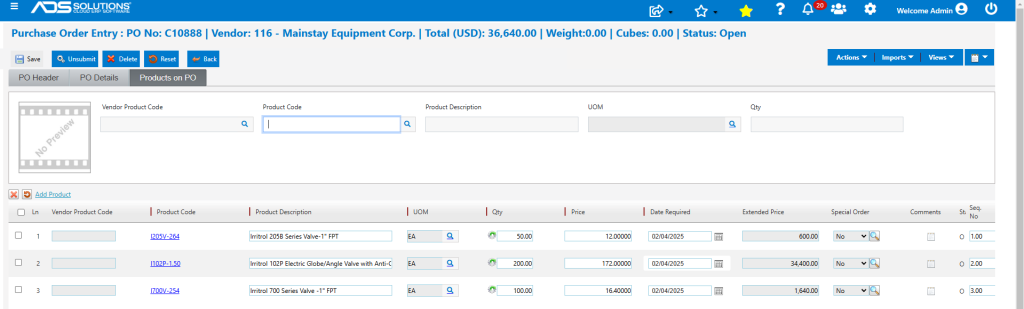
- Record a Landed Cost for the Freight of $700 which will be paid by the vendor.
Update Vendor History
- Select vendors and click on the Update Vendor History button to store the prices by vendor for each RFQ line item.
- Go to Product I200B-NPT-1.50 for example, and select Action > Vendor History.
- Shows all Vendors that participated in RFQ 225 with the prices and quantities quoted. This becomes a permanent record in the Vendor History.

- When the PO No C10889 is received, it will automatically update the Vendor History for this product.