Accolent ERP uses Value Lists to create sets of allowable values for various master and sub-master records. All Value Lists have their unique sets of information that must be created and set up before an allowable value from any particular Value List can be added to a master record.
Viewing a Value List
- Select Settings > Value Lists > Product Only Lists or Other Value Lists (A to L) and (M to Z).
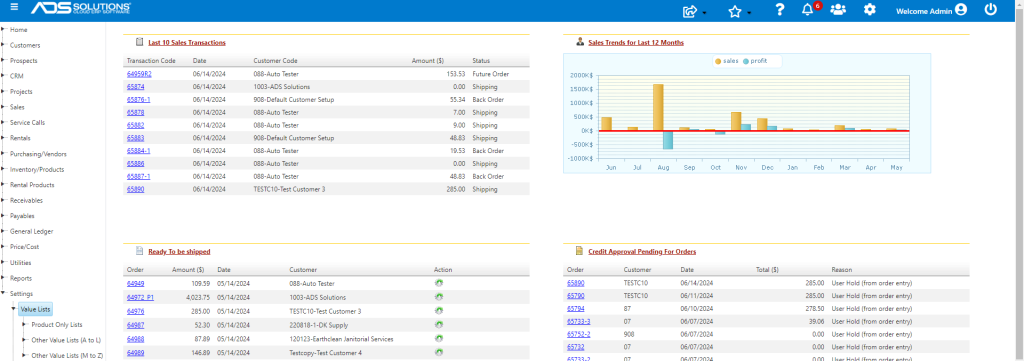
- If you choose Product Lists Only, expand the types choices.
- Select, for example, Categories.
- This will display the list of Categories set up in the system.

Editing an Existing Record
- The Category Code is a hyperlink; clicking on any hyperlink from the list screen will open the record.
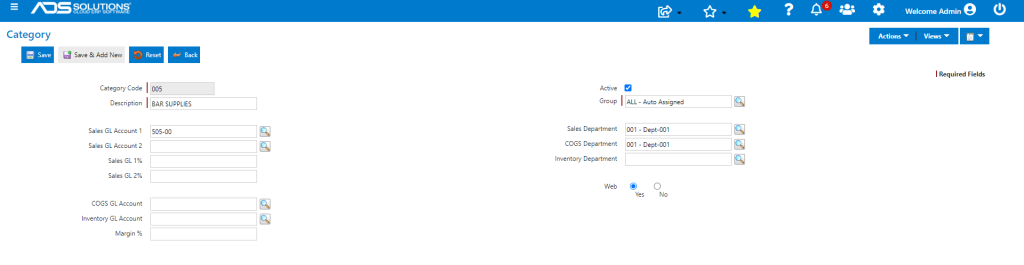
- For example, click on the hyperlink for Category Code 005 to open the record.
- Then you can edit the record as needed.
- You can specify Category GL and Department Overrides to the standard GL Postings if desired.
Adding a New Record
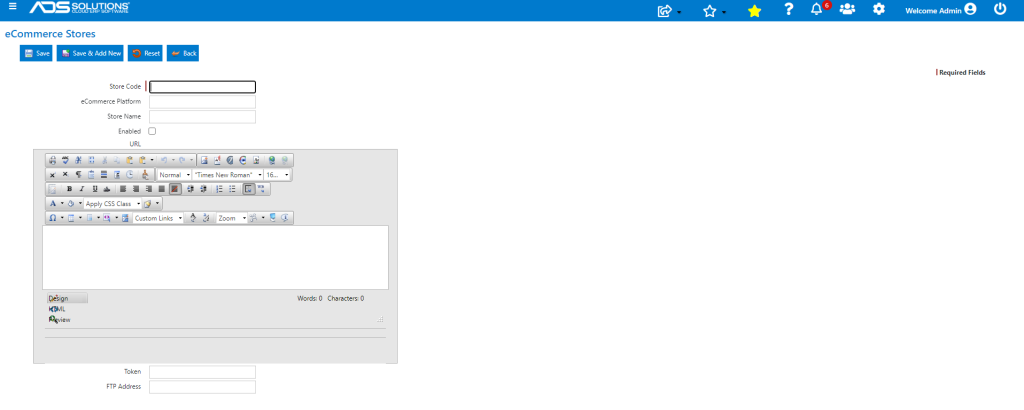
- If you wish to add a new record (e.g., a new eCommerce channel), select Settings > Value Lists > Other Value Lists (A – L) > eCommerce Stores.
- This will give you a list of the eCommerce Stores linked to the system.

- Click on the New button to add a new record.
- This brings up the entry screen for a new record.
- To create a new record, you must fill out at least the required fields (indicated by a red bar on the left hand side of the field).
- Click on the Save button to create or amend the record.