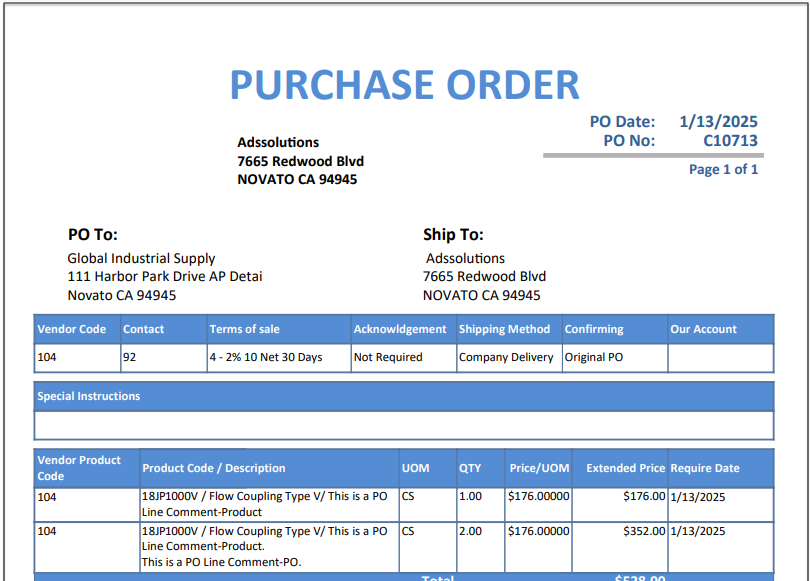
Accolent ERP allows the entry of comments relating to a specific product that will always appear when that product is specified on an order or PO (Purchase Order). These are referred to as Order Line Comments-Product or PO Line Comments-Product, indicating that they originate from the product. Similarly, comments may also be added directly to a product line on an order or PO. These are referred to as Order Line Comments-Order or PO Line Comments-PO, indicating that they are entered from the order or PO. In this case these comments will be specific to that product on that order or PO only. In both cases whether the comments are entered from the product or from the order/PO, they may be set to either print on all forms or to not be printed at all.
Order Line Comments
- Order Line Comments can be entered on products and orders and can be set to print on forms or not.
- If entered Order Line Comments will print on all forms (Quote, Work Order, Back Order, Pick Ticket, Pro Forma Invoice and Invoice).
- Click on the Internal checkbox if comments are not intended to print on any forms.
Order Line Comments-Product
- Order Line Comments-Product function as default comments that appear any time that product is put on a sales order.
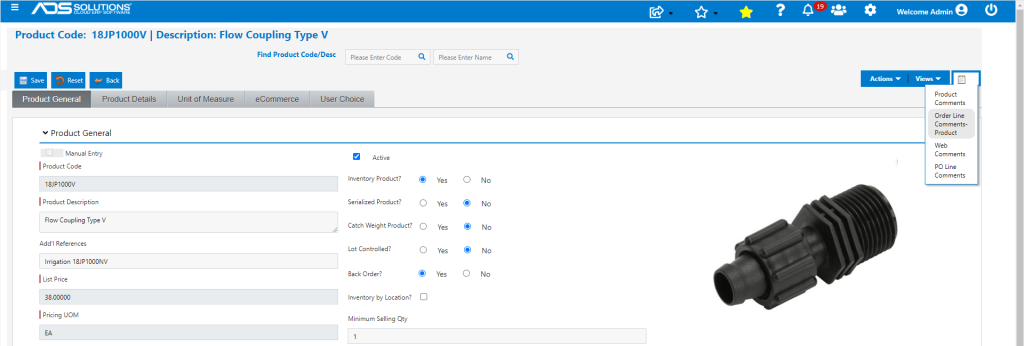
- To enter Order Line Comments-Product select the menu from the Comments menus on the product master record.
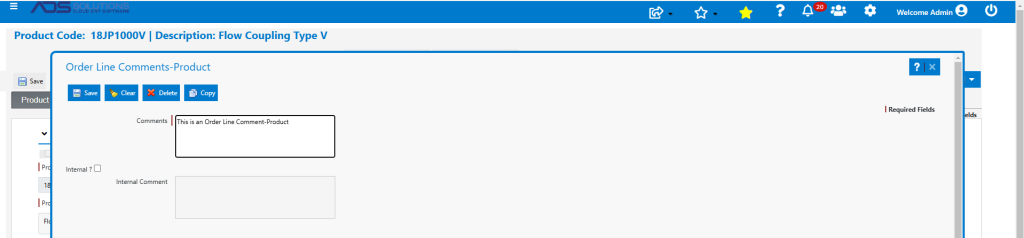
- Enter a comment on the Order Line Comments-Product screen.
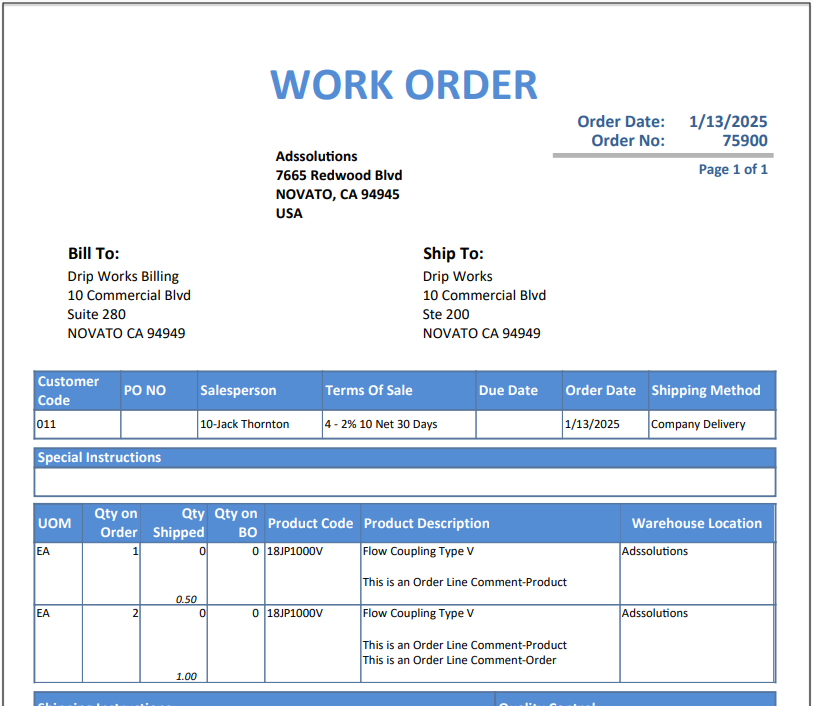
- On all forms where the product appears, the Order Line Comments-Product will print immediately under the Product Code/Description.
- Create order 75900, specify Product 18JP1000V on line 1 which has only the default Order Line Comments-Product.
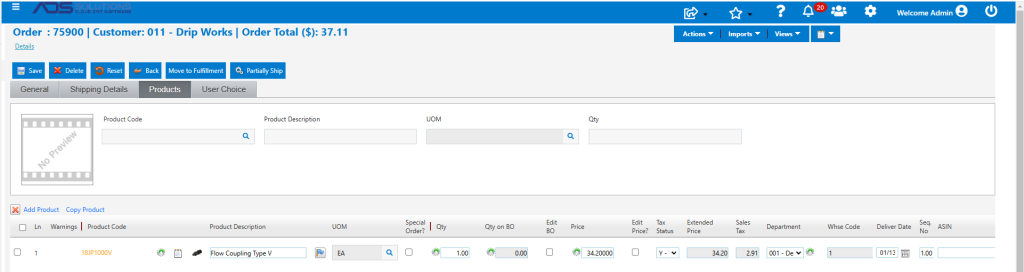
Order Line Comments-Order
- In addition to the default Order Line Comments-Product, on any order the default comments may be edited/removed and/or additional Order Line Comments-Order entered.
- Any Order Line Comments-Order that are entered will be specific to that order only.
- Enter the product on an order line and then use the Comments icon to the left of the product image to enter an Order Line Comment-Order.
- Add line 2 to order 75900 and again specify Product 18JP1000V, but for this line, enter additional Order Line Comments-Order.
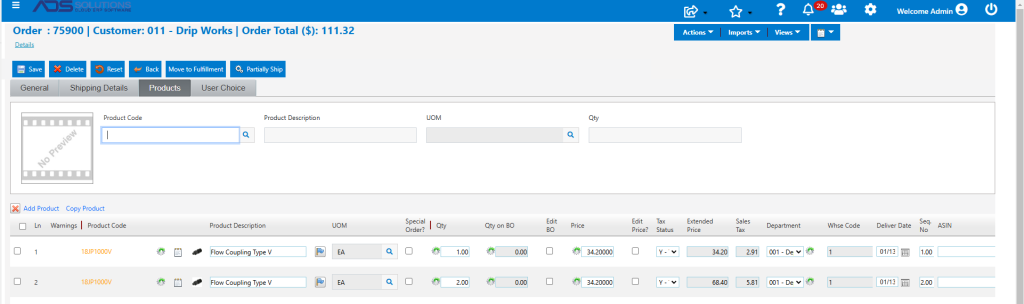
- On line 2 click on the Comments icon. The default Order Line Comments-PO appear and can be added to or modified.
- Add an Order Line Comments-Order comment.
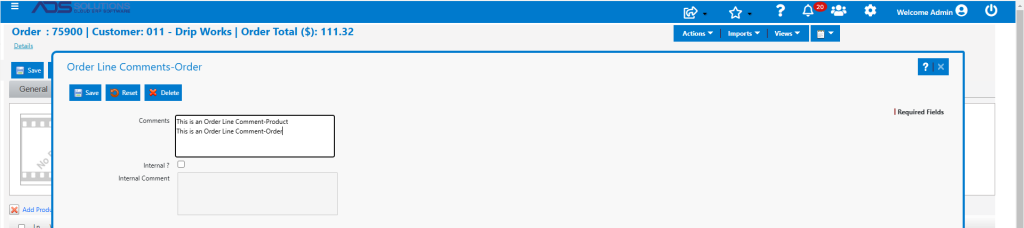
- Save the order and print the Work Order.
- On line 1, only the default Order Line Comments-Product print, while for line 2 both the Order Line Comments-Product and Order Line Comments-Order print.
PO Line Comments
- Just as with orders, PO Line Comments can be entered on products and POs and can be set to print on forms or not.
Purchase Order Line Comments-Product
- First set up the PO Line Comments-Product on the product master record.
- These comments will appear any time the product is put on a PO line.
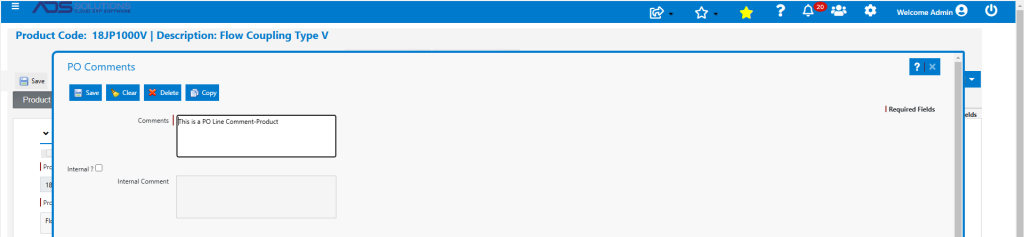
- Create PO C10713 and as before enter product 18JP1000V on 2 PO lines.
- On the first, just specify the default PO Line Comments-Product; on the second add PO Line Comments-PO using the Comments icon in the product line towards the right-hand side of the screen.
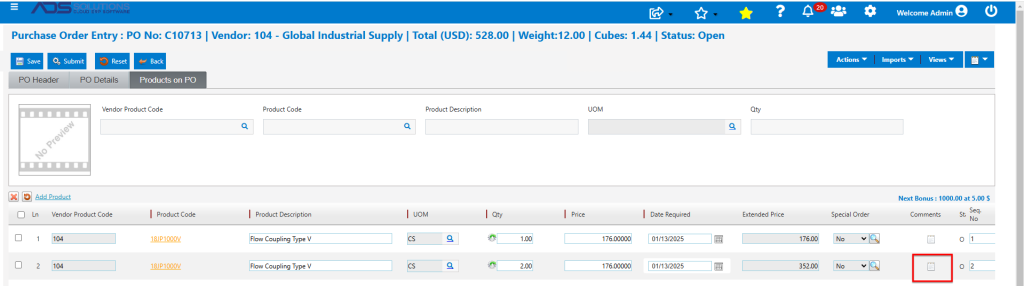
- These comments will be specific to that PO only.
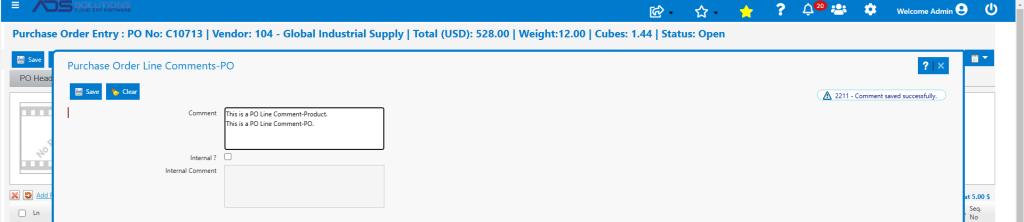
- Save the PO and print.