
Rebates, which are common in the Jan/San industry, are special cost reductions offered by a Vendor for the sale of specified products to a specific target Customer. The typical Purchasing Cost for the product reduced by the Rebate amount is referred to as Deviated Cost. The Rebate is recorded as a Contract linked to the target Customer. All sales under that Contract will be recorded and will create a Rebate Due equal to the amount of the Rebate multiplied by the Quantity Sold. The Rebates Due can then be periodically cliamed from the Vendor. Under US GAAP, Rebates are treated as reducing costs, rather than as discounts reducing sales.
Set up Product Subject to Rebate
- Look up Product Code PT001 – Tri-fold Paper Towels; sold in EA and CS (of 10 EA).
- Sold to Customers at List Price of EA of $100 and Price of CS of $980.
- Purchased from Vendor 102-Cardinal Manufacturing at Alternate Cost EA of $80, Standard Cost EA of $85.
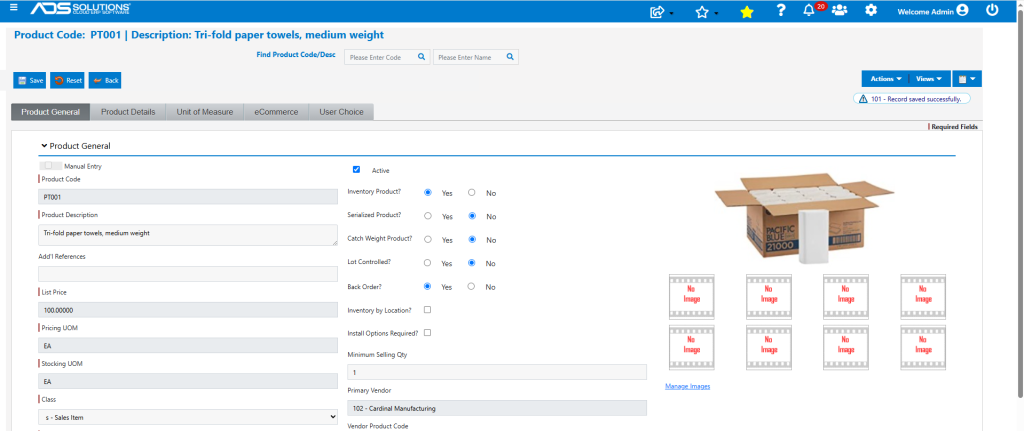
- Purchasing Cost is set on the Application Defaults V102-1, in this case, defined as Alternate Cost.
- Product previously purchased on PO No C11083 created an Average Cost of $80.00.
Set up Rebate Contract
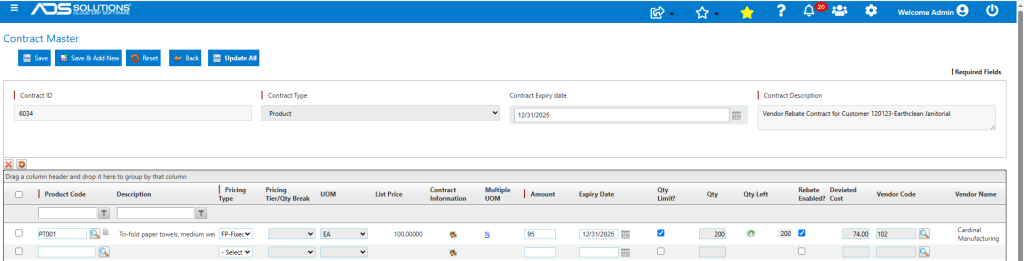
- Create a contract 6034 with Vendor 102 to sell PT001 to Customer 120123.
- Open Vendor 102, then go to Actions > End User Rebate Codes to record Vendor’s code EJS001 for Contract 6034.

- A Rebate contract is usually a Product-type contract.
- Enter the original Contract Qty of 200 EA, with an Expiry Date of 12/31/25.
- Enter the fixed sales price of $95.00/EA compared to the normal List Price of $100.00/EA.
- Enter the Deviated Cost offered by Vendor of $74.00/EA, compared to the normal Purchasing Cost of $80.00/EA.
- Rebate = Purchasing Cost – Deviated Cost = $80.00-$74.00 = $6.00.
Assign a GL Account for the Rebates Due from this Vendor
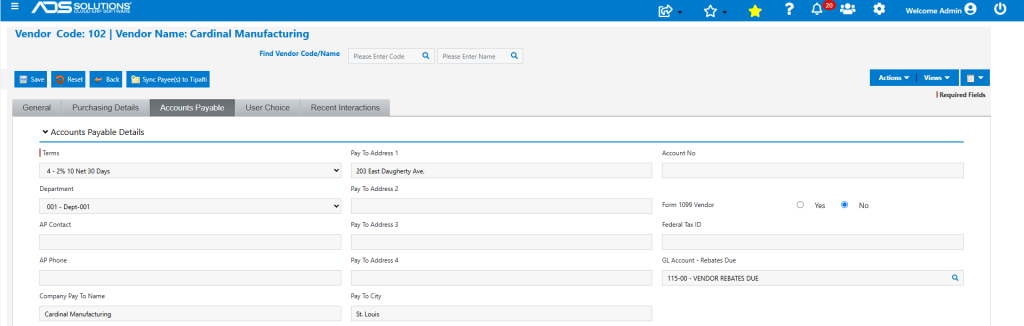
- The best practice is to create a separate Rebates Due GL Account for each Vendor – this facilitates easy tie-out.
- All such Rebates Due GL Accounts can be summed into a single Rebates Due Account Group and presented in aggregate on the financial statements.
- Record the Rebates Due GL Account on the Vendor’s Accounts Payable tab.
Assign the Rebate Contract to Customer
- Open the Customer 120123-Earthclean Janitorial that is the target for the rebate contract.
- Go to Actions > Customer Contract link to assign Contract 6034 to Customer 120123-Earthclean Janitorial Services.

- The same Rebate Contract may be assigned to other Customers that also qualify for this Rebate; in this case the Contract Qty will then be pooled between all these Customers.
- If a separate Contract Qty is assigned to each Customer, then create separate Rebate Contracts for each Customer.
Sell Product Subject to the Rebate Contract
- Create sales order 78321 to sell PT001 to Customer 120123.
- Order for Qty of 50 EA at a contract price of $95/EA = $4,750.00.
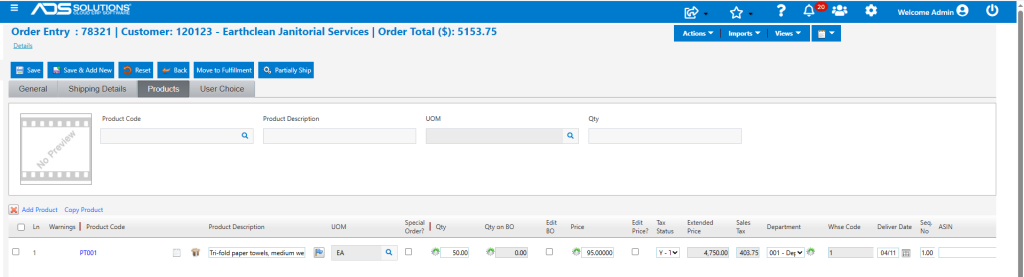
- Move Order to Fulfillment, then to Invoice to complete the transaction.
GL Posting of Transaction
- Go to GL > Manage GL > Evaluate Transactions to see the GL Posting.
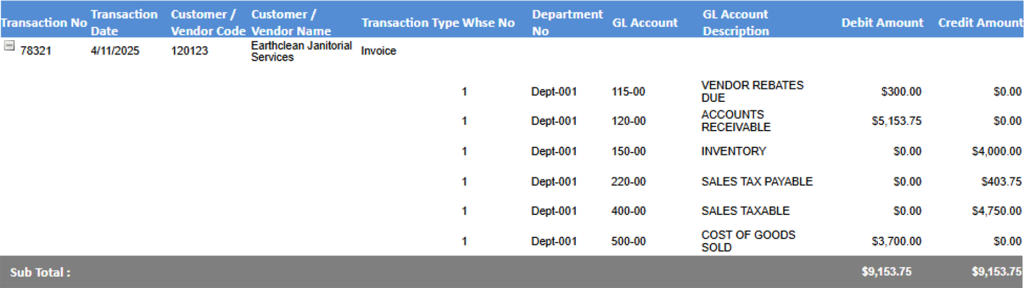
Sales side posting
- Accounts Receivable = $5,153.75 Dr.
- Sales – ((Qty of 50 EA x $95/EA) + Sales Tax of $403.75) = $5,153.75 Cr.
Cost side posting
- COGS – (Qty of 50 EA x (Avg Cost of $80-Rebate of $6)) = $3,700.00 Dr.
- Rebates Due – (Qty of 50 EA x Rebate of $6/EA) = $300.00 Dr.
- Note: Rebate = (Alt Cost of $80-Deviated Cost of $74) = $6/EA
- Inventory – (Qty of 50 EA x Avg Cost of $80) = $4,000.00 Cr.
Vendor rebate due
- The Vendor Rebates Due amount is booked the GL Account 115-00 set up for Vendor 102.
- Go to the GL Transaction Details and run for Account 115-00 to see the transaction.

Qty Recorded on Contract
- Verify the sale of 50 EA on invoice 11342 under Contract 6034.
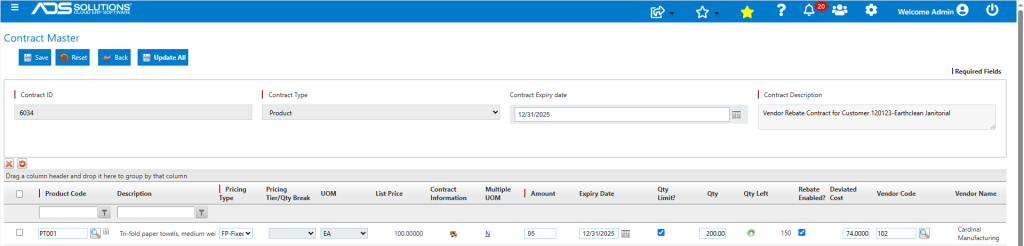
- Click on the Qty Left icon to see the Contract Quantity History.

Sales Reports
- All Sales Reports reflect the Contract Price and the appropriate Deviated Cost.
- For example, on Sales by Product by Group report.

- Sales Total = 50 EA x Contract Price of $95/EA = $4,750.00
- Rebate = (Alt Cost-Deviated Cost) = $80-$74 = $6.00/EA
- Std Cost = 50 EA x (Std Cost-Rebate) = 50 x ($85-$6) = $3,950.00
- Std Profit = $4,750.00 – $3,950.00 = $800.00
- Profit Margin = $800.00/$4750.00 = 16.84%
Vendor Rebates Due Report
- Vendor Rebates Due Report shows the transaction and the rebate due under the contract.

Submitting Rebates to Vendor and Recording Payment
- Go to Receivables > Rebates Receipts.
- This screen shows all Rebate line items for all Vendors and all Customers.
- Select the Status of Open (since Rebates haven’t been paid) and then filter by Vendor, by Customer, by date range to create a population for submission.
- Once a population is defined a Submission Date and Submission No can be entered for all these items being claimed.
- The population can be exported to Excel/CSV and sent to the Vendor by EDI (if set up) or manually uploaded on the Vendor’s site.
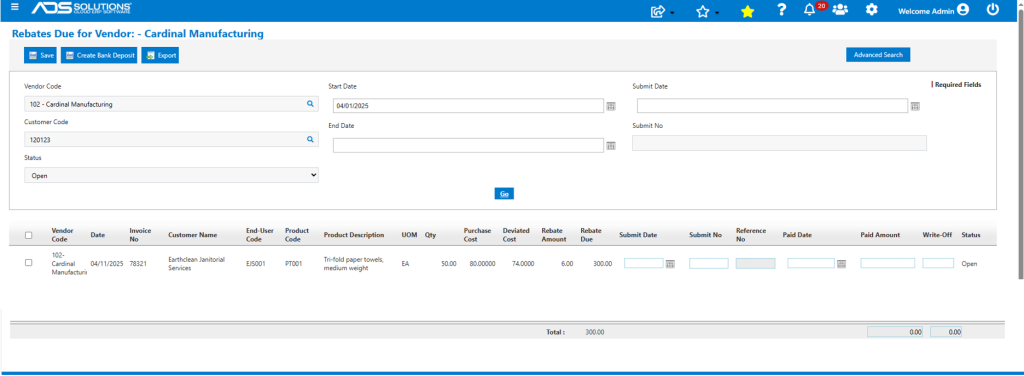
- To record receipt of payment, Select Status of Open then filter screen by Vendor, by Submission No or Submission Date to create the population being paid.
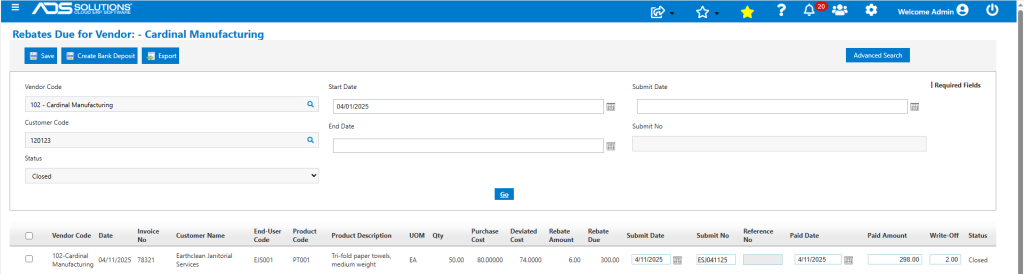
- Based on the Payment Advice received from the Vendor, record for each item the Paid Amount and, for any items either denied or short paid, the Write-Off.
- To change the status of any item to Closed, the Rebate Due amount must match the total of the Paid Amount and the Write-Off.
- The screen is totaled at the bottom based on the selected population so that the totals can be tied-out.
- When the screen is saved, all records with a remaining balance of zero will be marked as Closed.
- Then select Status of Closed and filter by Vendor, by Submission No or Submission Date to get all items paid on the Vendor’s check and click on the Create Bank Deposit button to post the payment to the GL and to update the Bank balance (see below)
- For example, receive payment of this item submitted as ESJ041125 for payment of $298.00 with $2.00 denied.
Posting Receipt of Rebates to GL
Receiving a Check for Rebates Due
- For example, receive Vendor’s check for $298.00 with $2.00 denied.
- Select Status of Closed and filter by Vendor, by Submission No or Submission Date to get all items paid on the Vendor’s check.
- Select all paid items and click the Create Bank Deposit button.
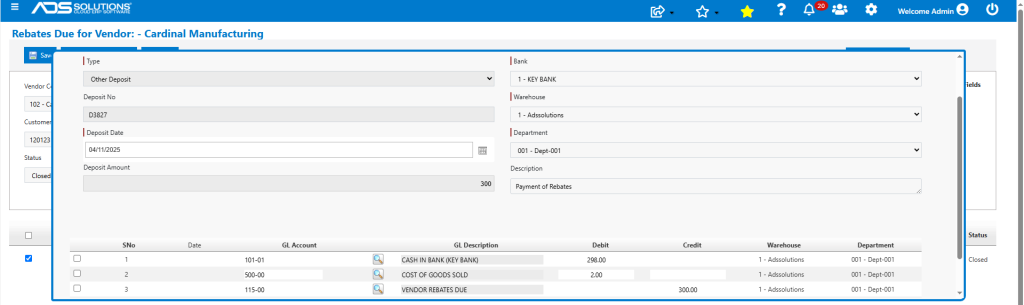
- Select credit GL Account for Vendor’s Rebate Due.
- Select a debit GL Account for any Write-Offs taken; typically, these will be booked to COGS (since the Rebate reduced the COGS recorded, so any rebate denied or short-paid would increase COGS).
- Upon clicking Save, the following happens:
- Bank Deposit will be created, and the Bank Balance updated
- Deposit No D3827 will be automatically recorded on the Rebates Due screen for all items paid with this check, and the
- GL Posting will be recorded.

Receiving a Credit Memo for Rebates Due
- If the Vendor issues a Credit Memo as payment for Rebates Due, first record the payment and close all items included on the Credit Memo.
- Then make a voucher for Vendor 102, and enter the items included on the Credit Memo as negative amounts.
- Post the voucher to debit the GL Account for Rebates Due-Vendor 102 and credit AP
- For example, receive a credit memo for $300 and post the voucher as follows:
- ZZ6034 – Rebates Due-Vendor 102 = ($300) Dr
- ZZ6034 – Accounts Payable = ($300) Cr.
- This will clear the Rebates Due-Vendor 102 account balance and create a negative voucher of ($300.00).
- Then update the Rebates Due screen Closed items with the Voucher No.
- By selecting the negative voucher to pay, the payment to Vendor 102 for other goods purchased will be reduced by the amount of the Credit Memo.