Accolent ERP uses the Min/Max inventory reordering methodology. The Min value represents the reorder point, and the Max value represents the targeted stock level after reordering. The difference between the Max and the Min is sometimes referred to as the EOQ (Economic Order Quantity). The Min and Max values may be maintained manually or automatically by the system. The Min and Max values are used by the Accolent ERP Inventory Replenishment report to identify products that need to be reordered together with their suggested reorder quantities. The user can then either accept or override the suggested reorder quantities and then the Vendor POs can be created automatically
Decide on Inventory Replenishment Method
- There are two basic approaches to reordering: (1) Reorder Point Method or (2) Periodic Stock Replenishment Method
- Reorder Point Method – run replenishment every day or every second day, and reorder all products at or below the Min value (which is the Reorder Point). This allows products that are running low and hit their reorder points to be continually reordered. This allows different items to be restocked at different times and at different rates
- Periodic Stock Replenishment Method – run replenishment on a set cycle and reorder all products up to the Max value. Typically, vendors will be divided into groups and each group will be run on a set cycle. For example, divide the vendors into Group 1, Group 2 and Group 3 which will be run respectively on (say) the first Monday, the second Monday and the third Monday of a month. Each product from a particular vendor will be restocked (in this example) every 28 days. The disadvantage of this method is that each vendor is run on a 28-day cycle and stockouts between one run and the next may not be addressed
Set up Product for Reordering
- Go to Settings > System > System Configuration 131 to specify whether Min/Max parameters are to be updated manually or automatically
- In this case, Reorder Parameters are maintained manually
- To include any product in the Inventory Replenishment report, the Reorder? checkbox must be selected and the Reorder Parameters specified
- For Product AF-EHD, go to Actions > Reorder Parameters
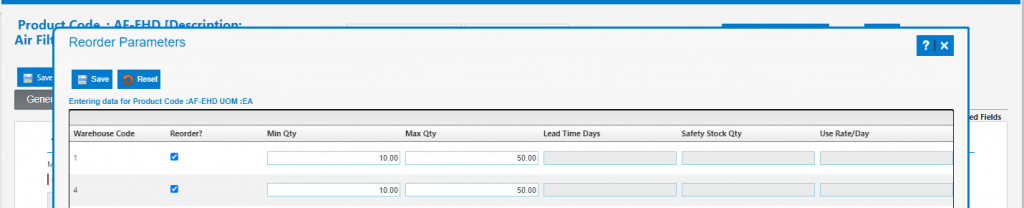
- Min and Max are set respectively at 10 EA and 50 EA
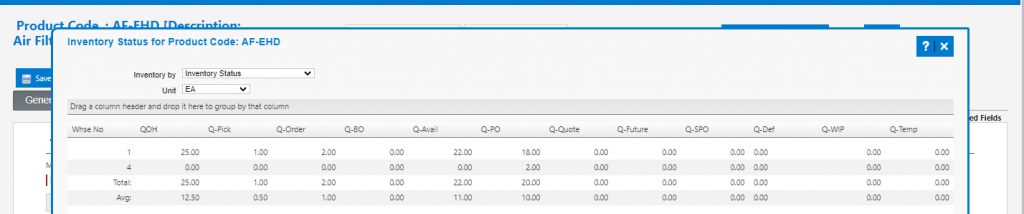
- Go to Views > Inventory Status
- For Warehouse 1, these are the current inventory levels:
- Q-Avail (Qty Available) = 22.00
- Q-PO (Qty on PO) = 18.00
- For Warehouse 4, these are the current inventory levels:
- Q-Avail = 0.00
- Q-PO = 2.00
Run Inventory Replenishment Report
- First determine whether you want to use the Reorder Point Method or the Periodic Stock Replenishment Method. This will determine how the Products parameter (see below) is set on the Inventory Replenishment Report
- The Reorder Point Method will reorder all products that are at or below their Min value reorder point
- The Periodic Stock Replenishment Method will reorder all products for the selected vendors
- Go to Purchasing/Vendors > Inventory Replenishment > Min/Max Replenishment
- On the Inventory Replenishment Report screen select the parameters:
- Warehouse – Report on All or select
- Categories – Report on All or select
- Products – Show All Products (even those that have not fallen to the reorder poiunt) or only Products at or Below Min Qty
- NOTE if run for All Products, even products above Min Qty will show a Suggested Reorder Qty to get back to Max Qty
- Open POs – Include Qty on PO (to reduce Reorder Qty by Qty on Open POs) or Do Not Include Qty on PO
- Vendors – Report on All or select
- Buyers – Report on All or select
- SPO Items – Include SPO items or not
- Obsolete Items – Include Obsolete items or not
Report on Products at or Below Min Qty
- Generate the report for the following selection of parameters:
- All Warehouses
- All Categories
- Products at or Below Min Qty
- Include Qty on PO
- Selected Vendor
- All Buyers
- No SPO Items; and
- No Obsolete Items
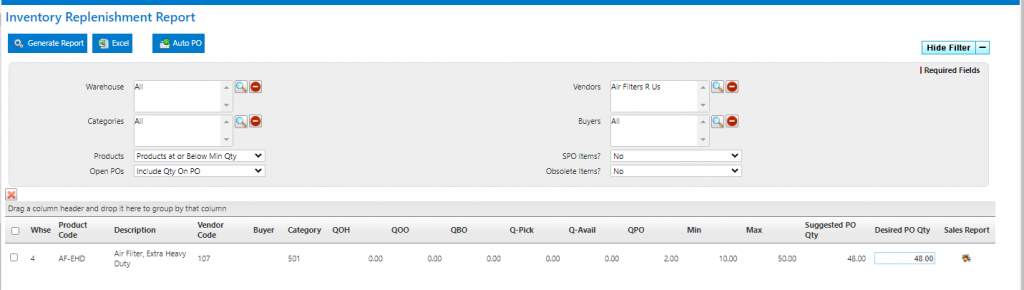
- Since this was run only for Products at or Below Min Qty, only AF-EHD in Warehouse 4 shows up
- For AF-EHD in Warehouse 4, the report shows
- Q-Avail = 0, QPO = 2
- Since (Q-Avail + Q-PO) ≤ Min, Suggested Reorder = Max – Q-Avail – Q-PO = 50 – 0 – 2 = 48
Report on All Products
- If the report is run for All Products, both AF-EHD in Warehouse 1 and AF-EHD in Warehouse 4 show up
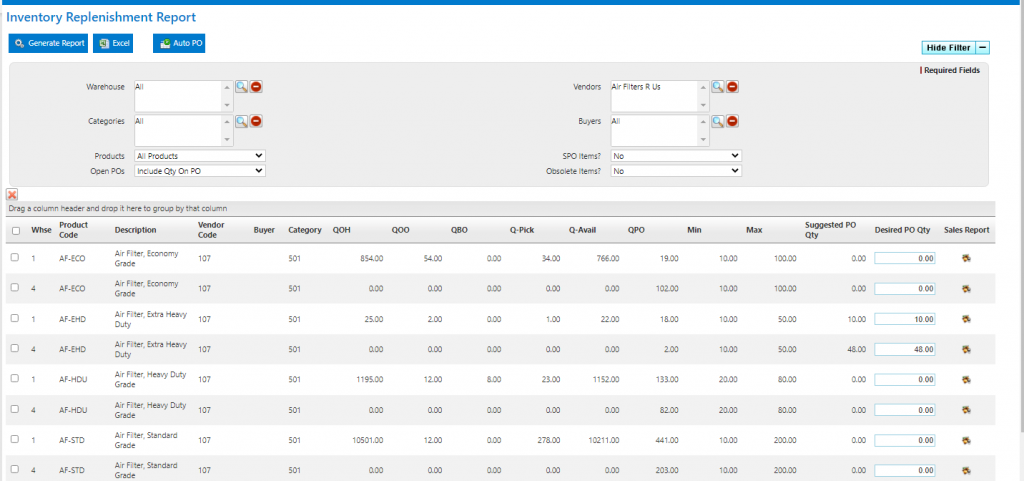
- For AF-EHD in Warehouse 1, the report shows:
- Q-Avail = 22, Q-PO = 18
- Even though (Q-Avail + QPO) > Min, Suggested Reorder = Max – Q-Avail – Q-PO = 50 – 22 – 18 = 10
- For AF-EHD in Warehouse 4, the report shows
- Q-Avail = 0, QPO = 2
- Since (Q-Avail + Q-PO) ≤ Min, Suggested Reorder = Max – Q-Avail – Q-PO = 50 – 0 – 2 = 48
- Use the Desired PO Qty field to override the Suggested Reorder
Auto Create POs
- Run report only for Products at or Below Min Qty
- Click Auto PO; shows that PO No C4569 was successfully created
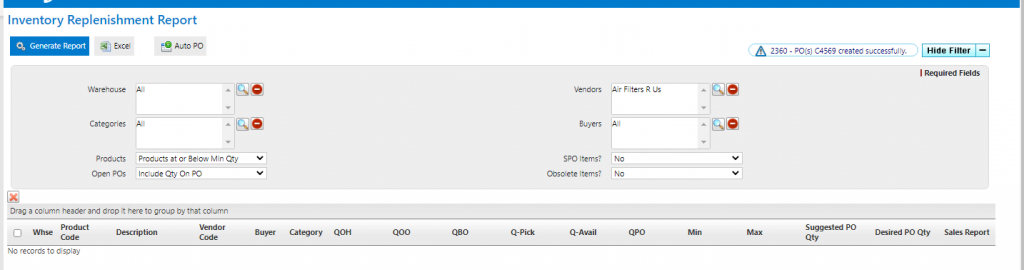
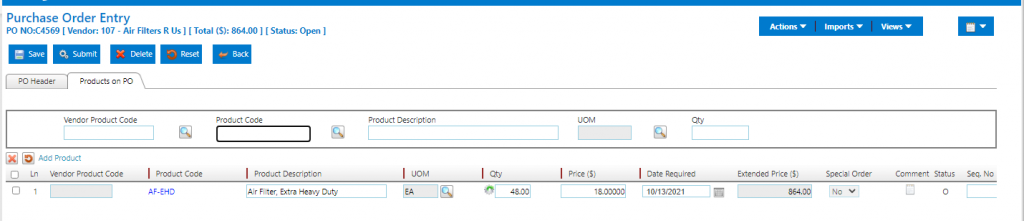
- Look up PO No C4569 that was auto-created for Vendor 107 for 48 EA x AF-EHD