
Accolent ERP provides the ability to Copy, Change or Delete products. The Copy function is usually used to speed creation of a new product. The Change function is most typically used to accommodate a vendor’s changed product codes. The Delete function is used to clean up and remove old products.
Existing Product Record
- Verify existing product record for Product 18JP1000V.
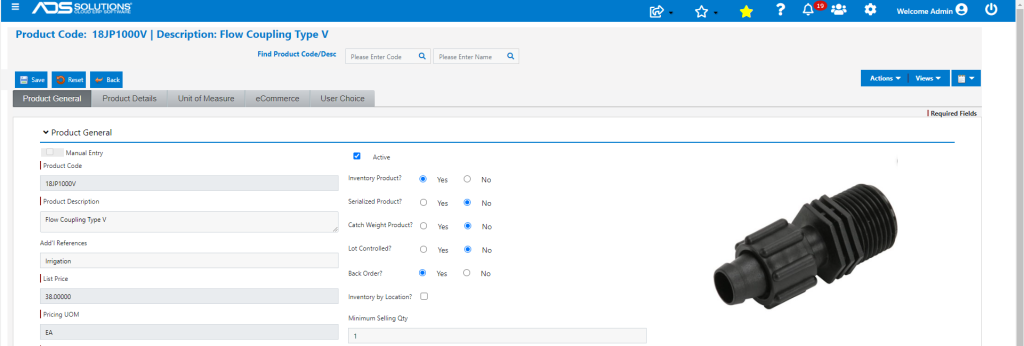
Copy Product
- To copy this existing Product, go to Inventory/Products > Products > Manage Products > Copy or Change a Product.
- Select Copy Product option.
- The Copy function will copy the Product record (all tabs: General, Stocking UOM, Pricing UOM, Discounts, e-Commerce), including the List Price; in addition, user will be able to select whether to copy: Comments, Accessories & Alternates and BOM List.
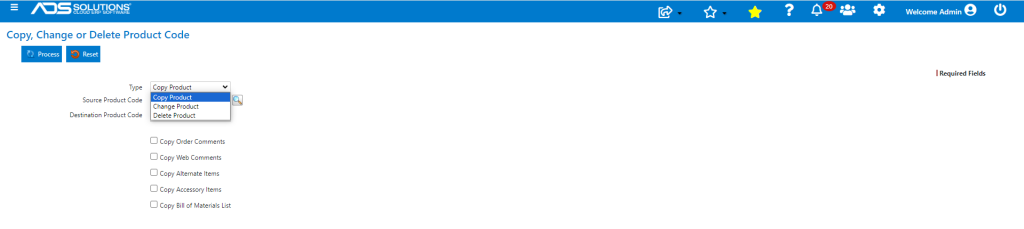
- Click the Process button.
- Product 18JP1000V has been copied to 18JP1000V-1.
- Copied Order Comments and Web Comments.
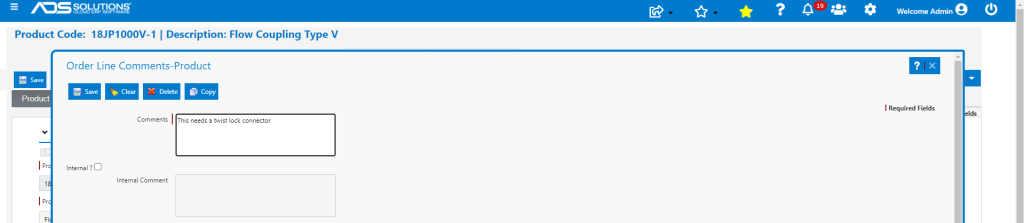
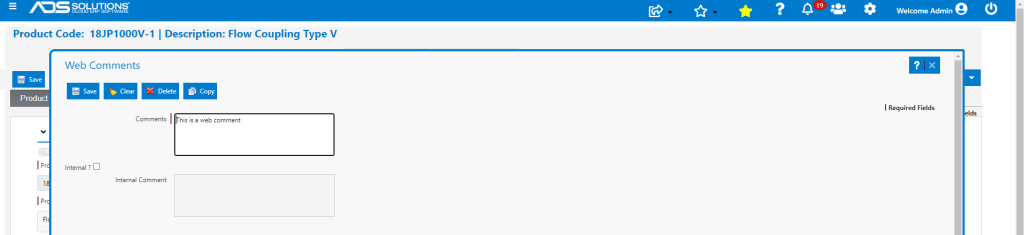
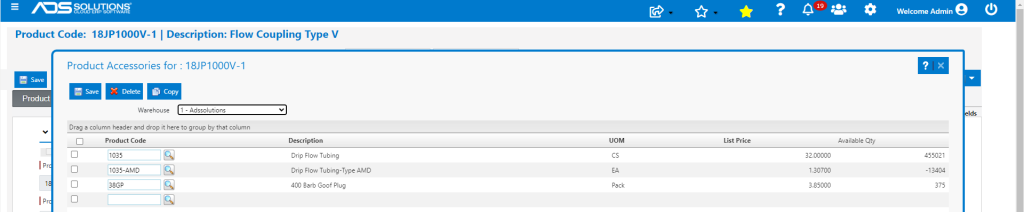
- Copied Accessories and Alternates.

Change a Product
- To change a product, go to Inventory/Products > Products > Manage Products > Copy or Change a Product.
- Select Change Product option.
- Enter Source and Destination Product Codes.
- For example, Rename Product 18JP1000V-1 as 18JP1000V-2.
- Select whether to keep the old Product Code as a synonym or not.

- Click the Process button.
- Product successfully changed to 18JP1000V-2.
- 18JP1000V-1 is no longer in the system.

- Open product 18JP1000V-2.
- Correctly changed to product code 18JP1000V-1 to 18JP1000V-2 and retained 18JP1000V-1 as a synonym.

Delete Product
- To delete a product, go to Inventory/Products > Products > Manage Products > Copy or Change a Product.
- Select Delete Product option.
- Select whether to Delete if there is existing Inventory or Accessories.

- Click the Process button
- Product 18JP1000V-2 was successfully deleted.
