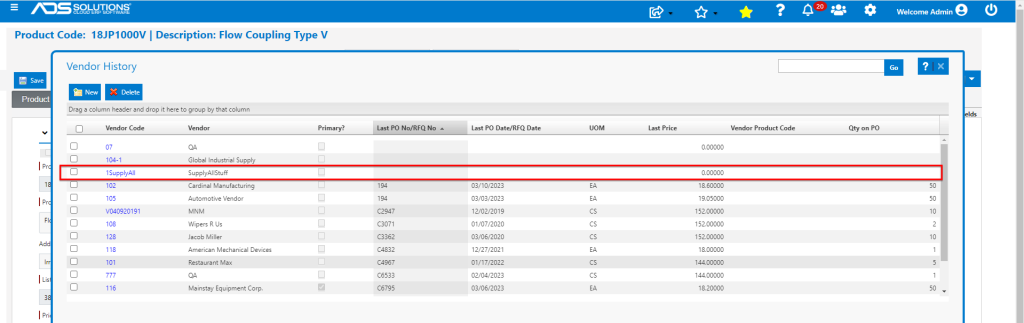
For each product, Accolent ERP keeps track of all Vendors that the product was either purchased from or that responded to an RFQ for that product. Vendors may also be added manually. Each Vendor History entry records details of the Last PO/RFQ entry for that Vendor, including the Qty and Price.
Product Record
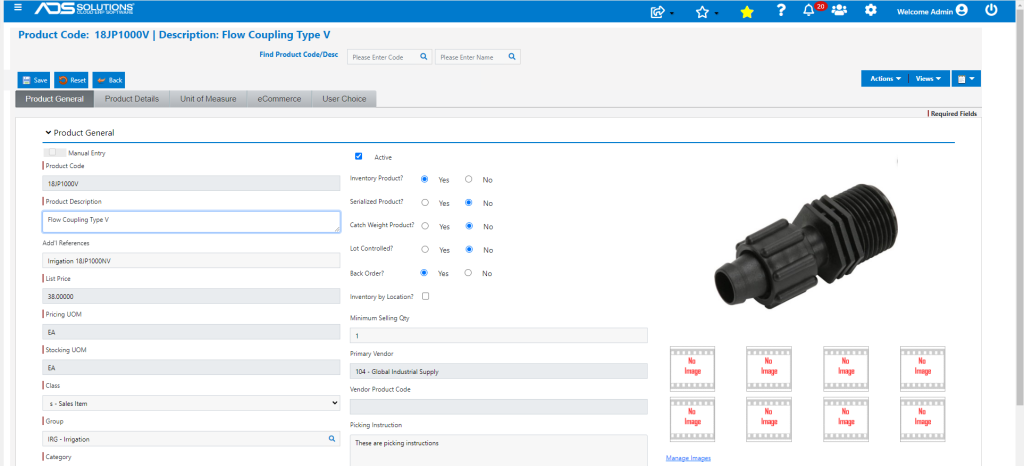
- For each Product multiple vendors may be recorded in the Vendor History table.
- The Primary Vendor is displayed on the Product Master but needs to be entered/changed on the Vendor History screen.
Vendor History
- From the Product, go to Actions > Vendor History.
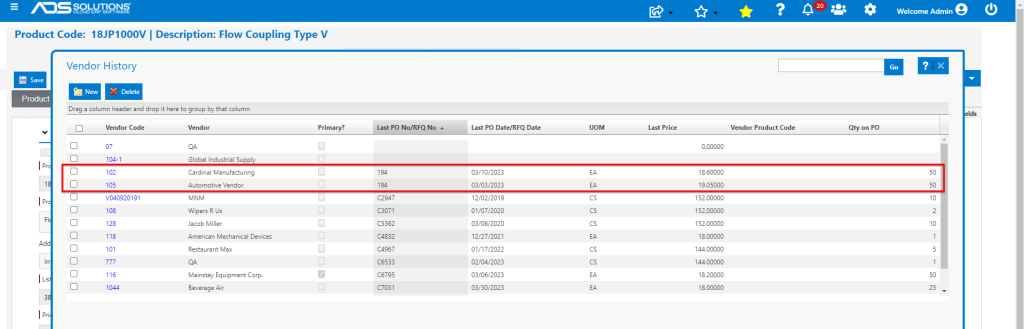
- Vendor History screen displays all the vendors that this product has either been purchased from or that responded to an RFQ for this product.
- Also shows which Vendor is designated as the Primary Vendor for this product.
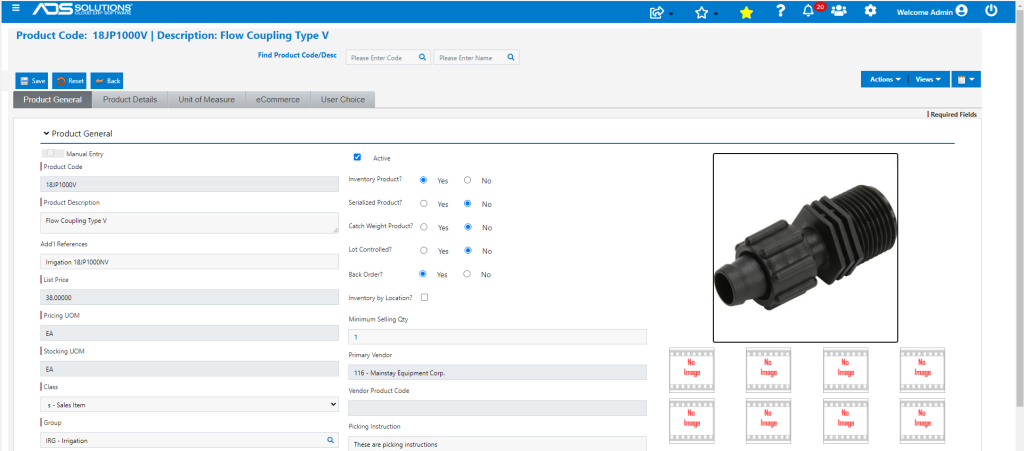
- The Primary Vendor is displayed on the General tab of the product record but is entered/changed on the Vendor History screen.
- For example, to change the Primary vendor open the Vendor History screen, select the new Primary Vendor and select the checkbox.
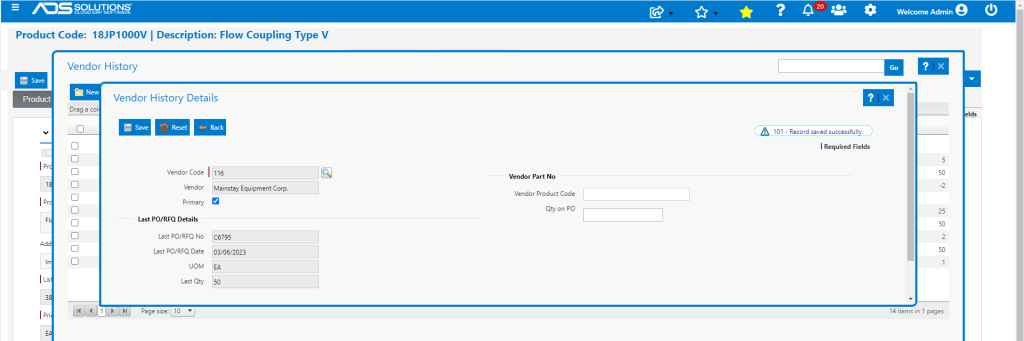
- Save the selection and close the pop-ups and selection will populate to the general tab.
Automatic Entries to Vendor History
- Entries to the Vendor History screen are made automatically upon a PO Receipt or an RFQ response for this product.
- For example, Vendors responding to RFQ No 194 for this product were updated to the Vendor History table from the RFQ, together with the date of the PO/RFQ, the PO/RFQ Date the UOM the Qty and the Price.
Manual Entries to the Vendor History screen
- Entries to Vendor History can also be made manually using the Actions > Vendor History, then click on the New button.
- From this screen a new Vendor for this product may be entered, a new Primary Vendor may be selected, A Vendor Product Code may be recorded or changed:
- For example, enter a new Vendor 1SupplyAll and this Vendor will be added to the Vendor History.