ADS Solutions’ online Support Center portal allows you to enter support requests for help with issues in Accolent ERP or implementation. Once you sign up for Accolent ERP, you will receive an email inviting you to create an account in Support Center. Entering support requests into Support Center is the best and quickest way to report an issue and get assistance.
Support Center
- In the Accolent ERP Support Center users (e.g., Joe Smith) are referred to as Customers and companies that subscribe to Accolent ERP (e.g., ABC Supply Co.) are referred to as Organizations
- When you sign up for Accolent ERP, your users and company will be entered into Support Center
- All Customers will receive an email invitation from Support Center to create an account with your username as your email address and a password that you enter
- Once the Support Center account has been set up you can enter support requests
- To enter a support request, you can go to: https://adssolutions.atlassian.net/servicedesk/customer/portal/
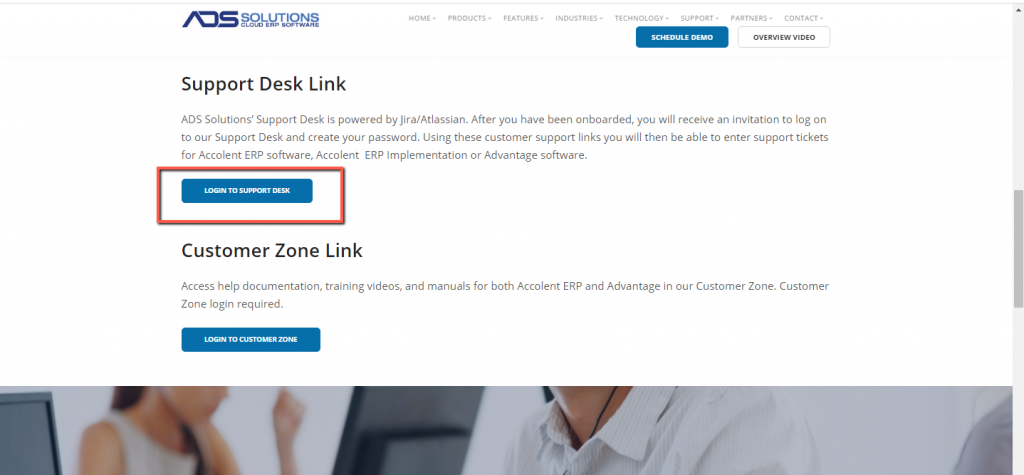
- You can also access the Support Center from the link on ADS Solutions’ website: adssolutions.com > Support > Support Center Portal; then select Accolent ERP Support Center Login
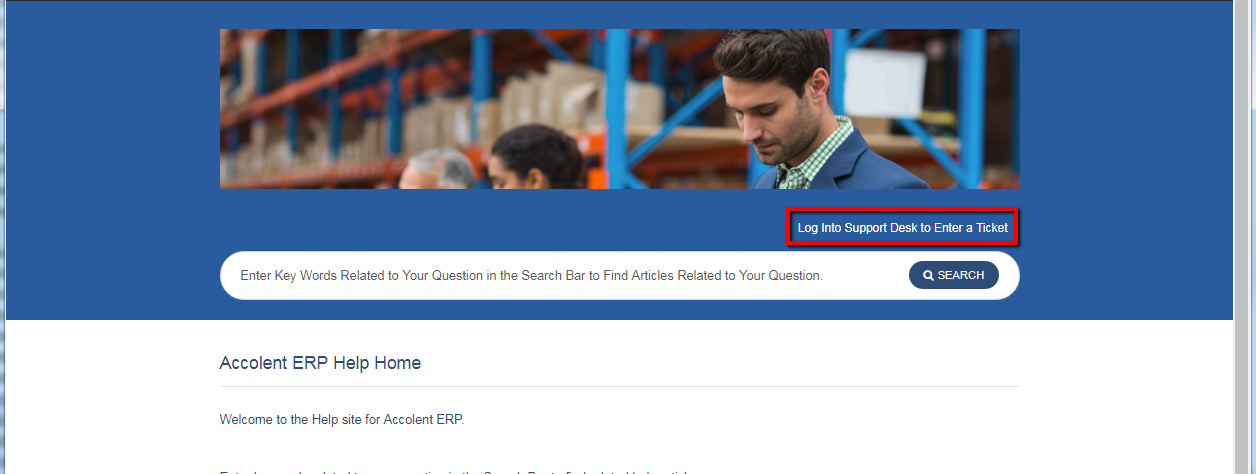
- You can also access Support Center from the Accolent Help wiki, which is a good place to check first before entering a support request
- Go to https://help.accolent.net to view the Accolent Help wiki; then click on the link to enter Support Center
- Enter your email address, click next, then enter your password to login

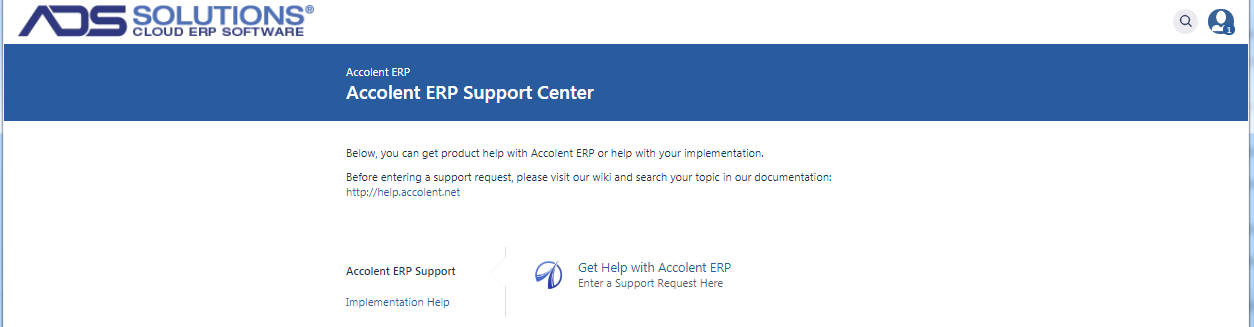
- This will take you to the Accolent ERP Support Center
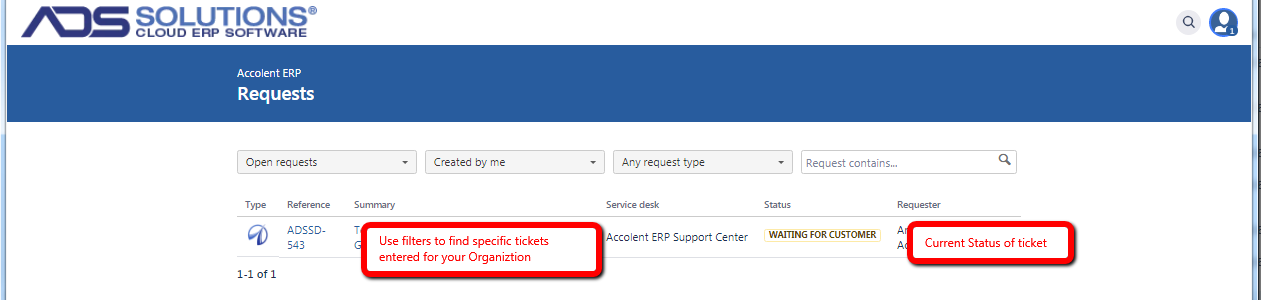
- The top right hand side person icon displays the number of your requests that are open
Enter a Support Request
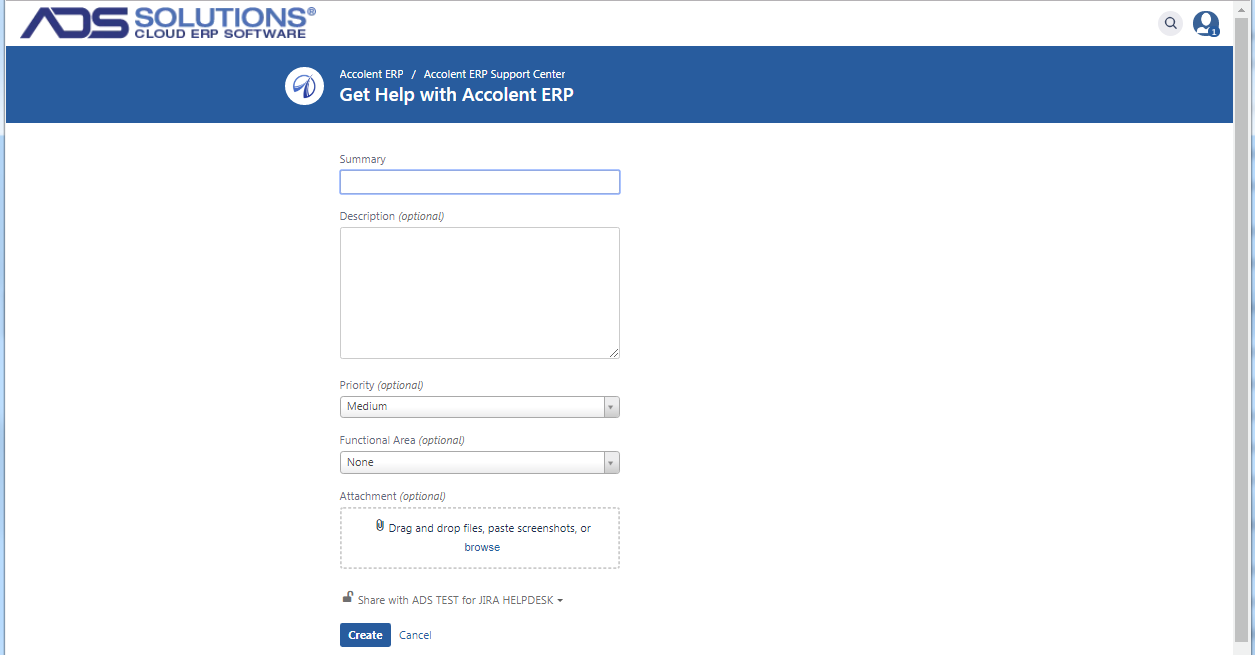
- Click on Accolent ERP Support and then on Get Help with Accolent ERP to enter a Support Request
- Enter a short Summary and Description
- Please try to be clear in your description, explaining what the issue is, and any details as to how it occurred so we can reproduce it
- You can attach any files or screenshots that will help explain the issue
- The lock icon lets you choose to keep your request private rather than share it with others in your company. By default, the system shares your ticket with others in your company who will receive notifications as your ticket is updated
- Then click Create to submit the request
Updating the Support Request
- We will update the request with our response as we address the issue
- You will automatically be notified by email when the request is updated
- You can respond to the email to update the request; simply reply to the email and type in your comments or questions
- Clicking on the email link will take you into Accolent ERP Support Center and directly into the request
- The request will contain a full record of all the interactions related to the request as well as current Status of the request
Reviewing Open Requests
- From the Support Center, you will be able to view all your open requests by clicking on the blue person icon in the top right corner
- Use the filters to find specific requests
- You can choose to see all your own requests or those of everyone in your company
- Click on any request reference to open the request