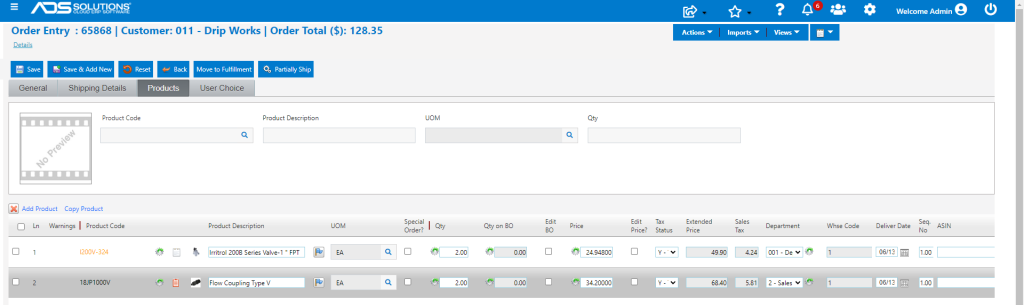
Accolent ERP supports Accessory Products that are add-ons or upsells that can be defined for a particular Product. To set this up, select a Product, then define its list of Accessory Products. Specifying that Product on an order will alert the user that there may be an opportunity to sell the additional Accessory Products as well. Accessory Products can be added to the order by just specifying the quantity.
Designating Accessory Products
- From Inventory/Products > Products > List Products, search for and select a particular Product.
- Then select the Actions button and click on Accessory Products menu.
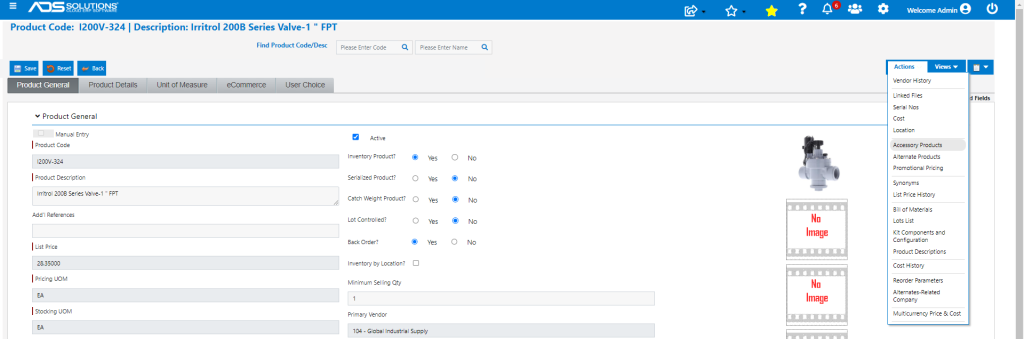
- This will bring up the Product Accessories screen
- To add a product as an Accessory, enter or look up its product code
- For example, add 18JP1000V as an accessory for I200V-324

Copying the Product Accessories List
- This list of Accessories may be easily copied to another Product.
- Mark the items you wish to copy to another product then click the Copy button and this will present the Copy Accessory Items screen.
- Using this Product I200V-324 as the source, enter a destination Product Code to copy the list of accessories to.

Deleting Product Accessories
- Mark the items to delete from the accessories list and then click on the Delete button
Adding Accessories to an Order
- When a product that has accessories defined is entered on an Order after the Quantity is entered, a gear icon appears next to the product
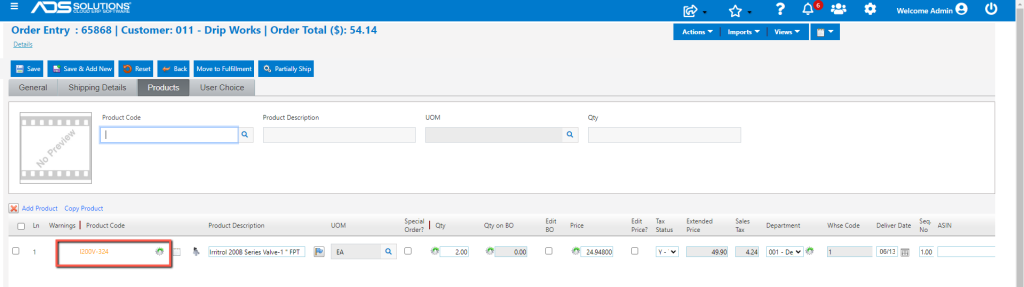
- Click on the gear icon to see that the product has Accessories
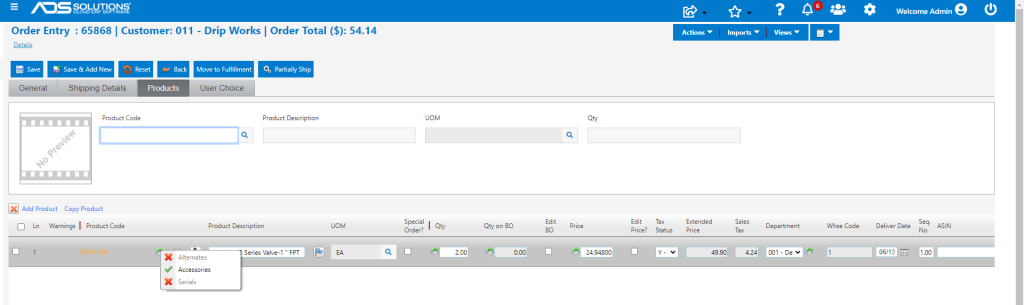
- Click on Accessories to launch the list of Accessories which can then be added to the order

- If desired, user can enter Accessory quantity and then click Add to Order.