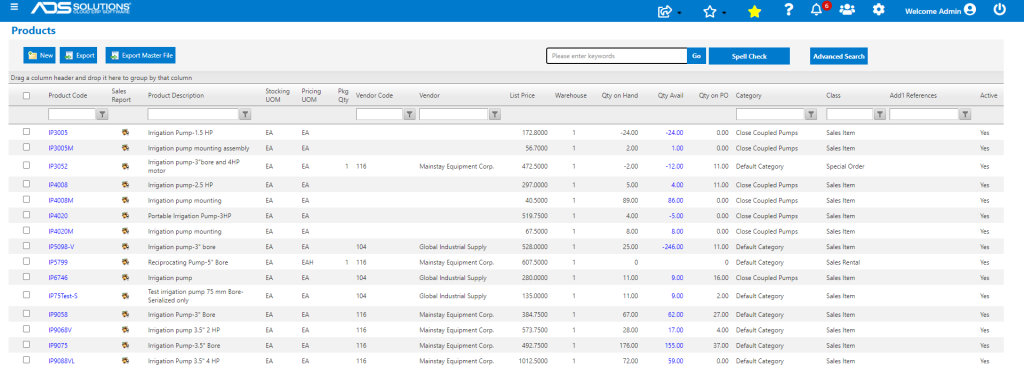
Accolent ERP’s Advanced Search functionality allows the searching of one or more fields in a record. As you enter the search string the autofill function will pull up the top 15 items that include the characters entered. This will continue to refine as you enter more characters. You can run a search, then return to your search terms and refine the search further until you find what you need.
Advanced Search Screens
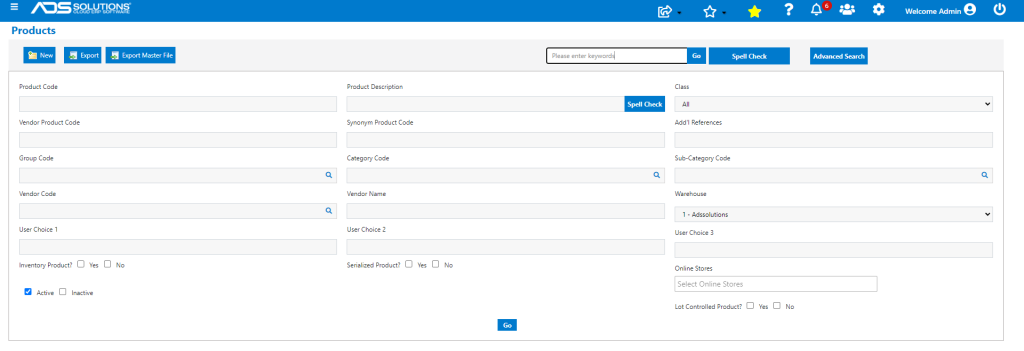
- From any lookup screen select Advanced Search to open the Advanced Search screen.
- Any master record listing (e.g., Product List), will automatically open the Advanced Search screen since with any sizeable number of records, an unfiltered list would be useless.
- For example, go to Inventory/Products > Products > List Products and the Advanced Search screen is displayed.
Entering a Search String in one or More Fields
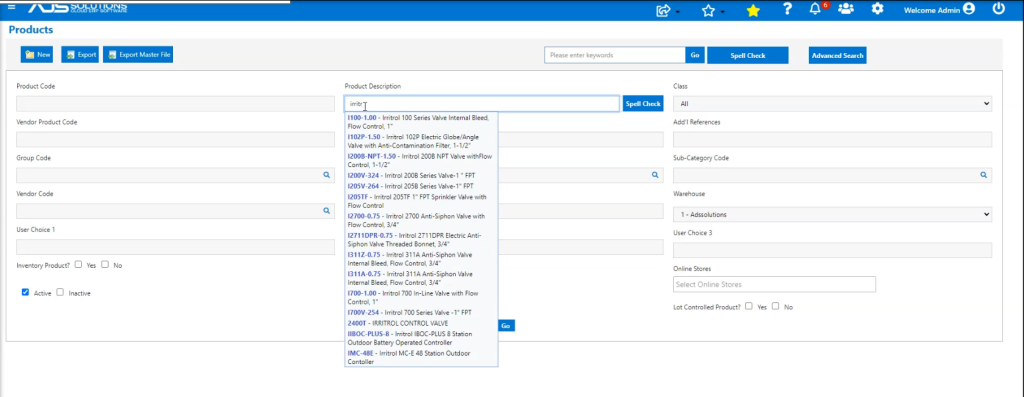
- As you start to enter characters in any field, the autofill function will display the top 15 records that match the characters entered.
- As you type additional characters the Autofill function search is refined.
- At any time, drop into the Autofill selection to select a record.
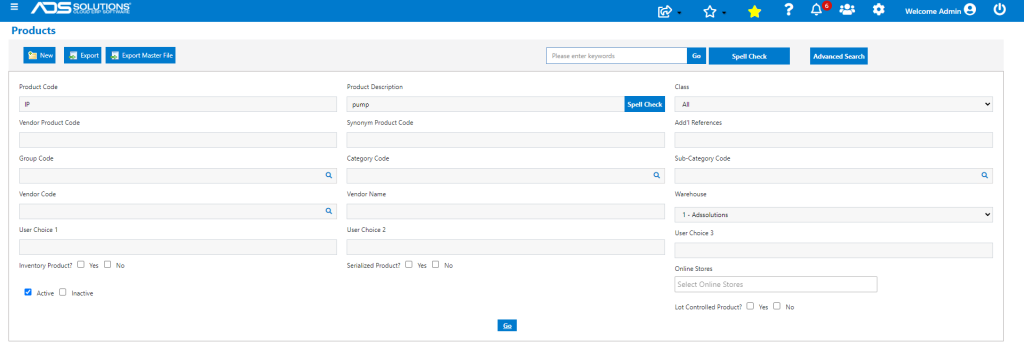
- Enter search terms in one or more of the available searchable fields in the record and click on the Go button to perform the search.
- When you enter search terms in more than one field, the search will deliver results that meet the search criteria of all the fields searched.
- For example, enter “IP” in the Product Code field and “pump” in the Description field
- Then click on the Go button to run the search.
- The search will return all products that incorporate both these strings.
- Note that the search term is interpreted as a string and so doesn’t have to be a word but can be any part of a word (e.g., if the search string was “ump” you would still pick up the product Description “Irrigation Pump”).