Accolent ERP allows Quotes, Orders, Orders in Fulfillment or Invoices to be printed, faxed or emailed one-at-a-time. Alternatively, the user may select multiple of these items and print all at the same time, in the case of Orders in Fulfillment, or print or email all at the same time, in the case of invoices.
List Screen Grids
- Accolent ERP prints individual transactions or multiple selected transactions from the List screens.
- From the List Quotes, List Orders, List Fulfillments or List Invoices screen grids, select any specific transaction and click on the printer icon on the right-hand side of the grid.
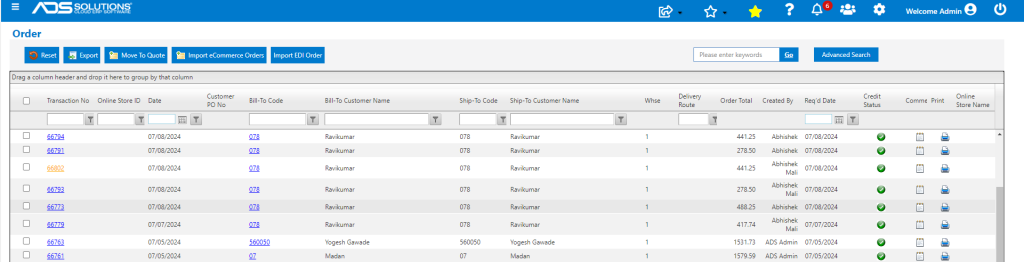
Individual Transaction
- Clicking on the printer icon will open the Print Options screen for that transaction.
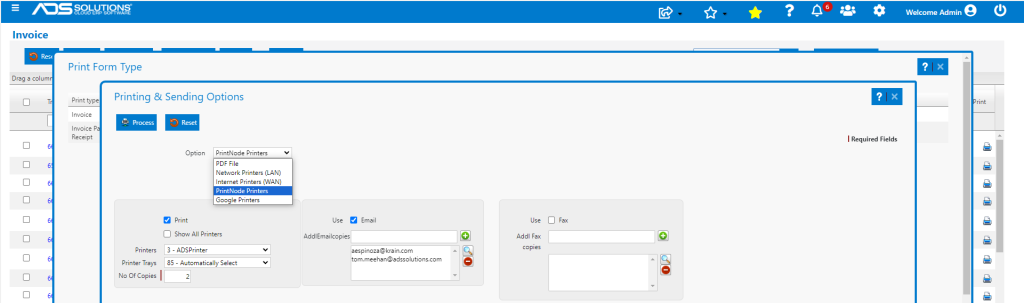
- Select from the Option dropdown choices:
- PDF File (default option) to download a PDF.
- Network Printers to print to LAN printers, if these have been set up (only for an on-premises deployment).
- Internet Printers to print to WAN printers, if these have been set up.
- PrintNode Printers is the standard Accolent ERP printer set up.
- Google Printers to print using Google Cloud Print – this is no longer supported by Google and so, has been discontinued.
- Selecting one of the printer options will allow you to print.
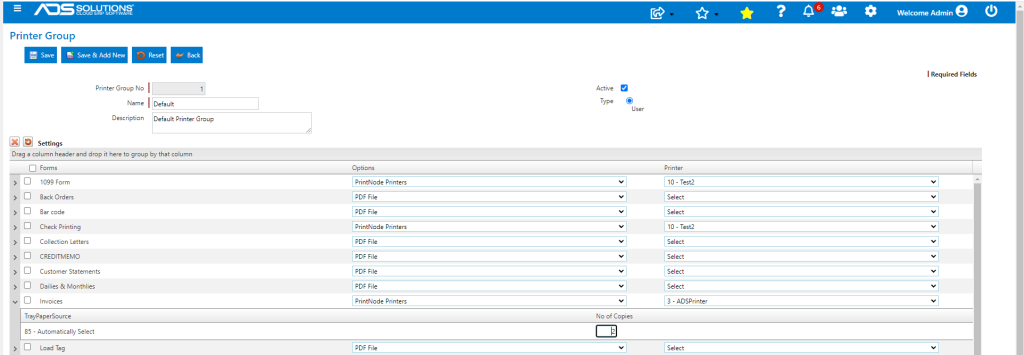
- The settings for Options, Printers, Printer Trays, No of Copies that have been set up on the Printer Group form settings for that form, in this case Order, will default in to the Print selections, and the Print checkbox will be selected.
- If there were Email/Fax Defaults set up on the Customer for this form, these settings will default in too and the email and/or fax checkboxes will be selected.
- Click Process to print, email and fax in accordance with these settings.
- From List Fulfillments and List Invoices, the Print Options screen will additionally allow selection of which form to print.
- Choose which form to print.

Multiple Transactions – List Fulfillments
- From the List Fulfillments screen, select multiple transactions and click on the Print button on the header bar to bring up the Print Options screen.
- The print choices set up for the form will default in but may be changed if desired.
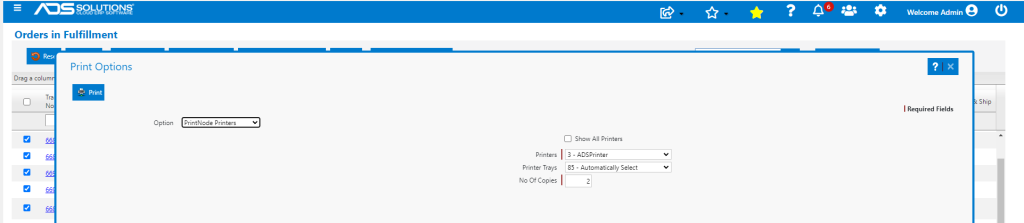
- Click the Print button to print ALL selected transactions to the printer
- Note: this multiple print function will print only the Pick Ticket for each selected transaction, not the Proforma Invoice; to print Proforma Invoices, use the Print Proforma Invoice button instead.
Multiple Transactions – List Invoices
- From the List Invoices screen select multiple transactions to print or email.
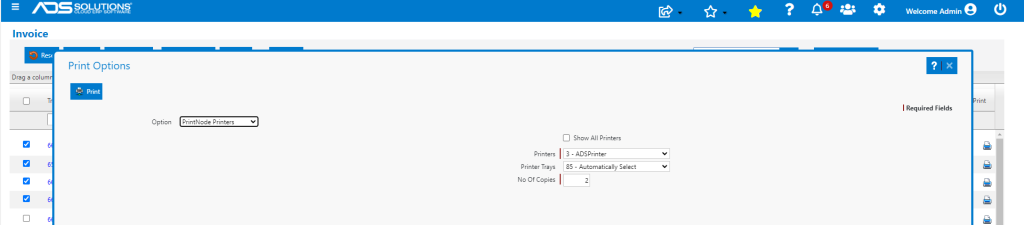
- Use the Print button in the header bar to bring up the Print Options screen.
- The print choices set up for the form will default in but may be changed if desired; when the selection is done, click Print to send ALL selected transactions to the selected printer.
- Use the Email button in the header bar to send ALL selected transactions by email to the email/fax defaults set up for these customers.
- If there are missing email/fax defaults, there will be a warning message displayed.
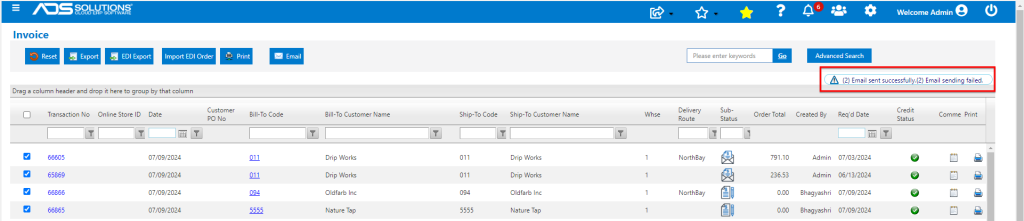
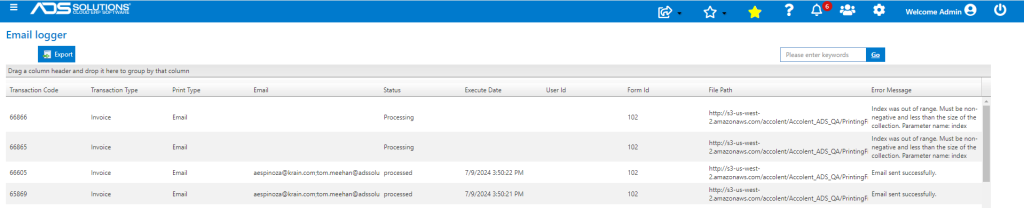
- There is also an email logger which will show which emails failed.