Accolent ERP allows for taking payments or deposits on orders. These payments are held as Customer Deposits and may be applied when the orders are invoiced. Once orders are invoiced, payments for one or more invoices can be taken directly and applied to invoices.
Taking Payment on an Order
- Order 66605 has an order total of $791.10.
- Open the order and go to Actions > Take Payment to record a partial payment of $400.00 against the order.
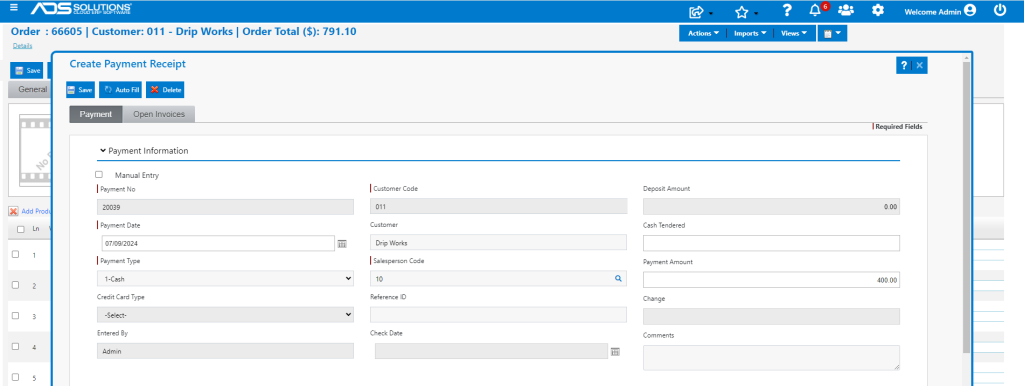
- Creates payment receipt 20039 which defaults in the amount of $791.10.
- Edit payment amount to $400.00 and save.
- Open Customer 011 and go to Views > Payments to view the payment receipt.

- Go to Views > Customer Deposits report to see the Customer Deposit created.

- Move order 66605 to fulfillment then invoice.
- When invoiced the Customer Deposit may be applied against the invoice.
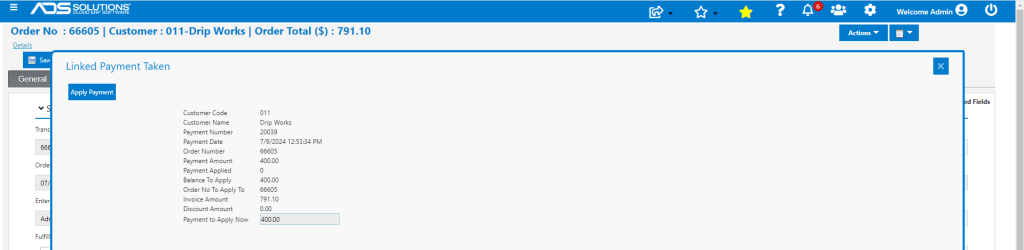
- Apply the payment.
- Invoice is now in AR Aging and shows a partial payment of $400.00

- If payment in full was taken on an order and then the order was partially back ordered, the portion of the payment related to the back order would remain in Customer Deposits.
- When the back order was later processed, fulfilled then invoiced, the linked payment screen will allow the balance to be applied to the back order.
Taking Payment on an Invoice
- Once an order is invoiced, payments can be taken from the Receivables menu.
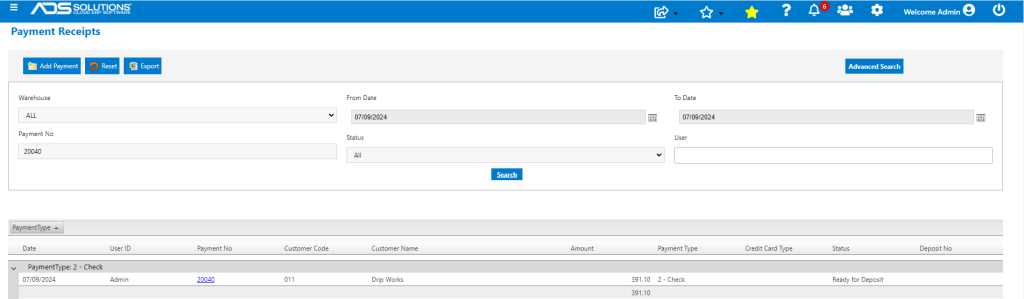
- Go to Receivables > Payment Receipts > List Payment Receipts > Add Payment.
- Enter Customer code and the payment amount will default to the total outstanding on the account. Edit to reflect the payment amount being taken.
- In this case, Customer 011 and enter payment amount of $391.10, then go to the Open Invoices tab.
- Select Invoice 66605 and enter the payment amount in the Current Payment column.
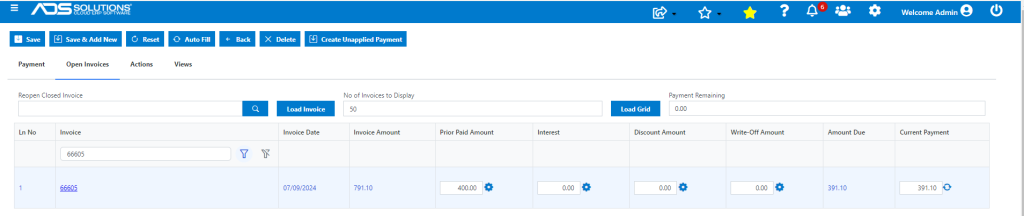
- Save to complete payment 20040.
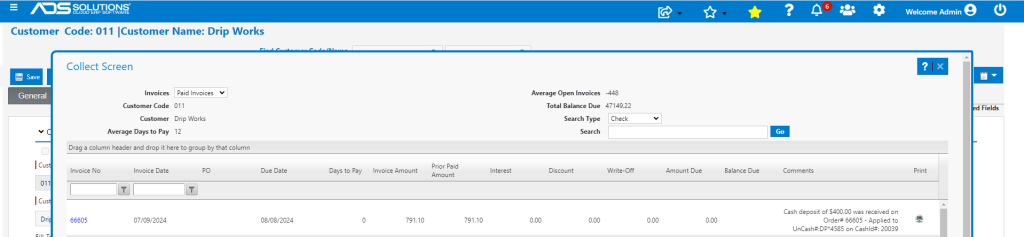
- Go to the Customer, select Views > Collections > Paid Invoices to see the transaction.
- Invoice 66605 was paid through payment receipts 20039 for $400.00 and 20040 for $391.10.
Taking a Payment on Account
- To receive a payment on the customer’s account, go to Receivables > Payment Receipts > List Payment Receipts > Add Payment.
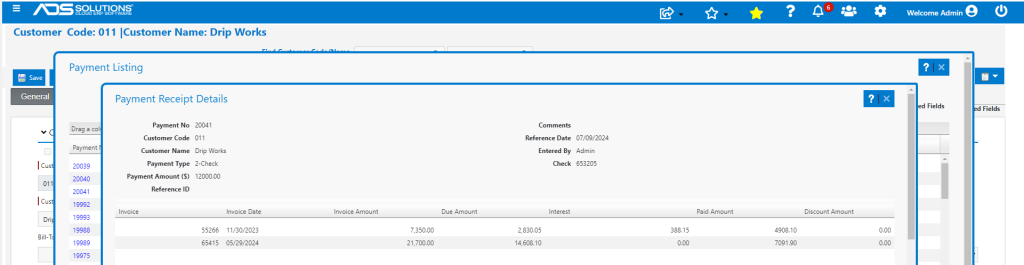
- Enter Customer 011, check details and payment amount of $12,000.00 to be applied to the account.
- Click on Open Invoices tab to see unpaid invoices. The screen loads 50 lines by default but can be changed to display more records if there are any.
- Select invoices to pay one by one or use Autofill to start with oldest first and apply payment.
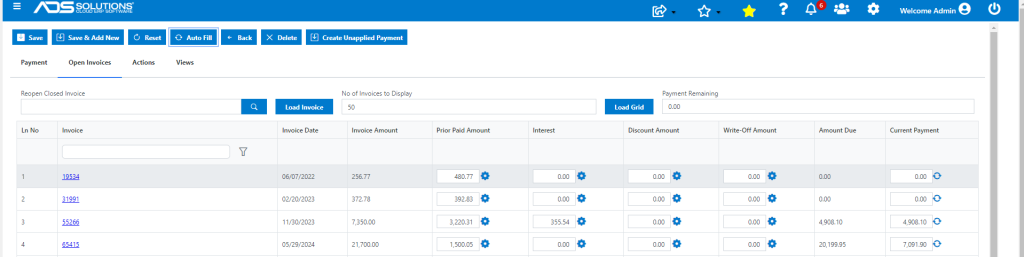
- Save to complete.
- Go to Customer 011 to view payment 20041.
Create a Bank Deposit
- To create a Bank deposit, select Receivables > List Payment Receipts > Deposit Payment Receipts.
- This brings up the Create Deposit screen from which to select the Payment Receipts that will be deposited to the selected Bank.
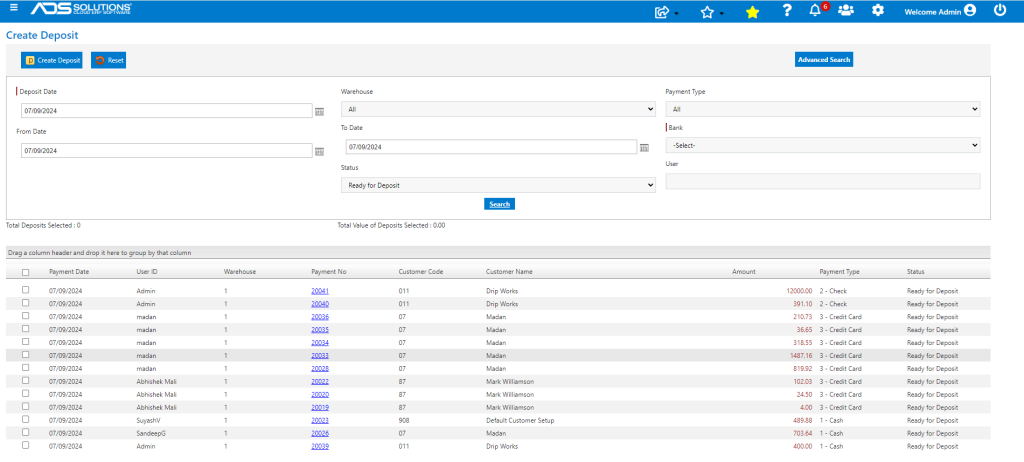
- Select Payment Receipts 20039,20040 and 20041 to Deposit.
- Created Deposit D3712 for Bank 1-Key Bank.
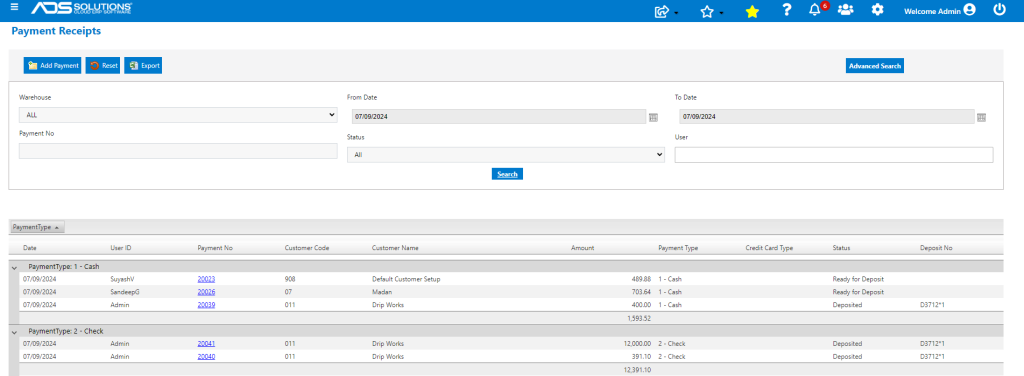
- Go to Receivables > Payment Receipts > List Payment Receipts to see the deposit information.