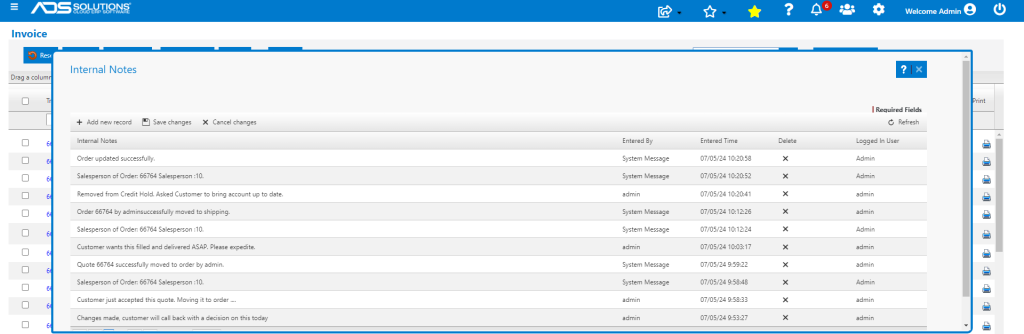
Accolent ERP allows the use of Internal Notes as well as Special Instructions, which are printed on forms, on all transactions. Internal Notes stay with a transaction through its life cycle from Quote to Invoice or from PO to PO Receipt and can be seen in Accolent ERP but are not printed on forms. Printed Special Instructions comments can be entered for a transaction and the user can select which printed form(s) (e.g., Pick Tickets, Invoices) these should be displayed on.
Entering Internal Notes
- Go to Sales > Quotes > Create Quote to enter quote 66764.
- Click on the notepad icon at the top right of the screen to enter Internal Notes.
- Internal Notes can also be accessed directly from List screens by clicking on the Comments icon on the right-hand side of the screens.
- Select Internal Notes, enter some notes and Save.

- Multiple notes may be entered against the transaction which will be displayed in reverse chronological order together with the User ID of the person entering the note and a datetime stamp.
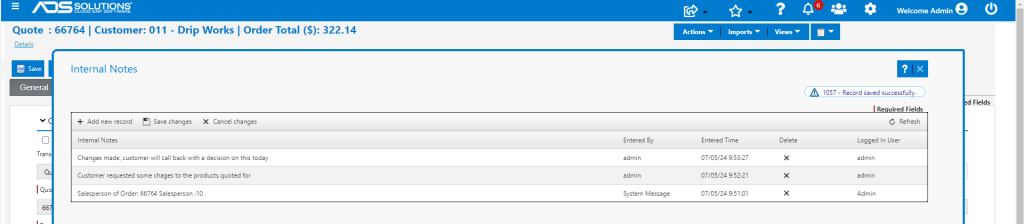
- Any user-entered Internal Notes can be deleted at any time.
- System Messages are added by the system and record when certain actions were taken with respect to the transaction.
- System Messages cannot be deleted.
Internal Notes Move with Transaction
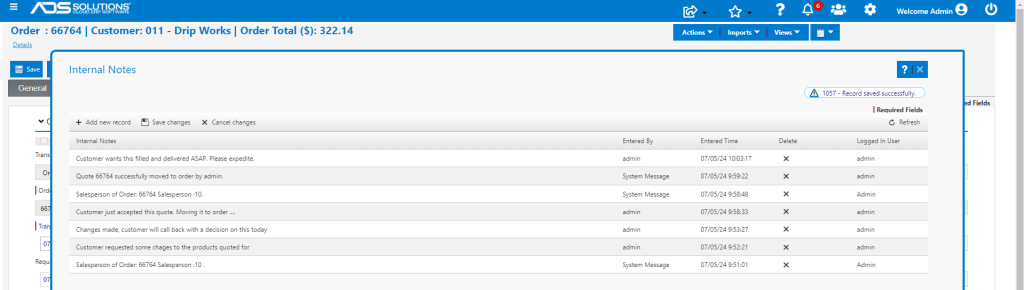
- Move quote to order.
- Open the order and the original notes entered on the quote are still there, together with a System Message recording when and by whom the quote was moved to an order.
- Add additional Internal Notes to the order, if desired.
Entering Special Instructions
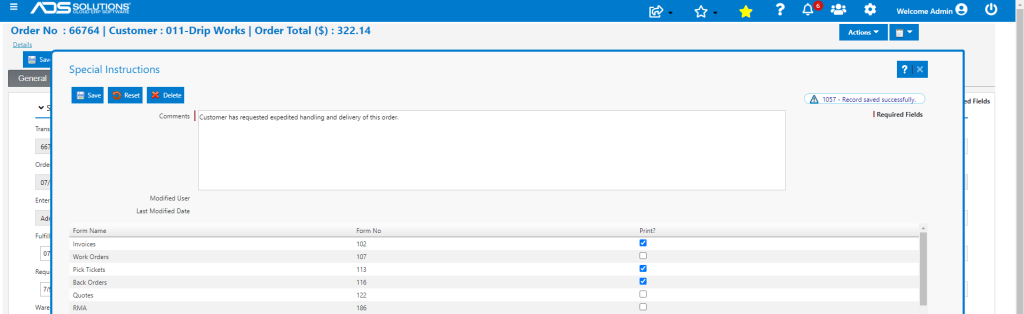
- Click on the notepad icon and select Special Instructions which will be printed and appear on selected forms.
- Enter printed Special Instructions, select the form(s) on which the comment is to be displayed (e.g., select Invoices, Pick Tickets and Back Orders) and Save.
- Only one printed Special Instructions comment may be entered, but the entered comment may be edited or deleted and replaced at any time.
Move Order to Fulfillment
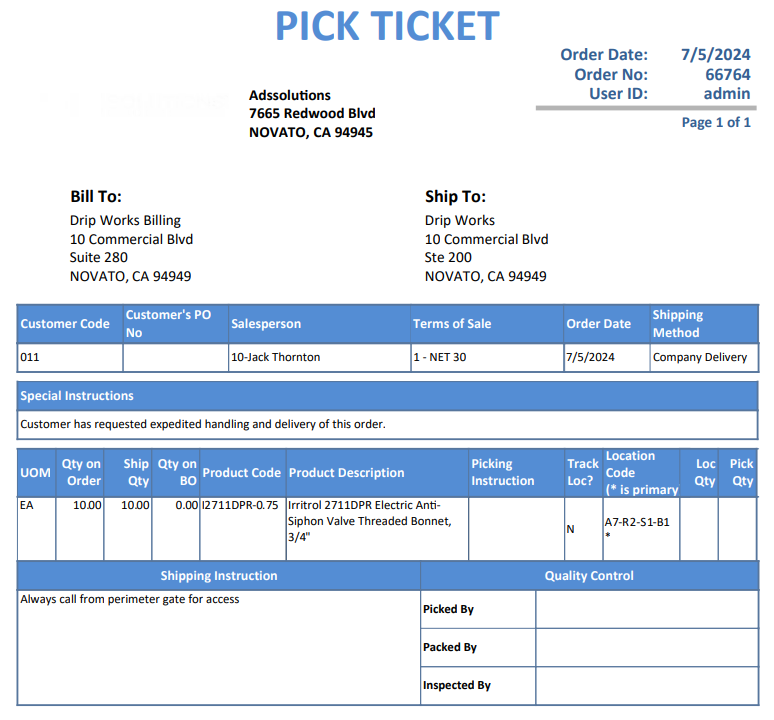
- Special instructions show up in the Special Instructions section of the Pick Ticket, as specified.
Move Order to Invoice
- Add additional Internal Notes in Fulfillment if needed, then move to Invoice.
- Open Internal Notes on the Invoice to see the full history of Internal Notes and System Messages.