
Accolent ERP allows multiple products on an order to be designated as one-time Special Order products to be drop shipped directly from the Vendors to the Customer. On moving the order to fulfillment, the POs can be created automatically, and the Special Order items held as back orders until confirmed as drop shipped by the Vendors. When the drop ship notification is received from Vendors, the POs may be notionally received at which time the back orders are moved to fulfillment. The Special Order items can then be consolidated with any items on the same order supplied from inventory and invoiced together to the Customer.
Create an Order
- Create order 66744.
- The order contains one item supplied from inventory and two items supplied from different vendors as one-time special order (SPO) products.
- One-time SPOs can be supplied partially from inventory or the whole quantity can be filled from a special order PO. If special order PO products are to be drop shipped, they cannot be partially filled from inventory.
- Set full quantities of products I311Z-0.75 and 1I200B-NPT-1.50 to BO (i.e., don’t fill any quantity from inventory).
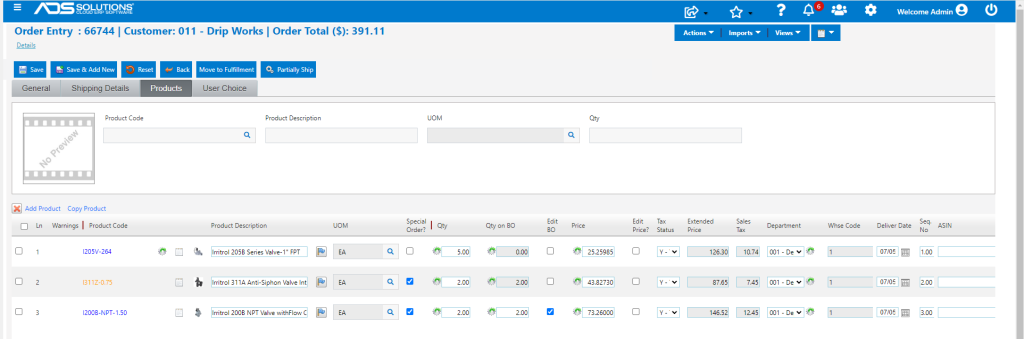
Move to Fulfillment
- Move order to fulfillment which will create the BOs, and the POs and the pick ticket for the items to be supplied from inventory.
- Brings up the Special Order Purchasing Option screen.
- Select both SPOs to be drop-shipped and POs to be auto-generated.

- Save creates the BO and the POs.
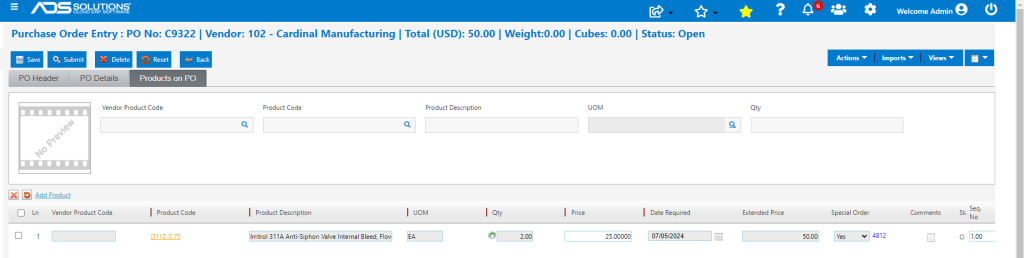
- This is PO C9322 for Vendor 102 to be drop shipped to Customer 011.
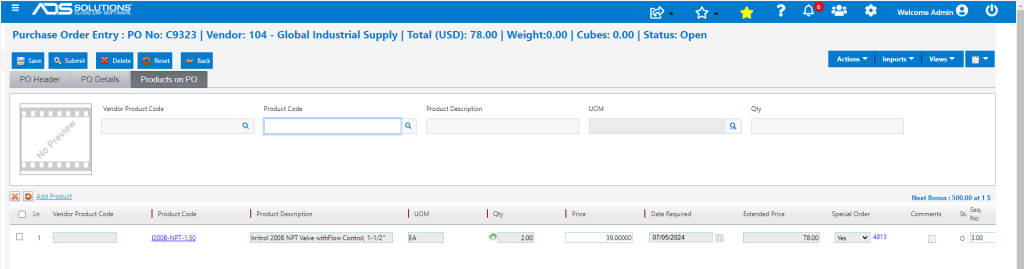
- This is PO C9323 for Vendor 104 to be drop shipped to Customer 011.
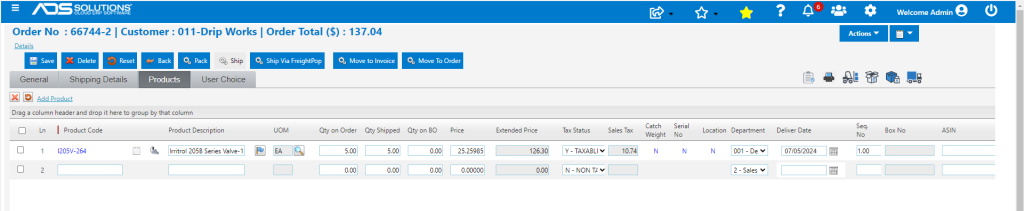
- This is order 6744-2 in fulfillment for items to be supplied from inventory.
Receive Drop Ship Notifications
- Receive drop shipped notifications from SPO vendors.
- Notionally receive PO No C9322 and PO No C9323.
- On the Drop Ship Notification screen elect not to ship confirm.


- The two drop ships and the items to be supplied from inventory are now all in fulfillment and can be consolidated, if desired.

Consolidate Shipments and Invoice Customer
- Open 6744-2 and click on Actions > Consolidate Orders.
- Consolidate order 66744-3 into order 66744-2.
- Then similarly consolidate with order 66744-4.
- Once all 3 orders are successfully consolidated, 66744-2 can be invoiced.
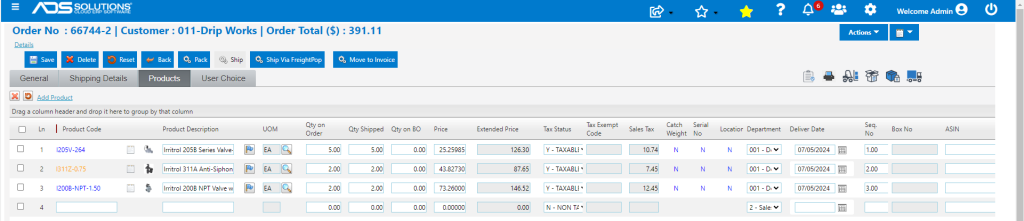
- Order 66744-2 can now be invoiced to the Customer.
