
Accolent ERP allows for the refunding of Customer Credit Memos (or Unapplied Cash) rather than more typically applying these against an open Accounts Receivable balance. First create a Credit Memo and optionally charging a Restocking Fee. The Restocking Fee is charged on the value of the goods and does not affect the Sales Tax calculation. Once created, a Credit Memo may be refunded in cash, by check or to a credit card.
Create Immediate Invoice
- Create Immediate Invoice I82034 for $112.09.
- Take payment on receipt 24087 by check for $109.85 net of early payment discount terms
- Save and create paid Invoice.

Create Credit Memo
- Now generate Credit Memo CMI82034 for return of these items.
- Charge a 2% Restocking Fee, added as Other Charges on the Shipping Details tab.
- Created CMI82034 for -$110.04 (i.e., refund of $112.09 less restocking charge of ($112.09-$9.49) x 2%=$2.05)
- Save and create Credit Memo.

Create Customer Refund Check to Refund Credit Memo
- To refund the Credit Memo, go to Payables > Create Checks > Create Customer Refund.
- Select Credit Memo and method of payment.
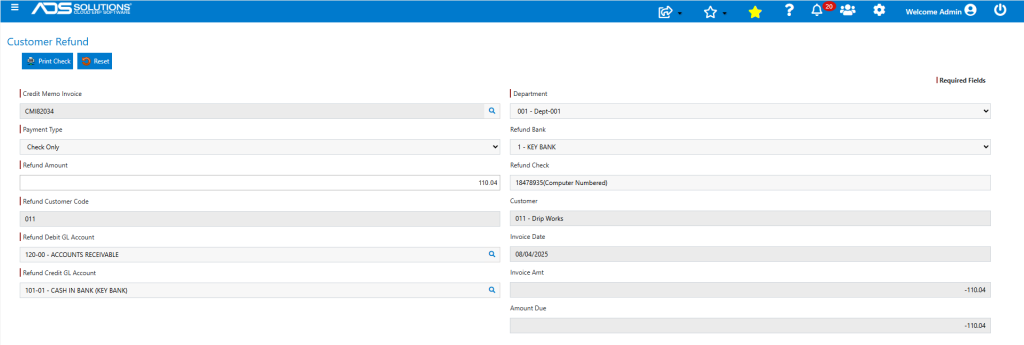
- Then click on Print Check to generate and create the check.
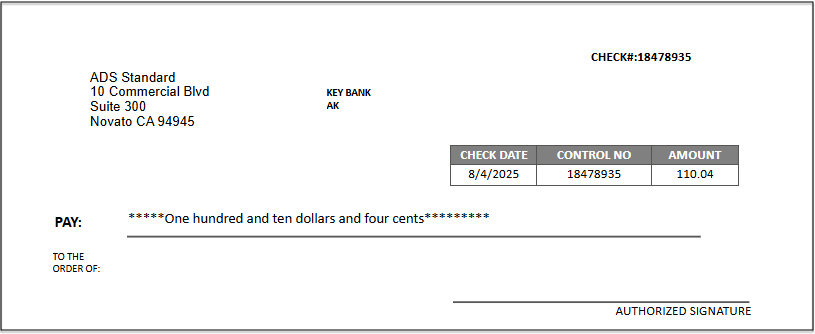
- The Customer account was updated.
- Invoice I82034 was paid in full as was CMI82034.
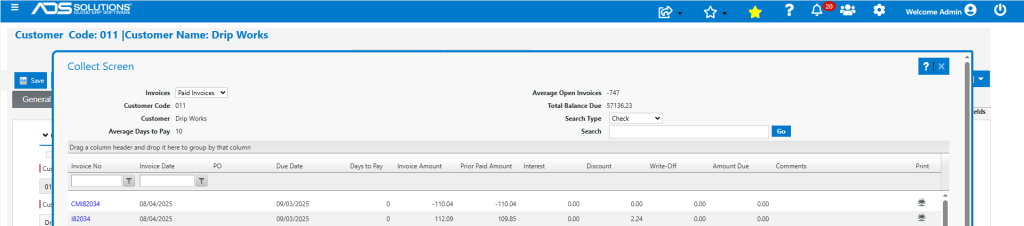
- Payments 24087 and 24088 were recorded.

General Ledger Posting
- The Sales Journal posting of the Immediate Invoice is reversed by the posting of the Credit Memo.
- The Restocking Fee is set up as Uncategorized Income on the Warehouse GL Defaults.
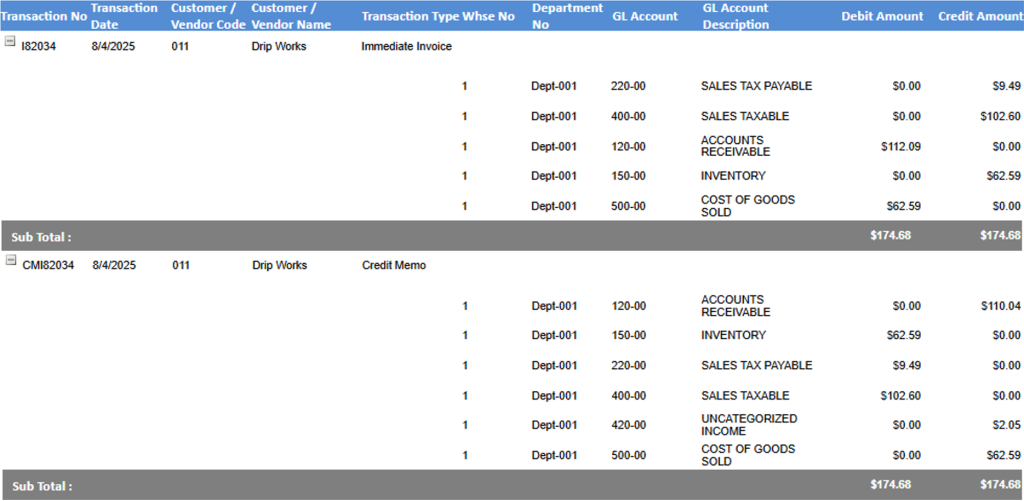
- The Payment Receipts Journal posting of the original payment is reversed by the Cash Disbursements Journal posting of the Customer Refund check.

