Accolent ERP tracks inventory from the time it is placed on an order or back order through fulfillment to invoicing. The inventory moves through different categories so its status can be tracked. Inventory Quantity on Hand (Q-On Hand) is allocated to orders as soon as a line item is entered on an order, and then the Quantity Available (Q-Avail) cannot be used to fill other orders. If there is insufficient inventory to fill an order, the shortfall creates a back order (if allowed). Q-On Hand is allocated to back orders before the quantity is available to fill new orders.
Product Settings
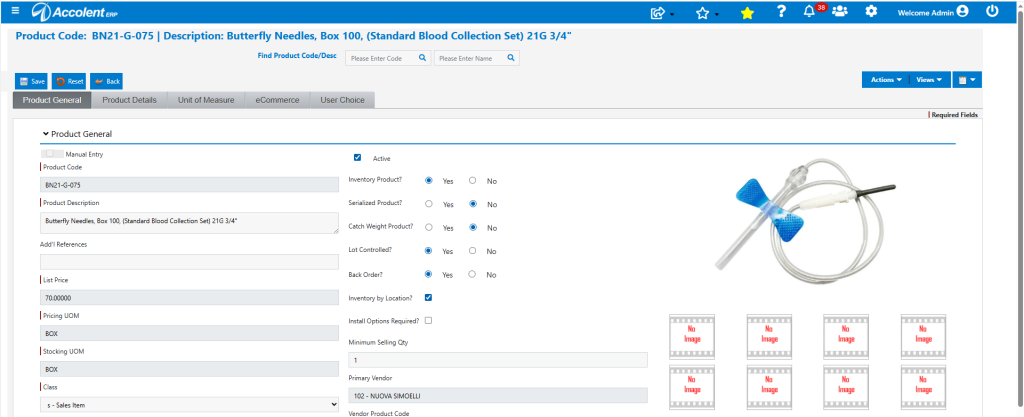
- Product BN21-G-075 is an Inventory Product with back orders allowed.
- Product is also Lot Controlled and Location Tracked.
Inventory Status Screen
- Select the product, then go to Views > Inventory Status.
- Shows for this product the different inventory categories by warehouse.
- The display is in the stocking unit of measure (UOM) for this product.
- Change the Unit dropdown to see inventory in other UOMs defined for this product.

- Q-On Hand –This is the quantity on hand of an item physically in a warehouse.
- Q-Order –This is the quantity on orders not yet in fulfillment.
- Q-Fulfill – This is the quantity of Orders in fulfillment less the Q-Picked (see below).
- Q-Picked –This is the quantity already picked (and so, not on the shelves) on orders in fulfillment in the warehouse.
- Q-BO –This is the quantity on back orders that are awaiting receipt of replenishment stock. It includes actual back orders and “notional” back orders that are on orders in fulfillment that will be created when these are invoiced.
- Q-Avail –This is the quantity available to fill new orders.
- This is calculated as Q-Avail = (Q-On Hand – Q-Order – Q-Fulfill – Q-Picked – Q-BO).
- When a line item is entered on an order, it is immediately allocated into Q-Order which reduces the Q-Avail to fill new orders.
- When an order is moved to fulfillment the Q-Order goes down but is offset by an increase in Q-Fulfill.
- When an order in fulfillment is picked, Q-Fulfill goes down but is offset by an increase in Q-Picked.
- If there is Q-BO, this will also reduce Q-Avail to fill new orders.
- Q-PO –This is the quantity on open POs only.
- When a PO is received, the PO quantity received is reduced from Q-PO and increments Q-On Hand.
- Q-CM – This is the quantity on credit memos that are still awaiting the return of the goods from the customer. It includes credit memos that are in the status of order or in fulfillment.
- When the goods on a credit memo in fulfillment are received from the customer and the credit memo is invoiced this reduces Q-CM and increases Q-On Hand.
- Q-Quote –This is the quantity on quotes, which does not affect inventory.
- Q-Future –This is the quantity on future orders which does not affect inventory.
- When a future order is moved by the scheduler back to an order, inventory is allocated reducing Q-Avail.
- Q-SPO – This is the quantity on special orders.
- Q-Def –This is the quantity of defective items, which are not included in Q-On Hand.
- See also the wiki Dealing with Defective Items.
- Q-WIP – This is the quantity in the process of being processed/transformed through Bill of Materials into new product(s).
- Q-Temp – This is the quantity on Temporary Orders.
- Any time an order is improperly exited or not saved, the order is written to the Temporary Orders table and should be retrieved from there.
- This ensures that a user’s work is not lost inadvertently.
Detail on Inventory Categories
- From the Inventory by dropdown, details on the different categories may be seen.

- Back Orders – Displays details of confirmed back orders for specified warehouse.
- Future Orders – Displays details of future orders for specified warehouse.
- Orders – Displays details of orders for selected warehouse. For example, Q-Order shows as 8.00; select Orders to see this detail.

- Quotes – Displays details of quotes for selected warehouse. Note that no inventory is allocated in respect of quotes.
- Fulfillment – Displays orders in fulfillment for the selected warehouse that have not yet been picked.
- Picked – Displays orders in fulfillment that have already been picked.
- All SPO – Displays all special order transactions
Ledger Card
- The Ledger Card shows all the transactions for the product and ties-out to the Q-On Hand.
- Go to Views > Ledger to see all the transactions that affected inventory of the product.

Lots
- Since this product is Lot Controlled, go to Actions > Lot List to see all Lots associated with the product.
- The total number of Lots will tie-out to the Q-On Hand.

Locations
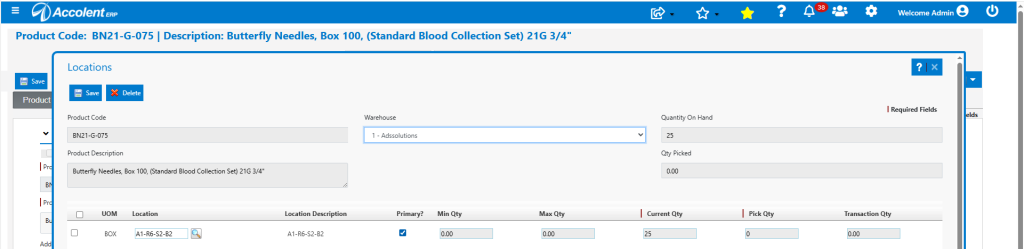
- All Lot Controlled products are also automatically Location Tracked.
- Go to Actions > Locations to see all the Locations associated with the product and the quantity in each.
- The total of all Location quantities ties-out to the Q-On Hand less the Q-Picked.