
Accolent ERP has extensive special order functionality. A special order links a sales order line item directly to a PO and the order can be filled only from the linked PO. Products designated as special order products (i.e., Class-SP) are purchased from the vendor only when orders for these products are taken. Class-SP products MUST be marked as inventory items. Doing so will allow any of these special order products that have been purchased and then not sold or returned to be recorded and tracked. A special order product that is marked as non-inventory is NOT a valid setting and could lead to several problems. Accolent ERP also accommodates situations in which a product is a regular-way sales product (i.e., Class-S) rather than a special order product but the user chooses to enter a one-time special order. This could happen for example if an unusually large order is placed.
Class-SP Inventory Product
- This is the most common special order scenario – the product is typically special ordered when an order is taken, but is also kept in inventory to accommodate over-receiving or return of goods sold
- For this scenario, set up the product with Class SP – Special Order and the Inventory Product? radio button set to Yes
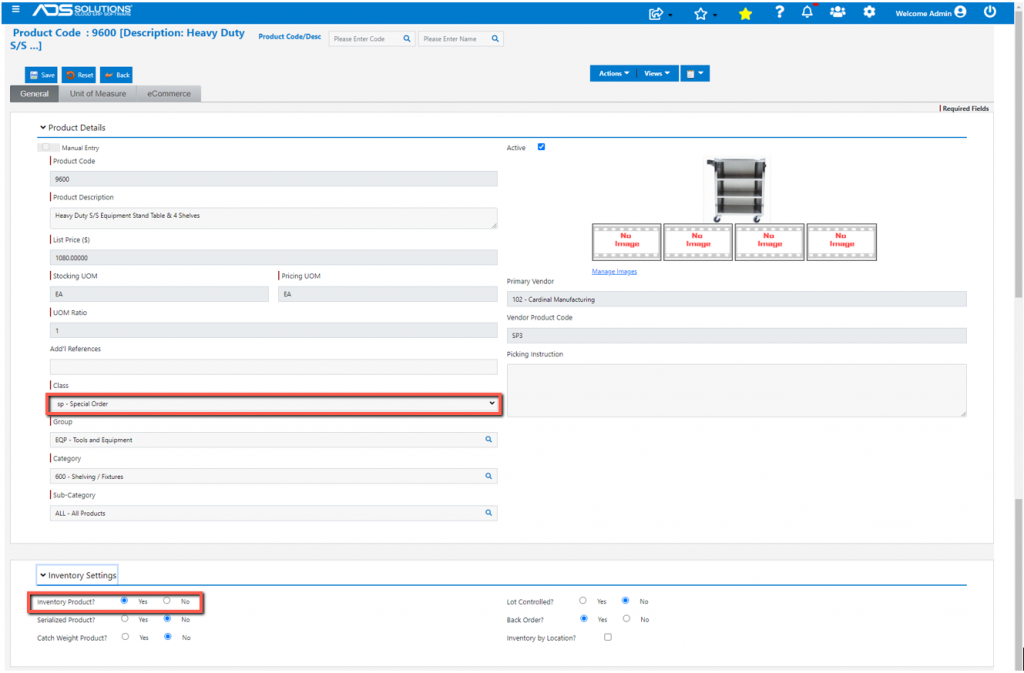
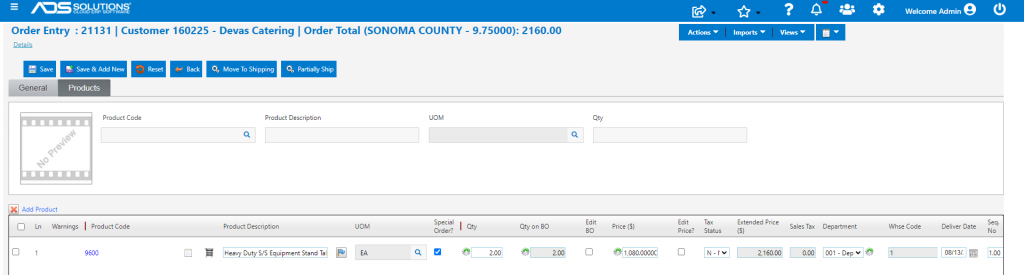
- When an order is taken for this product:
- The Special Order? checkbox is automatically checked
- The order Qty will be filled first from inventory and then to the extent short by placing a PO on the vendor
- In this example, Qty is 2 and there is nothing in inventory, so Qty on BO is 2
- At any time using the Edit BO checkbox, user can override the Qty on BO calculation to order more or less than the calculated amount
- When this order is moved to shipping, the Special Order Purchasing Options screen comes up
- Make selections and Save
- The order is moved to BO pending receipt of the items from the vendor and the PO is created and automatically linked to order

- Receive PO No C5582 when goods are delivered
- This moves the BO to shipping as 21131-2
- Then Invoice the customer
- Ledger card records receipt of 2 on PO C5582 and invoicing of 2 on 21131-2
- Once both shipments are consolidated invoice the customer

Class-SP Non-Inventory Product – NOT VALID
- This is not a valid setting and is not allowed
- Even if you don’t plan on stocking the item, the product should be marked as an Inventory product; you will just always have zero inventory unless some unusual transaction has occurred
- Marking a product that is sold as non-Inventory will give rise to two serious problems:
- All tracking of the product coming in and going out will be lost and there will be no way to handle over-receiving of a PO or customer returns
- There will be no GL postings of cost
Class-S Inventory Product
- This is a situation in which the product is a sales item that is stocked, but may be special ordered under certain circumstances
- Set up the product with Class S – Sales Item and the Inventory Product? radio button set to Yes
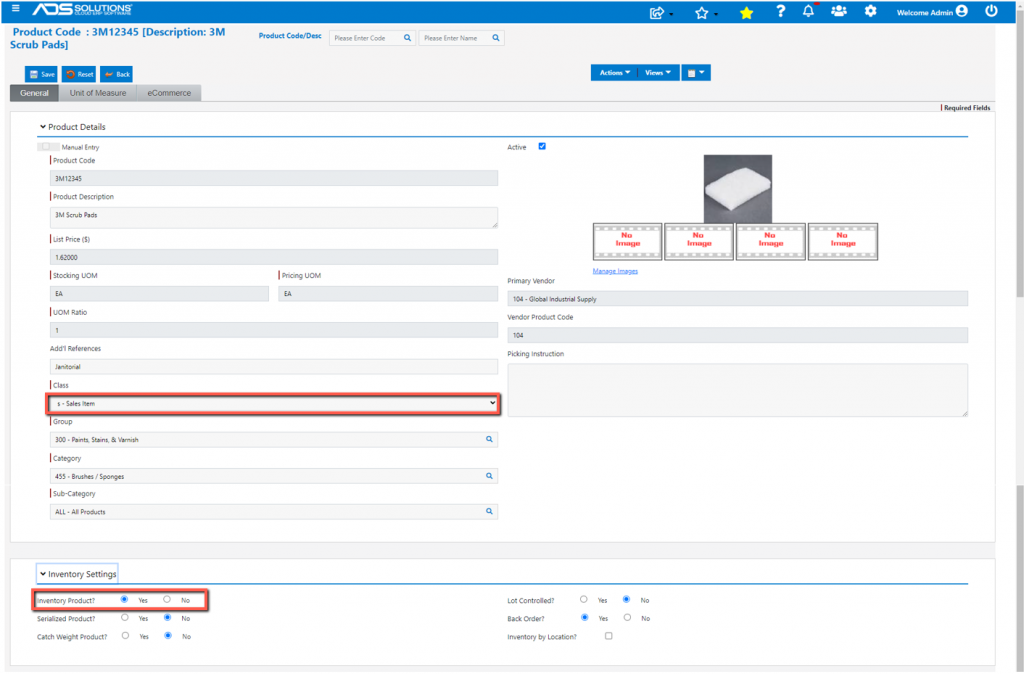
- When an order is taken for this product:
- The Special Order? flag will not be checked
- The Qty will be filled from inventory and then to the extent short put on BO
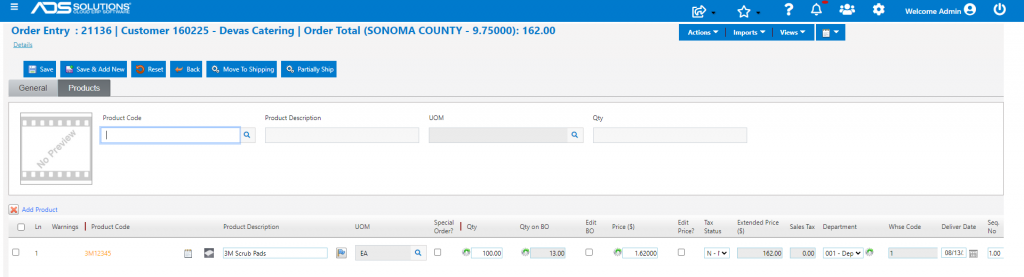
- If there is a large order or for some other reason the product should be a on-time special order, check the Special Order? checkbox
- To mark as one-time SPO, select the Special Order? checkbox
- Select the Edit BO checkbox to put all 100 on BO as a SPO
- Now the special order will be for the full 100 and the 87 in inventory will not be used
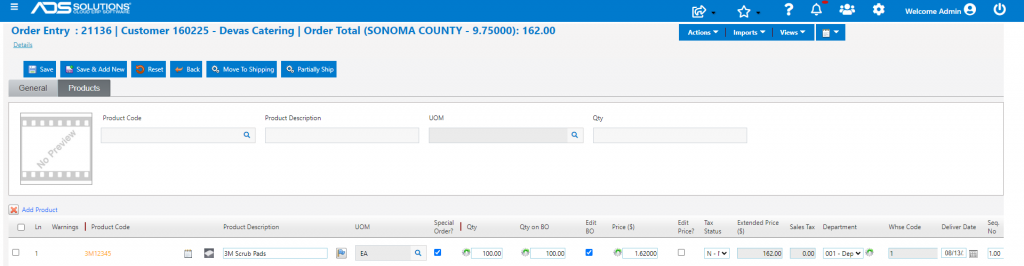
- Move to Shipping brings up the Special Order Purchasing Options screen as before, make selections and Save
- The order is moved to BO pending receipt of the items from the vendor and the PO is created and automatically linked to order

- Receive PO No C5586 when goods are delivered
- This moves the BO to shipping as 21136-2
- Then Invoice the customer
- Ledger card records receipt of 100 on PO C5586 and invoicing of 100 on 21136-2
