
Accolent ERP allows for moving items to defective at any time. This could be required if, for example, a forklift operator bumped into some inventory items and most of the items are damaged, but some may still be serviceable. Defective items are completely written-off to an Inventory Adjustment expense. If at some later point these items can be sold at a discounted price, there will be a negative expense item (i.e., income recorded to reinstate the written-off items).
Defective Items
- Items that are defective but able to be returned to the vendor should not be put into Defective, instead they should be put on a negative PO and returned to the Vendor for credit.
- Defective status is only for those items that while damaged may still be serviceable, and possibly may be able to be sold at a discounted price.
- When moved to Defective, a write-off is taken for the full cost of the items moved to Defective and the items are carried in Defective at zero cost.
- If at some later point, there is a possibility of selling the Defective items at a discounted price, they must first be moved into Inventory, and there will be a negative expense incurred to reinstate the current average cost on these items.
- Once moved back into Inventory, the damaged items can be sold at a discounted price.
Manual Inventory Adjustment
- The Manual Inventory Adjustment screen offers six options:
- Increase QOH – used to reflect an increase in QOH perhaps as result of physical inventory counts. The GL Posting of the adjustment will debit inventory for the increased quantity at the current Average Cost for that item and credit an inventory adjustment account.
- Decrease QOH – used to reflect a decrease in QOH perhaps as result of physical inventory counts. The GL Posting of the adjustment will credit inventory for the decreased quantity at the current Average Cost for that item and debit an inventory adjustment account.
- Move from QOH to Defective – used to record damage of items that may be able to be sold at a discount. The GL Posting of the adjustment will credit Inventory for the quantity of items moved at the Average Cost for that item and debit the inventory adjustment account.
- Move from Defective to QOH – used to move damaged items to Inventory to allow them to be sold. The GL Posting of the adjustment will debit Inventory for the quantity of items moved at the Average Cost for that item and credit the inventory adjustment account.
- Increase Defective Qty – used to reflect an increase in Defective Qty perhaps as result of damaged item considered salvageable. There will be no GL Posting since Defective items are carried at zero cost.
- Decrease Defective Qty – used to reflect a decrease in Defective Qty perhaps as result of a damaged item discarded. There will be no GL Posting since Defective items are carried at zero cost.
Move from Quantity on Hand (“QOH”) to Qty Defective (“Q-Def”)
- Look up Inventory Status for product code 18JP100V in Warehouse 1.
- QOH is 5,585 and Qty Defective is 2.
- Average Cost for this product is $18.70890.
- Go to Inventory/Products > Products > Adjust Inventory.
- Select option to move from QOH to Qty Defective.
- To enter adjustment for a qty of 20 damaged by warehouse during put-away, enter 5,565 into the QOH field, and the Qty Defective will increase to 22.
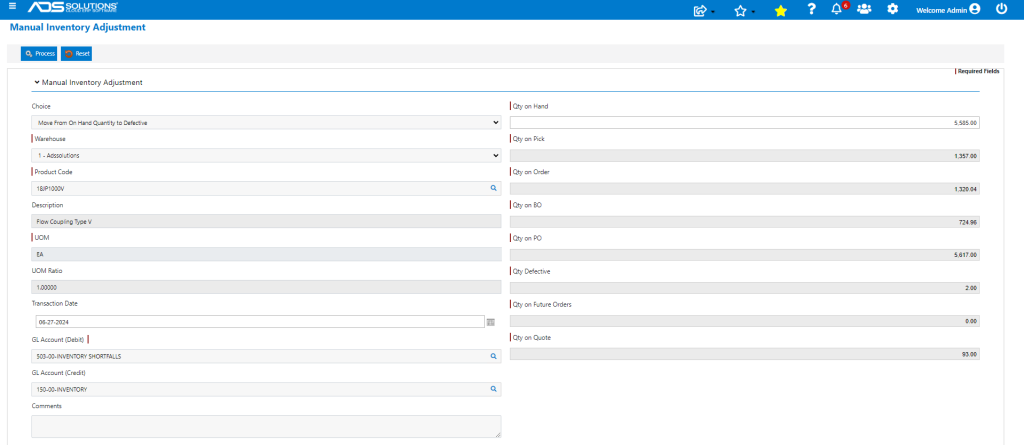
- This will Debit an Inventory Shrinkage expense and Credit the Inventory account.
- Process adjustment to create Receipt No 9535.

- Adjustment credited Inventory for 20 x $18.70890 = $374.18 and debited an inventory adjustment account.
- The full value of these items moved to Qty Defective is written-off and the Qty Defective is carried at a cost of zero.
- Look up the Inventory Status screen – shows QOH reduced by 20 to 5565 and Qty Defective increased to 22.

Move from Defective to QOH
- There may be situations in which you wish to sell Defective item.
- For example, a customer may be willing to take items at a discounted price that are serviceable but were marked as damaged and moved to Qty Defective.
- From Order Entry, Qty Defective can be seen on the Order Qty Review screen.
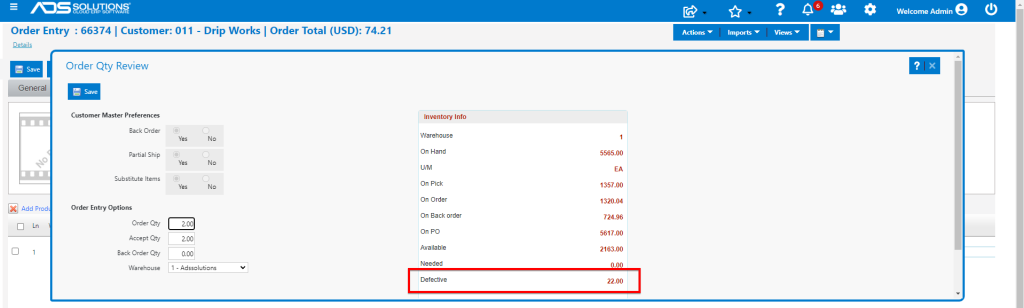
- Use the Manual Inventory Adjustment screen to move the items out of Qty Defective back to QOH.
- Go to Inventory/Products > Products > Adjust Inventory.
- Select option to move from Qty Defective to QOH.
- Decrease Qty Defective by 15 to 7.
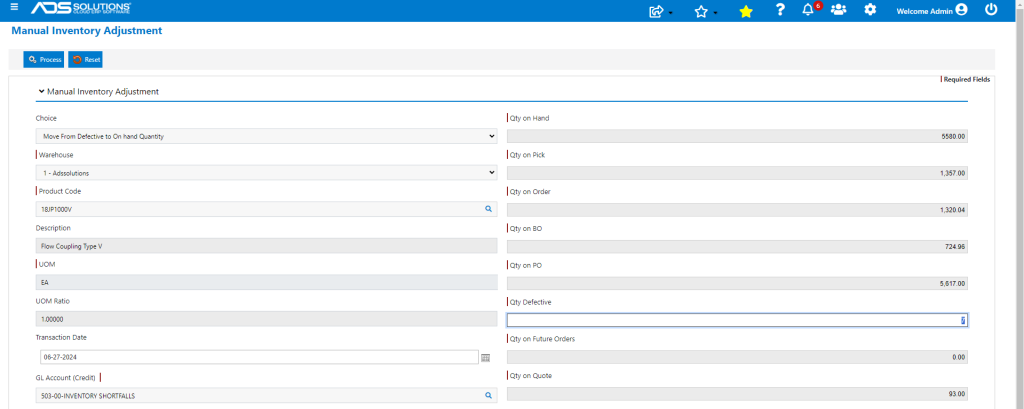
- Process adjustment to create receipt 9536.

- Adjustment debited Inventory for 15 x $18.70890 = $280.63 and credited an inventory adjustment account.
- Since the full value of these items was written off when they were moved to Qty Defective, the credit to the inventory adjustment account reflects the reinstatement of these items.
- Now put 15 on the order and price at a discount of (say) 50% to list price.
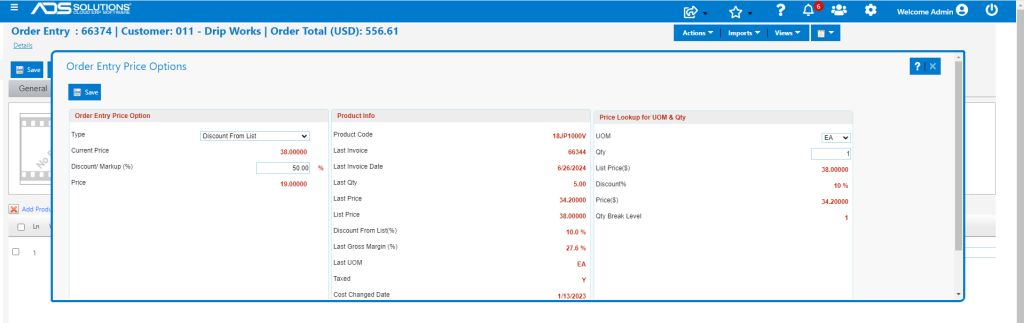
- Add comments to make clear that the items are to be provided out of Defective and at a reduced price.
Increasing or Reducing Qty Defective
- Items that are in Qty Defective may need to be increased, to reflect items that were thought to be unusable, but are found to be in working order.
- Similarly, items in Qty Defective may need to be decreased to reflect items that were thought to be salvageable but are not.
- In both these cases, the Defective Qty can be changed from the Manual Inventory Adjustment screen but there will be no GL effect since the Defective items were already written off.
Receive a PO with Damaged Items
- Since these items will be returned to the vendor for credit, this has nothing to do with Qty Defective at all.
- Instead, create a PO with negative quantity to reflect the items to be returned to the vendor
- Return the damaged items to the vendor.
- Then “receive” the negative PO to create credit for the damaged items returned.
Return of Damaged Items by a Customer for Credit
- If items sold to a customer are returned damaged and can be returned to the vendor for credit, do not use Qty Defective.
- If the damage is not reimbursable by the vendor, then create a Credit Memo in the usual fashion.
- Receive the Credit Memo once the goods are returned by the customer.
- Then move the affected items to Qty Defective.