
Accolent ERP uses an embedded third-party Business Intelligence and Reporting solution to deliver reports across the system. Accolent ERP forms are special-purpose reports. Accolent ERP is delivered with multiple standard forms and variants. All reports and forms may be viewed and edited directly from a web browser using HTML5 technology. This in-browser editing allows users to customize forms, as needed.
Using the Report Designer
- Accolent ERP forms and reports are delivered by Stimulsoft which allows all forms and reports to be customized using the in-browser report designer and editor.
- The report designer is fairly intuitive and there are several how-to videos that can be viewed on the Stimulsoft YouTube Channel.
- If you need help customizing your forms, please contact ADS Solutions for Professional Services.
Selecting the Form Template
- Go to Settings > Printing & Sending > Forms Set Up.
- For a given form (e.g., Invoice) select the form 102 – Invoice Template from the dropdown and click Save.
- The Invoice Template form will have an extension “.mrt”

Adding a Logo
- Click on the Form ID hyperlink.
- This allows entry of an Invoice No to preview the form, if desired.
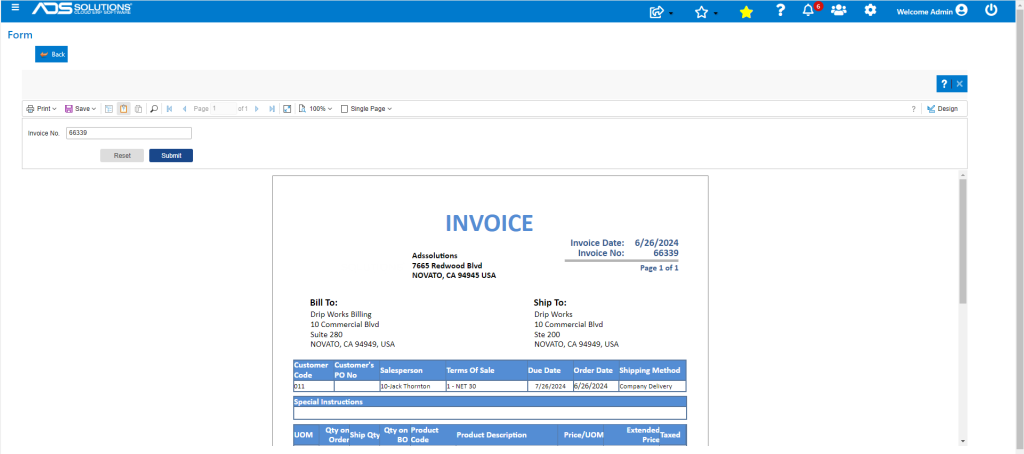
- To open the report editor, click on the Design button at the top right of the screen.
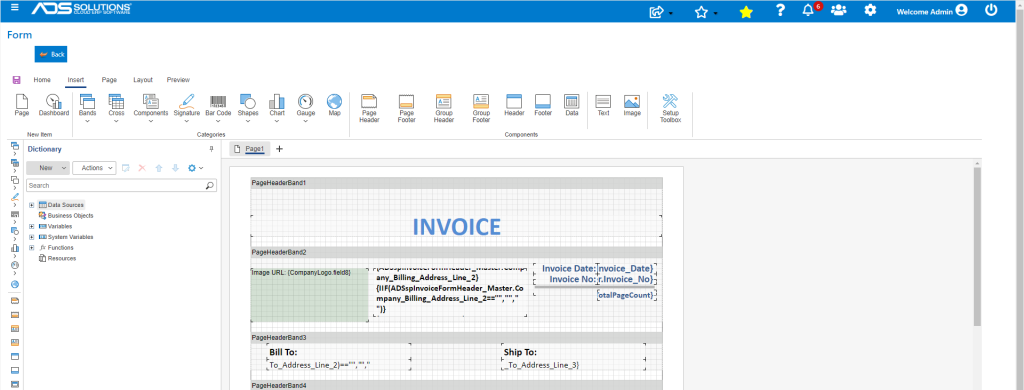
- Click on the insert button to add Image on a page.
- After clicking on the insert button, you can see multiple choices such as Header, Footer, Image etc.; select the Image button.
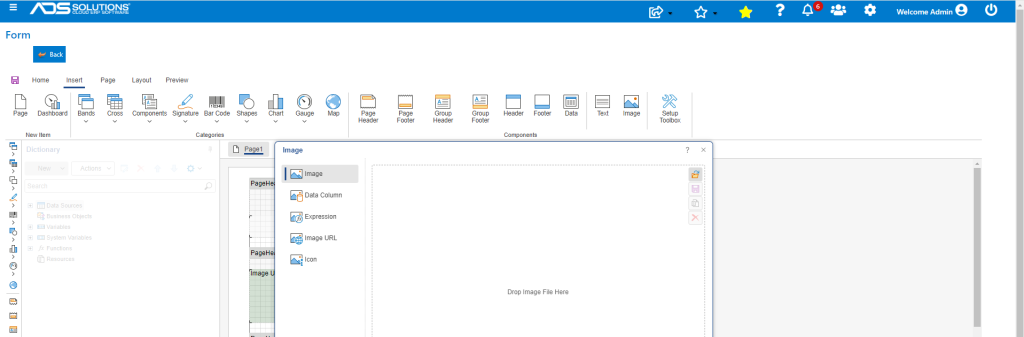
- After clicking on the Image button, you will get the below screen with selection types such as Image, Data Column, Expression, Hyperlink etc.
- To select an image stored on your machine, click on the Image button.
- Clicking on Data Column will let you get the image from the Accolent ERP database which can then be added to the page as a Hyperlink.
- Use the Image button to find and select an image stored on your machine.
- Click on the image you want and click on the Open button.
- Click on OK button to show the selected image on page as shown in below picture.
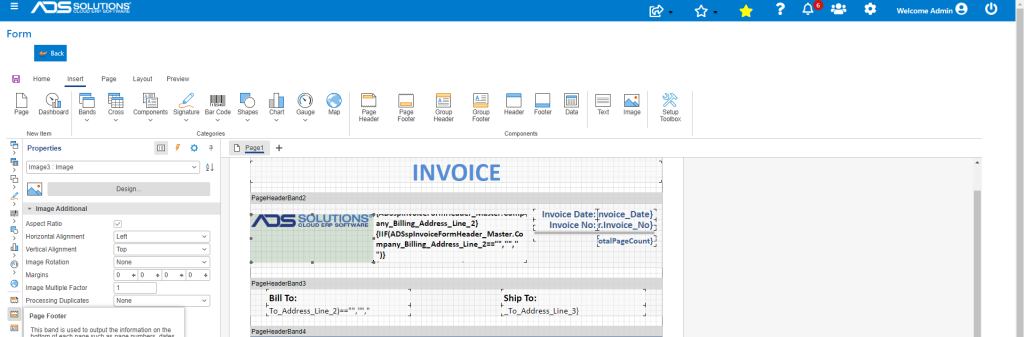
- The image can be moved by selecting and dragging it to the desired location on the design page.
- Note: The Accolent ERP standard reports, use a hyperlink to get the image from the Accolent ERP database and display it on the form.
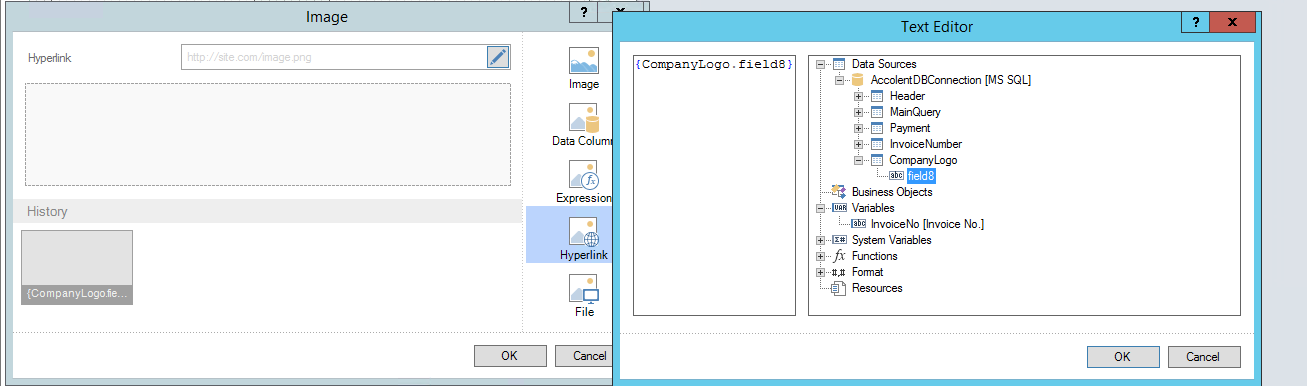
- Below is the query that will give you the image present in that field:
SELECT company_field1_A.field8
FROM company_field1_A
WHERE company_field1_A.company_id = ‘company’
- If you want to change an image, then you need to update the field (e.g., in the query change field A.field8 to A.field9).
Saving Changes
- When done Save the form and it will create a Customized version of the original form.
- The original form will remain unchanged.
- You will have to then select the Customized version in Accolent ERP to use the form you just customized.