
Accolent ERP is integrated with Avalara’s AvaTax Cloud-based sales and use tax solution. With an Avalara account, transactions entered into Accolent ERP will get the sales tax directly from Avalara based on geolocation and product classifications. Avalara eliminates the need to keep the Accolent ERP tax jurisdictions table updated for changing legislative regulations, new tax rules, or shifts in product taxability. To use the Accolent ERP integration with Avalara, you will need to first sign up for an Avalara account.
Initial Setup
- The Accolent ERP integration with Avalara is only available for companies operating in the US and Canada.
- To start, users will first need to set up an account in Avalara.
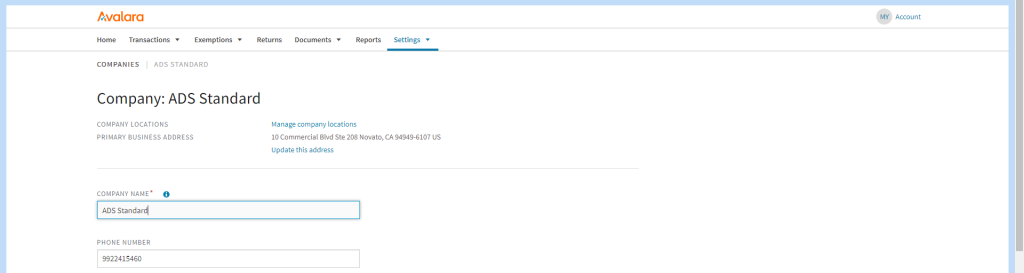
- Ensure that when creating the Avalara account, the entry in the “Company Code” should match the Company Name under Settings > System Settings in Accolent ERP.

- Then in Accolent ERP go to Settings > System Configuration and find configuration settings for Avalara.
- Enter the Avalara account credentials: the Avalara License Key, the Avalara Account No, the default Avalara Freight Tax Code and set the Enable Avalara field to Y.
- During testing you will set the Avalara Sandbox Environment to Y.
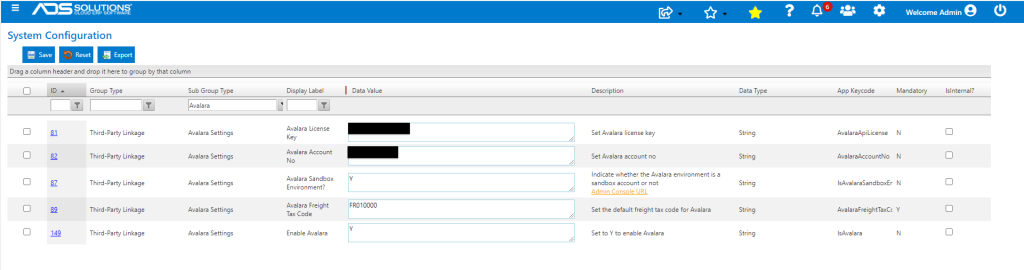
- In the Description of the Sandbox configuration is a link to the Avalara Admin Console.
Product Tax Codes
- With Avalara integrated, you will have to associate Tax Codes for each product item.
- Products defined in Accolent ERP can be mapped with predefined tax codes in Avalara.
- When Avalara is enabled, a new field “Product Tax Code” will appear on the product master screen.
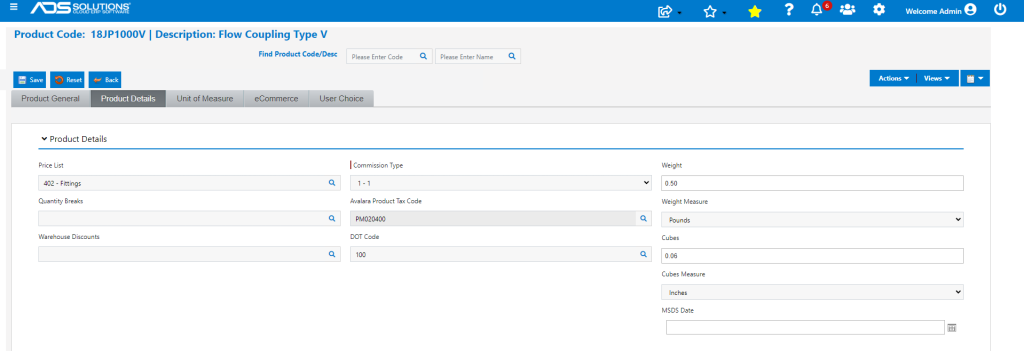
- Use the search icon, to select product tax codes defined in Avalara.
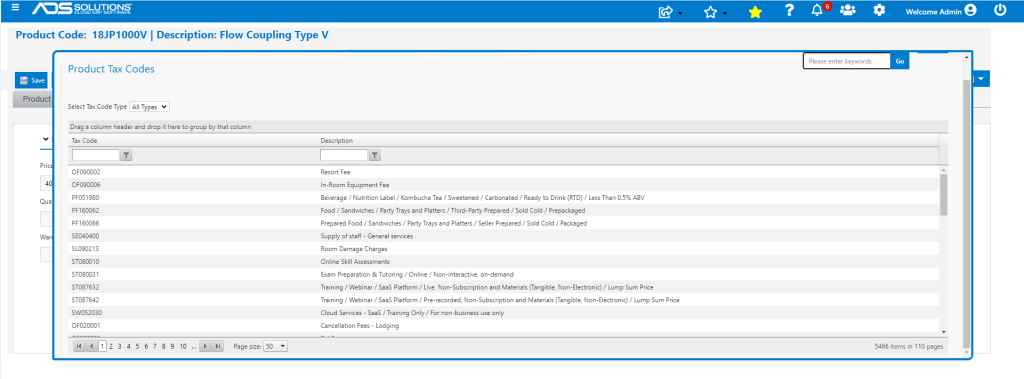
- Then save the product.
- Once a product tax code is defined for the product, Avalara will use a combination of this and the address of the customer to determine the taxability status of the product.
- Products can be tax exempt, partially taxable or fully taxable.
Customer Tax Exempt Codes
- A Customer is taxable by default. In this case, you don’t need to enter an Avalara Tax-Exempt code.
- If the Customer is non-taxable, you will also need to associate Customers with an Avalara Tax-Exempt Code.
- For example, open Customer 120123 Earthclean Janitorial that is tax-exempt.
- With Avalara enabled, on the Customer Master screen, the Avalara Tax-Exempt Code input field will show up.
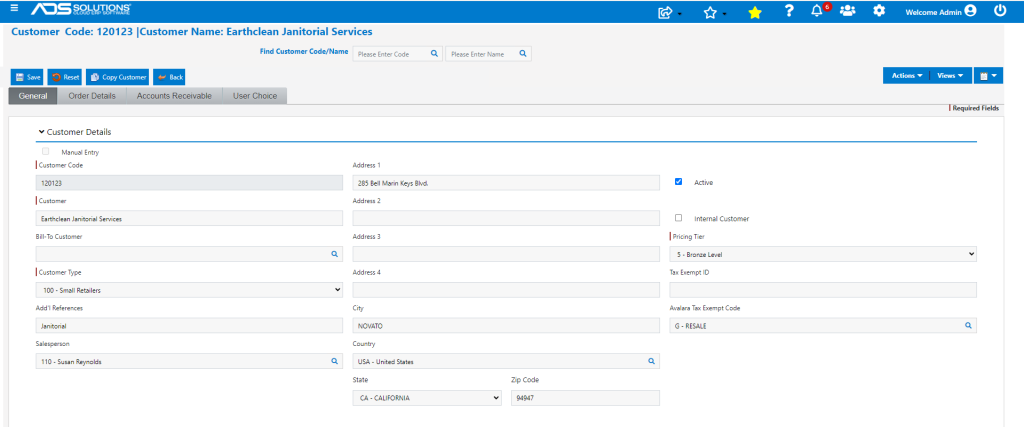
- Click on the search icon beside Tax Exempt Code input field to look up the Entity/Use codes available in Avalara.
- Select the Tax Exempt Code in Avalara and Save the Customer record.
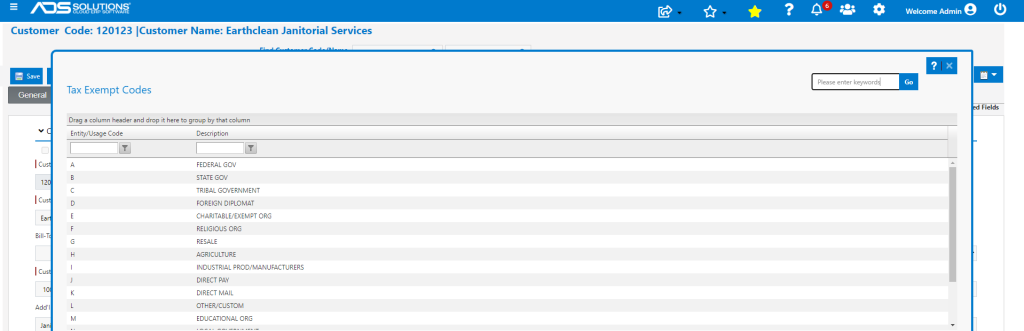
- This Tax Exempt Code will be used in Avalara.
Sales Tax on Transactions
- When a sales transaction (quote, order, invoice or credit memo) for a product is entered in Accolent ERP, Avalara will:
- Determine the item’s taxability in the customer’s location,
- Determine if the customer is taxable or not, and
- Get the tax rate for the transaction by mapping to the right jurisdiction in that location.
- For example, create order 66339 for customer 011, that is taxable.
- Add line with extended price of $342.00.
- Assume the customer is purchasing this for resale and so this line is non-taxable, use the Avalara Tax Code dropdown to override the sales tax for this line.
- Select the Avalara Tax Code – G-Resale and the line is recorded as non-taxable.
- Now add second line with extended price of $247.06, which calculates sales tax as $21.00.
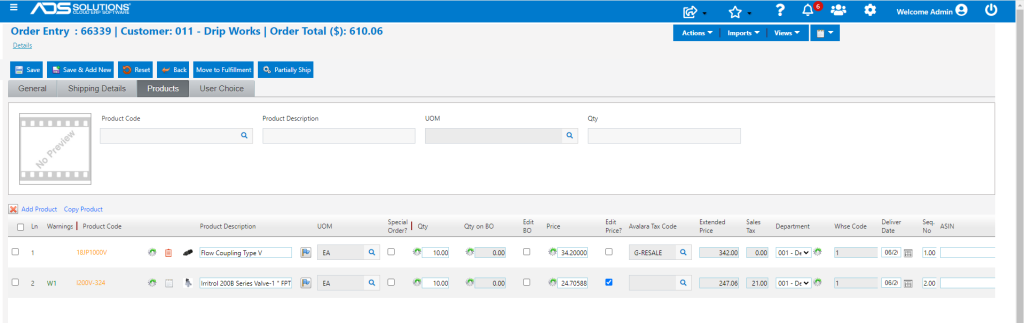
- Now move order 66339 to fulfilment.
Taxes on Freight
- Open order in fulfilment to pick, pack and ship the order.
- Add $50.00 of freight (say).
- Shipping charges are generally taxable if the item being shipped is taxable
- In Avalara as in Accolent ERP, shipping charges are entered as a separate line item on an order.
- When Avalara is enabled, the Avalara Freight Tax Code will show up.
- The freight code entered in the Configuration screen FR010000 will default into the Avalara Freight Tax Code field.
- The default can be overwritten with the appropriate Avalara Freight Tax Code when an order is shipped.
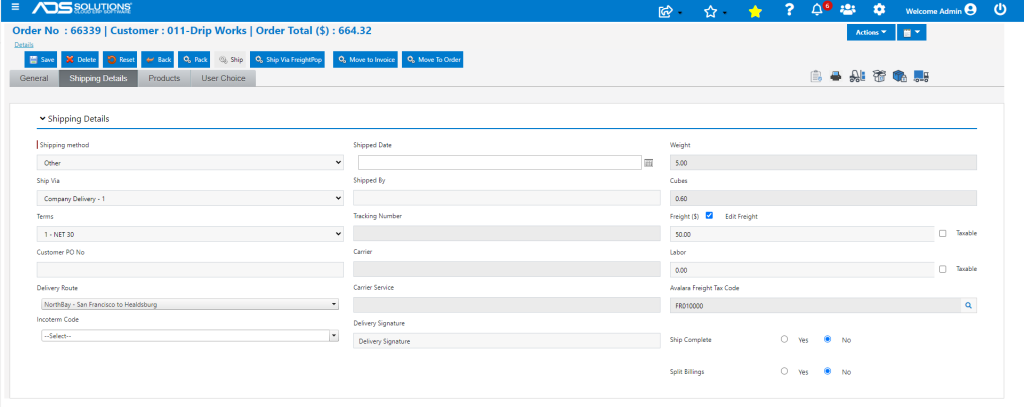
- To overwrite the default, click on the search icon beside Avalara Freight Tax Code input to bring up the existing Freight Tax Codes in Avalara.
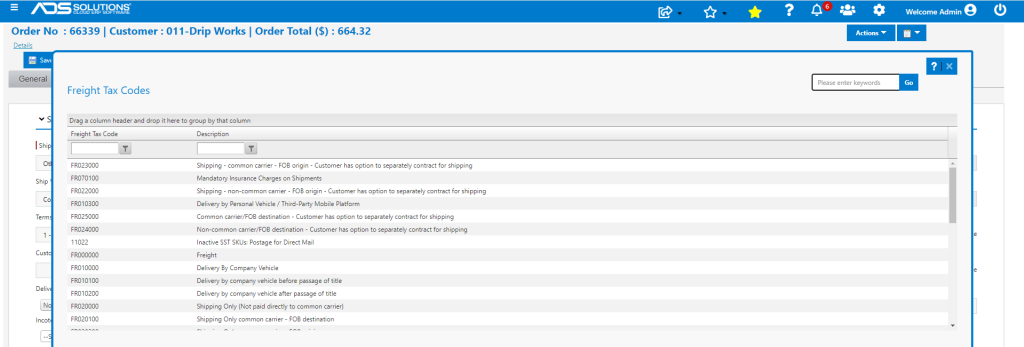
- Select the Avalara Freight Tax Code.
- When the order is moved to invoice, the Freight amount along with Avalara Freight Tax Code associated with it, will be sent to Avalara as a separate line item (just like a product).
- Avalara will calculate the tax for Freight on the transaction based on the Avalara Freight Tax Code.
- Now move to invoice – total is $661.84 (including $22.78 of sales tax).
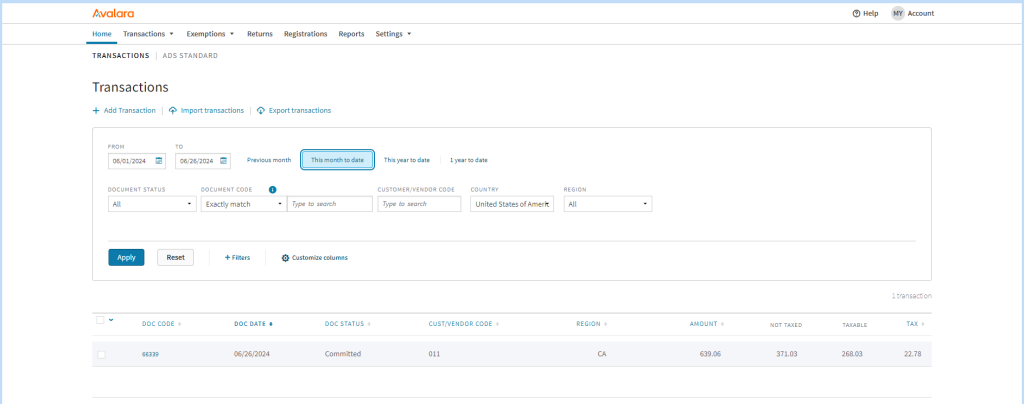
- Avalara Doc Status shows as Committed.

- Go to the console in Avalara to verify that invoice for $661.84 is committed.
Create Credit Memo
- Go to Credit Memo and create Two Step Credit Memo.
- Select Customer 011 and Invoice 66339.
- Return 2 EA of the original 10 EA of I200V-324.

- Refund $10.00 of the original $50.00 charged in Freight.
- Receive returned goods and move CM for $64.45 (including $5.04 of sales tax) to Invoice status.
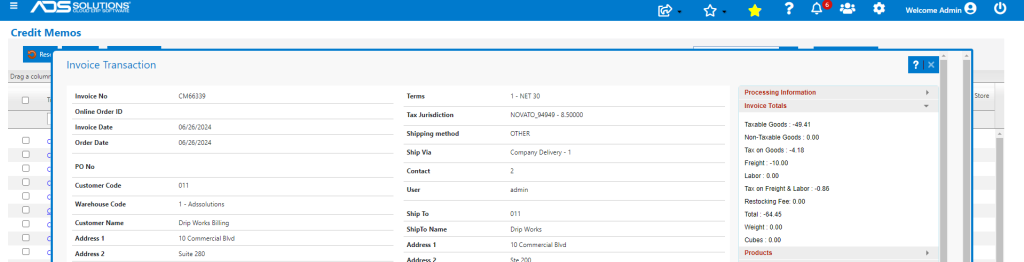
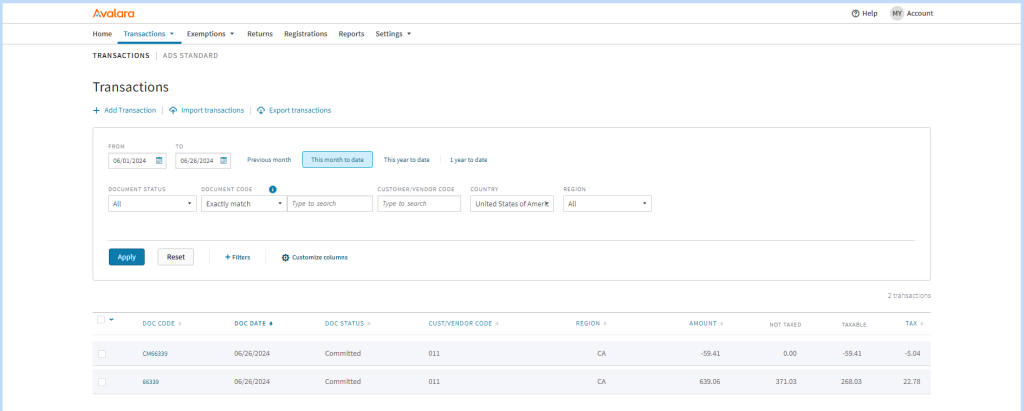
- Verify on Avalara Console shows CM66339 as committed.
Disabling Avalara Integration
- The integration with Avalara can be disabled anytime by going to Settings > System > System Configuration.
- To disable tax calculation using Avalara, locate “Enable Avalara” configuration setting and specify value as “N” and save configuration.