
Accolent ERP includes comprehensive functionality for short-term equipment rentals. In accordance with FAS13 and US GAAP, Accolent ERP accounts for short term equipment rentals as operating leases in which the lessor retains legal and accounting ownership of the rental equipment. Rental items are treated as fixed assets on the lessor’s Balance Sheet and costs are recorded periodically through depreciation expense. Rental items are always non-inventory items and may be serialized or not serialized.
Create a Rental Product
- Rental items are set up as products with Class SR – Rentals
- Create a Rental item BobcatE171.5T
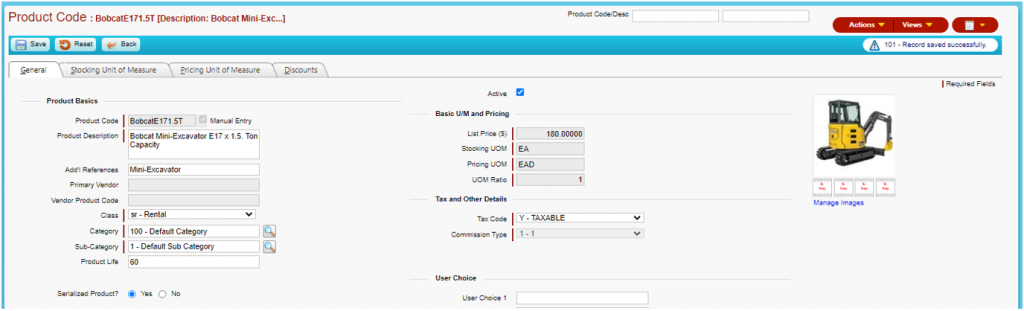
- Select Class SR – Rental
- Rental items are always non-inventory and usually serialized but may also be non-serialized
- On the Stocking UOM tab, EA (Each) defaults in
- Click on the arrow button
 to import rental UOMs
 - The only Rental UOMs accepted are EAD (Each per Day) and EAH (Each per Hour)

- Rental periods are measured in Days
- There is a global setting that can count Days by workdays only or by calendar days
- Rates for extended rentals are entered as Qty Breaks (e.g., 2 days = 25% discount, 3-29 days = 57% discount, 30+ days = 75% discount)

- Ignore the UOM Ratio warning, leave all as 1
- Click on notepad icon
 to copy Stocking UOMs to Pricing UOMs
 - EA is the Stocking and PO UOM; EAD is the Rental and Pricing UOM
- Set Price Factor (e.g., Rent $180/day)

- Only the PO cost (i.e., Alternate Cost) needs to be set up; no other costs are relevant since accounting cost is assigned through periodic depreciation
- Rental item is now created
Purchase Rental Equipment
- Set up the vendor of the Rental items as a non-Inventory Vendor
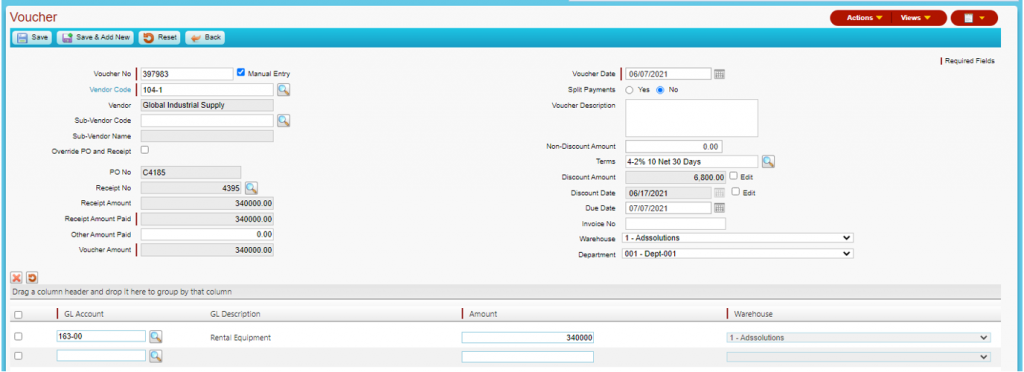
- This is important as it ensures the rental product is booked to the GL Account for Fixed Assets rather than to Inventory
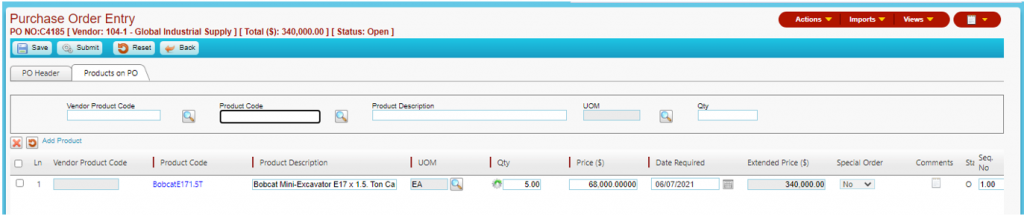
- Create PO C4185 to purchase rental equipment
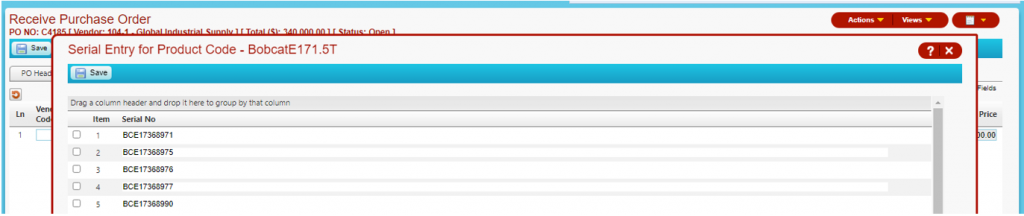
- Receive PO C4185 and record the manufacturer’s Serial Nos
- When the vendor’s invoice is entered, set the GL allocation to Rental Equipment (not Inventory)
Rental Products Status Screen
- Once received the rental products will show up on the Rental Products Status screen which shows all rental products by status: On Hand or On Rental
- Go to Rental Products > Rental Products Status screen

- Click on Qty on-hand hyperlink to see the list of serial numbers making up On Hand items

- If the product is not serialized, no serial numbers will show up
- Click on the Qty on Rental hyperlink to see details of the rental transactions
- Click on the View Transactions hyperlink to see all transactions for this product