In Accolent ERP payments received from Customers are typically entered as payment receipts and applied directly to open invoices. The system will make the payment receipt, then record the open invoices as paid and update the Accounts Receivable Aging. If a payment cannot immediately be assigned to open invoices, it can be held as an Unapplied Payment until it is subsequently applied to fully or partially pay open invoices. Similarly, if a payment overpays an open invoice, the overpayment may also be held as an Unapplied Payment until it is subsequently applied.
Creating Unapplied Payments
- Unapplied Payments are created when a payment is received that (1) either cannot immediately be applied to pay open invoices, (2) or is an overpayment that leaves a balance after being applied to open invoices.
- Unapplied Payments once created may then be applied to pay invoices in the same way as Credit Memos are used.
- Unapplied Payments create a negative AR balance and so should only be used temporarily until they can be applied to pay open invoices.
- If a payment is received in advance, for example as a pre-payment of an order that has not yet been invoiced, the payment should be treated as a Customer Deposit rather than an Unapplied Payment.
Payments that Cannot Immediately be Applied
- If a payment is received but cannot immediately be applied to pay open invoices, it can be created as an Unapplied Payment.
- To do this go to Receivables > Payments Receipts > Create Unapplied Payments.
- Select the Customer and Method of Payment and enter the Payment Amount.
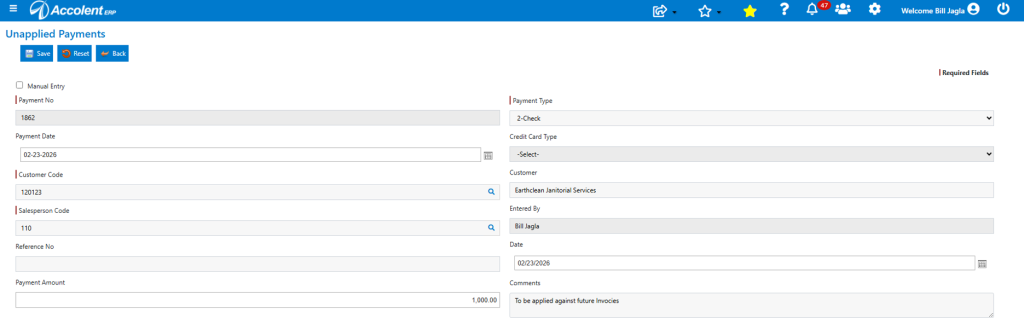
- Then click Save.
- A transaction, numbered in the form UN*nnnn, will appear on the Customer’s AR record.
- The payment amount may then be deposited.
Overpayments
- If a payment is received and applied to pay open invoices but leaves an overpayment balance, this overpayment can be created as an Unapplied Payment.
- To do this go to Receivables > Payments Receipts > Create Unapplied Payments.
- Select the Customer and Method of Payment and enter the Payment Amount as before.
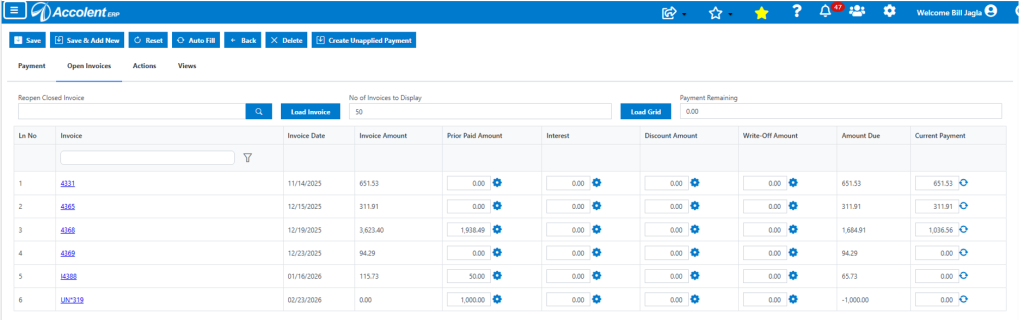
- Then go to the open invoices tab to apply the payment to open invoices.
- If, after applying the payment to existing invoices, there is still an amount remaining then click the Create Unapplied Payment button.
- A UN*nnnn transaction will be created for the overpayment balance.
- Note: If using the Auto Fill button to apply the payment, an Unapplied Payment will be created automatically if all open invoices are paid but leave an overpayment balance.
Unapplied Payments Reduce AR Balance
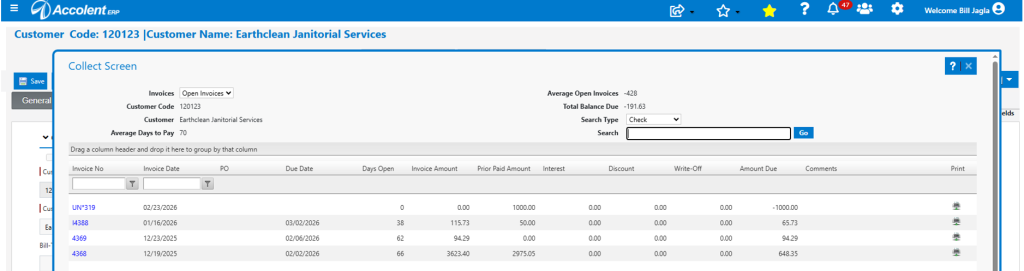
- In either of the above cases, the Unapplied Payment appears on the Customer AR Aging record.
- The Unapplied Payment will appear as a $0 invoice with the payment made against that invoice, creating a negative AR Amount Due and reducing the Customer’s open balance.