Accolent ERP allows a product to track Inventory by Location or not and also to associate one or more Locations with a product. If Inventory by Location is not tracked, then the product’s Location Quantity will always be equal to the “Q-On Hand” and this will be shown against the Primary Location for the product. There is no rational reason to have any additional Locations but if there are they will all show zero. If Inventory by Location is tracked, each Location reflects “Q-Picked” which is updated whenever that Location is selected. This recorded picking event reduces “Q-Fulfill” and increases “Q-Picked”. Then when the order is moved to invoice, the “Q-Picked” and “Q-On Hand” are both reduced.
Inventory By Location Not Tracked
- Product I200B-NPT-1.50 does not track Inventory by Location.
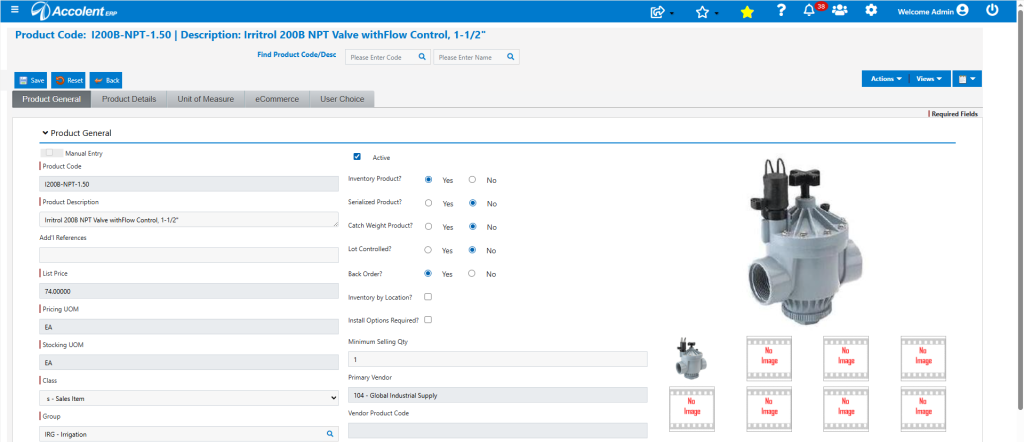
- All transactions will be recorded against the Primary Location, and all other Locations will show zero.
- Go to Views > Inventory Status for I200B-NPT-1.50.
- Create order 90547 for 2 EA x I200B-NPT-1.50 and move to fulfillment.
- Q-On Hand is 32, and Q-Fulfill is 2 on order 90547, so Q-Avail is 30.

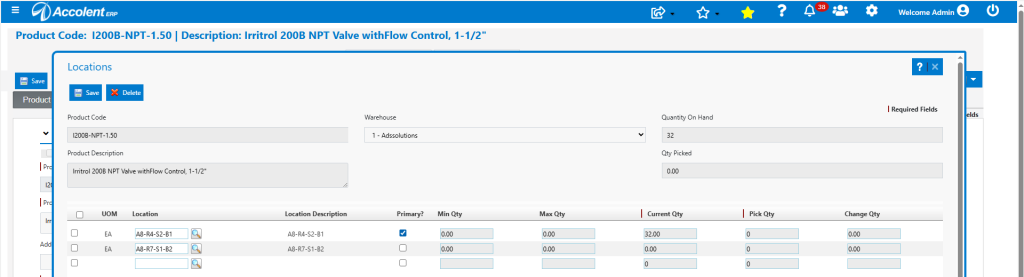
- Although having more than one Location without tracking Inventory by Location doesn’t make any sense, product I200B-NPT-1.50 has 2 Locations.
- However, only the Primary Location will show any quantity.
- Since the product doesn’t track Inventory by Location there is no picking event recorded, so the Location Quantity of 32 will be equal to the Q-On Hand.
- Orders in fulfillment do not affect the Location Quantity until invoiced.
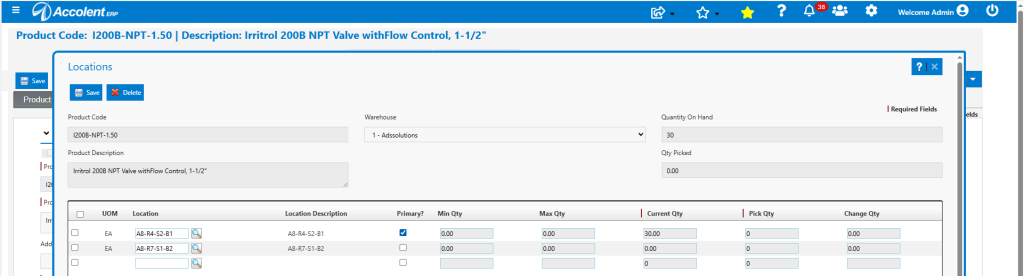
- Moving the order 90547 from fulfillment to invoice reduces the Q-On Hand by 2 and Q-Fulfill by 2.

- This is also reflected on the Location screen.
Inventory Tracked by Location
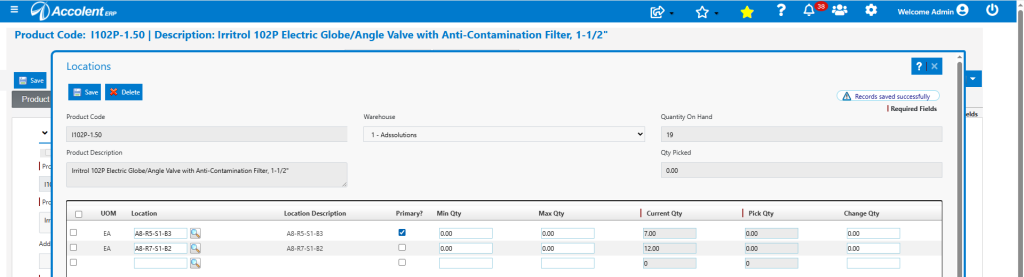
- Product I102P-1.50 does track Inventory by Location.
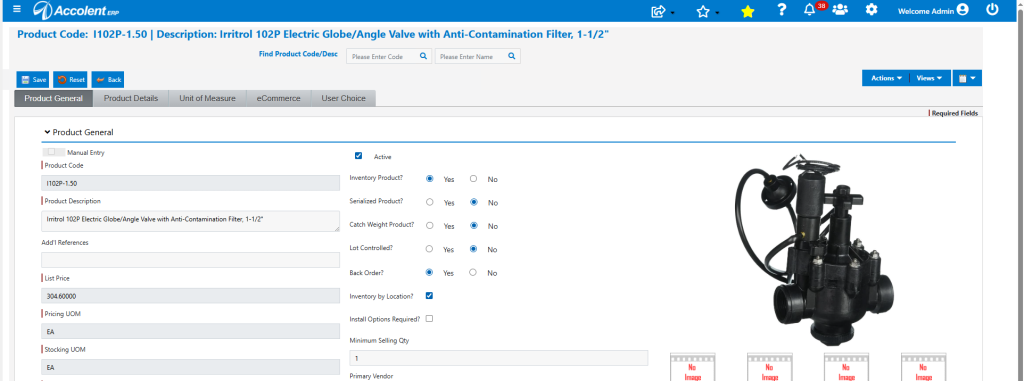
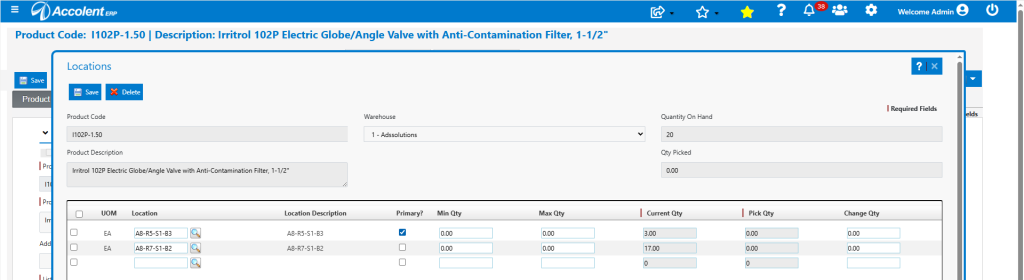
- The product has 2 locations. The Primary Location has a Qty of 3 and the other Location has a Qty of 17.
- The product’s Inventory Status screen shows Q-On Hand of 20, Q-Order of 1, Q-Fulfill of 5, Q-Picked of 0, Q-BO of 1 and Q-Avail of 13.
- Open order 88706 in fulfillment and pick the quantity of 1, from the Primary Location.
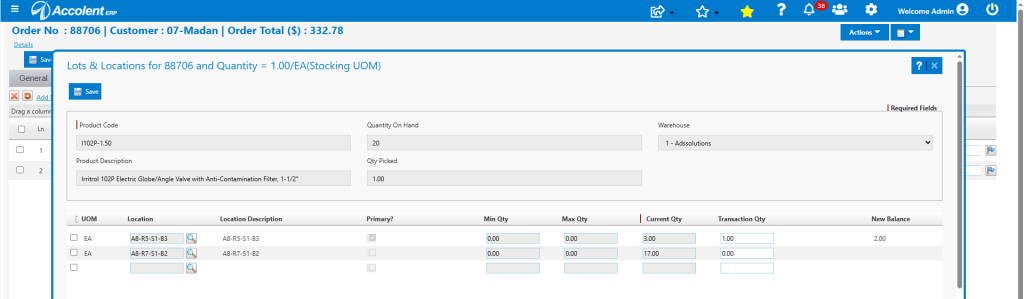
- Then Save the order.
- Note that because the product tracks Inventory by Location, the quantity of orders in fulfillment is split into two buckets: Q-Fulfill shows the quantity not yet picked and Q-Picked shows the quantity already picked.
- Now quantity of Q-Fulfill is 4 and Q-Picked is 1.
- The sum of the Location Quantities shows 19, equal to the Quantity On Hand of 20 minus the Qty Picked of 1.

- Now moving order 88706 to invoice, reduces Q-On Hand from 20 to 19 and Q-Picked from 1 to 0.

- Q-On Hand less Q-Picked is 19, which is what is reflected on the Location screen.
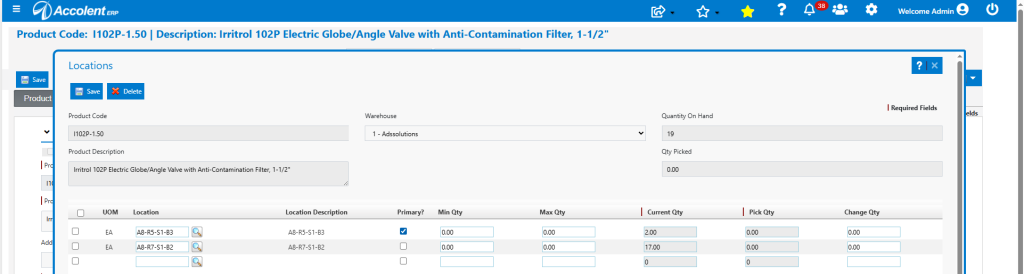
- Unless the sum of the Location Quantities are equal to Q-On Hand less Q-Picked, the screen will not be able to be saved.
- If the totals do not match, enter the correcting quantity adjustment in the Transaction Qty column and then save.
- To move inventory from one location to another, enter a zero transaction quantity by reducing one location and increasing the other.
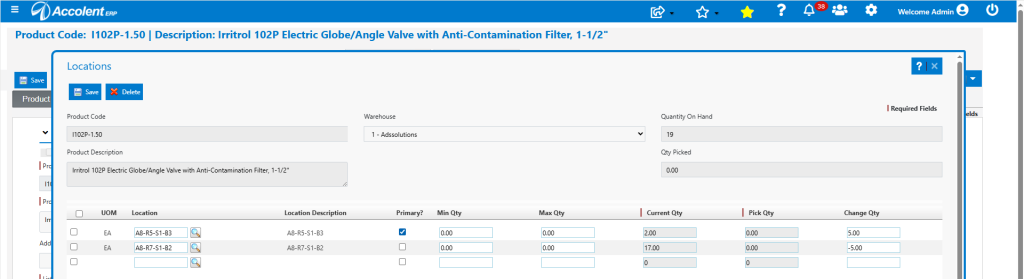
- Then Save to effect the move.