
The Accolent ERP Self-Service Portal (“SSP”) allows Customers’ employees (“End-Users”) to place orders, review the status of their orders, look up their prior transactions, review their Statements and pay invoices. Typically, each End User will be uniquely associated with only one Accolent ERP Customer. However, the SSP can also accommodate situations in which one End-User can be associated with multiple Customers (e.g., a restaurateur with multiple restaurants, each of which is a separate Accolent ERP Ship-To Customer).
Link SSP End-User to Multiple Accounts
- Go to Settings > Users > eCommerce Admin > Self-Service Portal > Portal Users, open existing SSP End-User “Tom”.
- This End-User is linked to Accolent ERP Customer 011 – Drip Works that has multiple associated Ship-Tos. This is the Main Account for End-User “Tom”.
- Go to the Additional Companies section on the User Information screen and click Add New.
- Then add all the Drip Works Ship-To Customers.
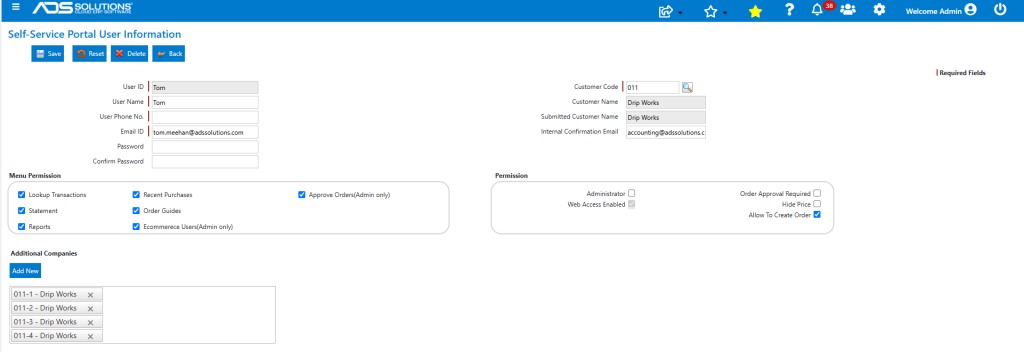
- End-User “Tom” can now access the SSP accounts for 011, 011-1, 011-2, 011-3 and 011-4, using the same login.
Log In to SSP Main Account
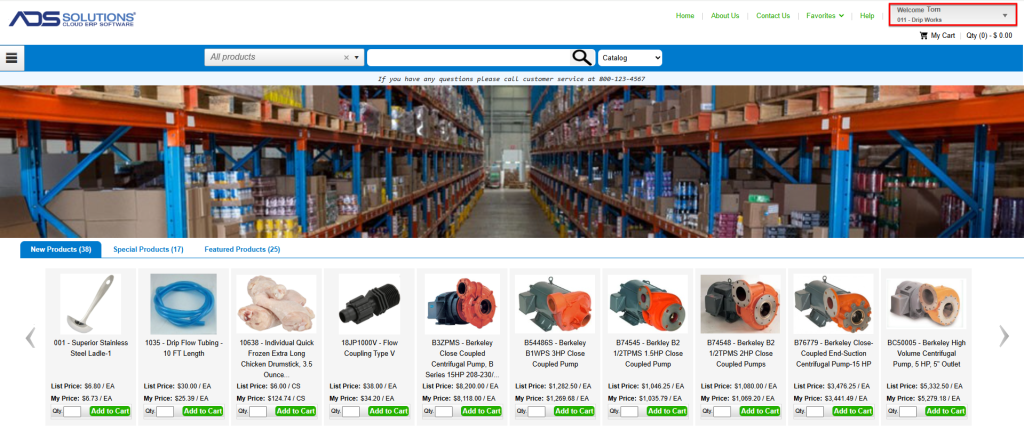
- When End-User “Tom” logs into the SSP, he will be automatically logged into the SSP main account for Customer 011 – Drip Works.
- This can be seen in the Welcome box on the upper right-hand side of the SSP Home screen.
- The SSP will display the pricing and other settings that relate to Customer 011 – Drip Works.
- For example, search for Product B2TPMS, priced to Customer 011-Drip Works at $6,850.80.

- From the Main Account, create and complete an order for 1 EA x B2TPMS for Customer 011 – Drip Works.
Switch to Another SSP Account
- To switch to another SSP account that the End-User is linked to click on the Welcome Box dropdown.
- This will display the Main Account and all the Additional Companies’ Accounts that have been linked to this End-User’s login.
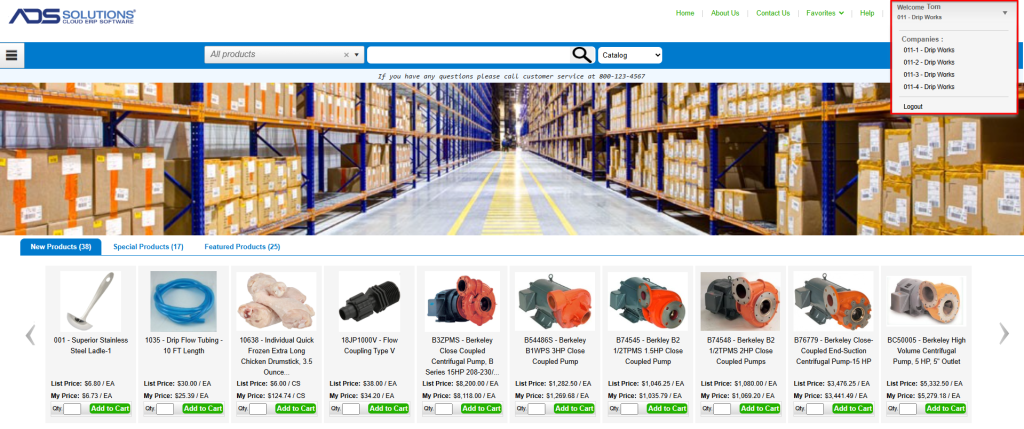
- Click on any of the Additional Companies shown, and the End-User will be logged out of the Main Account into that Additional Company Account.
- For example, log in to 011-3 – Drip Works-Richmond.
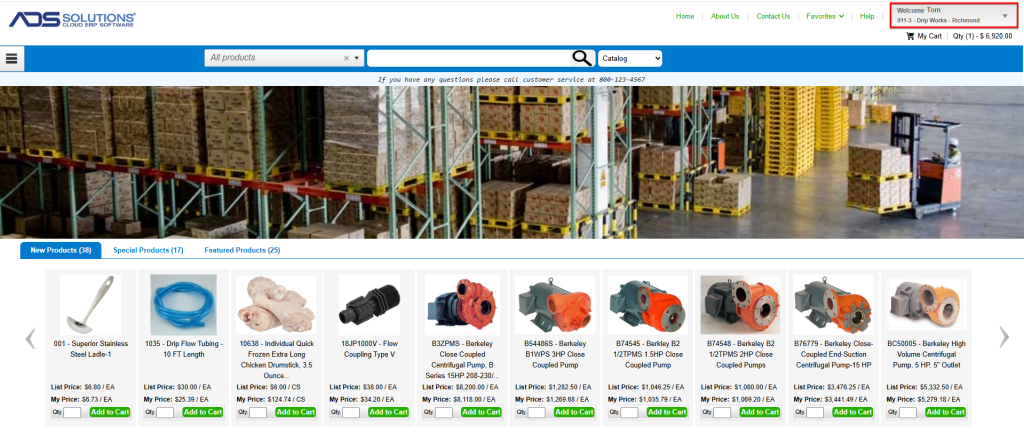
- Now, again search for B2TPMS to see what price is shown for 011-3 – Drip Works-Richmond.
- Shows List Price of $6,920.00 (i.e., excluding the 1% special discount provided to Customer 011 – Drip Works).
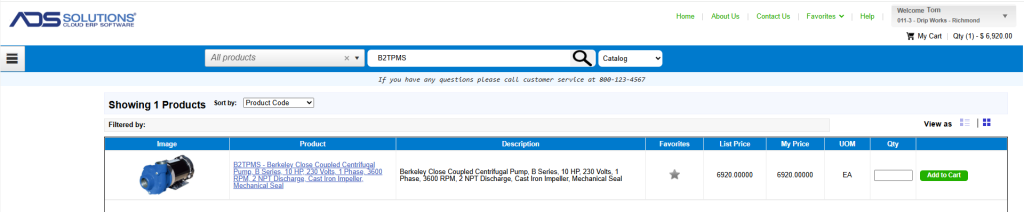
- From this Additional Company Account, create and complete an order for 1 EA x B2TPMS for Customer 011-3 – Drip Works-Richmond.
Orders Created in Accolent ERP
- The orders for Customer 011 – Drip Works and Customer 011-3 – Drip Works-Richmond are both created automatically in Accolent ERP.
- In Accolent ERP open Sales > Orders to see the orders for the 2 different customers reflecting the different pricing for each customer.
