
Accolent ERP is linked through direct managed APIs to the Shopify ecommerce platform. Setting up a Shopify Online Store is very straightforward and can be done by most users without the need for technical resources. However, ADS Solutions technical personnel are available to assist with setting up a Shopify Online Store, if required. The Accolent ERP integration allows users to (1) upload products from Accolent ERP to Shopify (2) automatically in real-time sync product updates and inventory changes made in Accolent ERP with Shopify (3) automatically pull orders created in Shopify into Accolent ERP and (4) automatically update fulfillment information on orders and inventory effects to Shopify.
Enabling the API Integration
- To link Accolent ERP and Shopify, a user will first need to set up the Shopify Online Store. The steps are very straightforward and do not require any technical expertise. The set up steps involve:
- Downloading the theme,
- Setting up the initial slideshow (i.e., hero images),
- Setting up the freight options,
- Setting up the payment methods, and
- Setting up the sales tax.
- While setting up the Shopify Online Store, the user will protect the store with a password that will be removed when the store is ready to go live.
- Once the Online Store is fully set up, the store credentials which will be needed to connect, will be entered in Accolent ERP.
Configuration Settings
- Go to Settings > System > System Configuration and make these settings to enable the Shopify integration.

- Then go to Settings > Value Lists > Other Value Lists A to L > eCommerce Stores and enter the Shopify store.
- This will then appear in the Online Store dropdown in the product master and can be used to designate which products will be displayed in Shopify

Designate Products to be Displayed in Shopify
- To designate which products are to be displayed in the Shopify Online Store, the products must be marked on the product master.
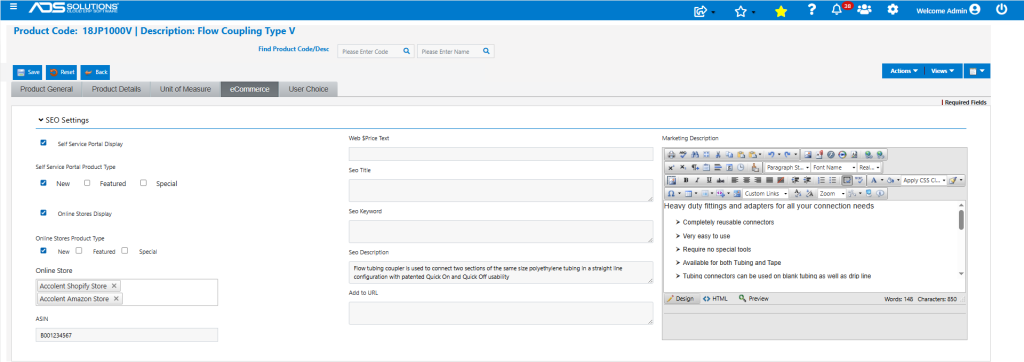
Create Products Updates Shopify
- Accolent ERP uses a POST method Products API to manage sending product records to Shopify.
- Products in Accolent ERP can be selected from the List Products screen and pushed to Shopify using the Update Products button.
- Also, a product created in Accolent ERP when Saved will automatically be pushed to Shopify.
- If the products don’t exist in Shopify these records will be created; if the products already exist, they will be updated.
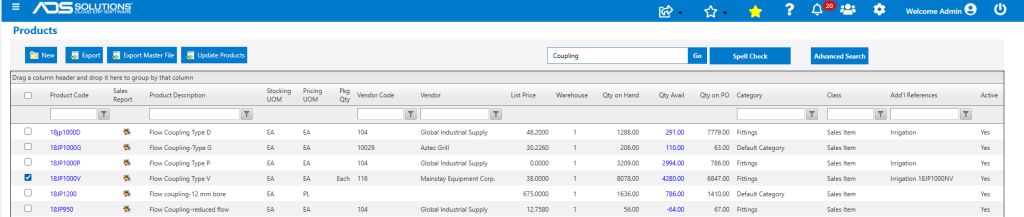
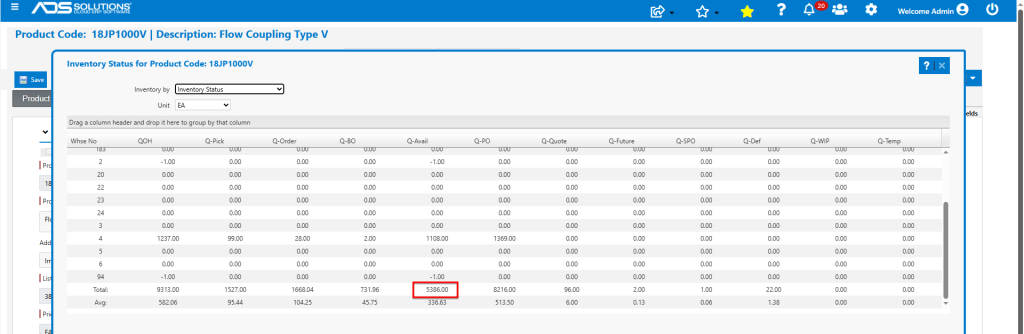
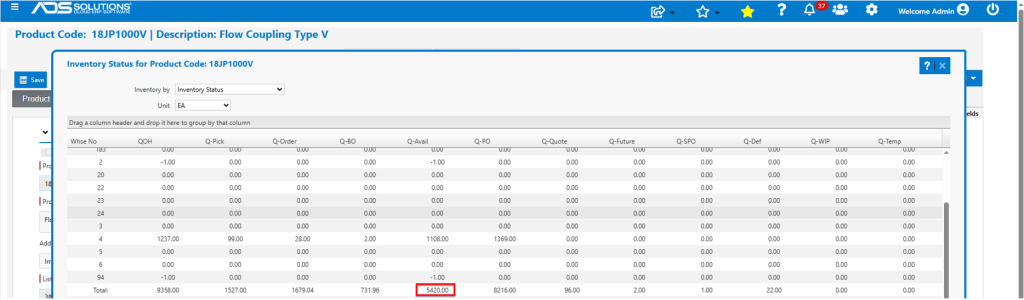
- Quantity Available (Q-Avail) Inventory for all warehouses in Accolent ERP.
- Record in Shopify is updated.

PO Receipt Updates Inventory in Shopify
- Accolent ERP uses the POST method Inventory API to manage and update inventory quantities for products in Shopify.
- When a Purchase order is created and received in Accolent ERP the total inventory in Shopify will be automatically updated.
- For example, in Accolent ERP receive PO No C11719 for 114 EA x 18JP1000V which increases Q-Avail to 5,500 EA.

- Once the Shopify Online Store is refreshed, the Inventory is shown as 5,500 EA.

Manual Inventory Adjustment Updates Inventory in Shopify
- Similarly, using the POST method Inventory API, a Manual Inventory Adjustment processed in Accolent ERP automatically updates the total inventory in Shopify.
- For example, enter a Manual Inventory Adjustment in Accolent ERP to reduce Q-Avail of 18JP1000V by 50 EA to 5,450 EA; then refresh the Shopify Online Store.

Shopify Order Updates Accolent ERP
- An order created in the Shopify Online Store calls the Order API and automatically fires a webhook that then creates the order in Accolent ERP.
- If the order is for a customer that already exists in Accolent ERP an order and payment record will be created.
- If the order is for a new customer, the customer will first be created in Accolent ERP before the order and payment record are created.
- Accolent ERP identifies an existing customer by matching the customer’s first name, last name and email address.
- For example, create an order for 5 EA x 18JP1000V in the Shopify Online Store, then click on Complete order.
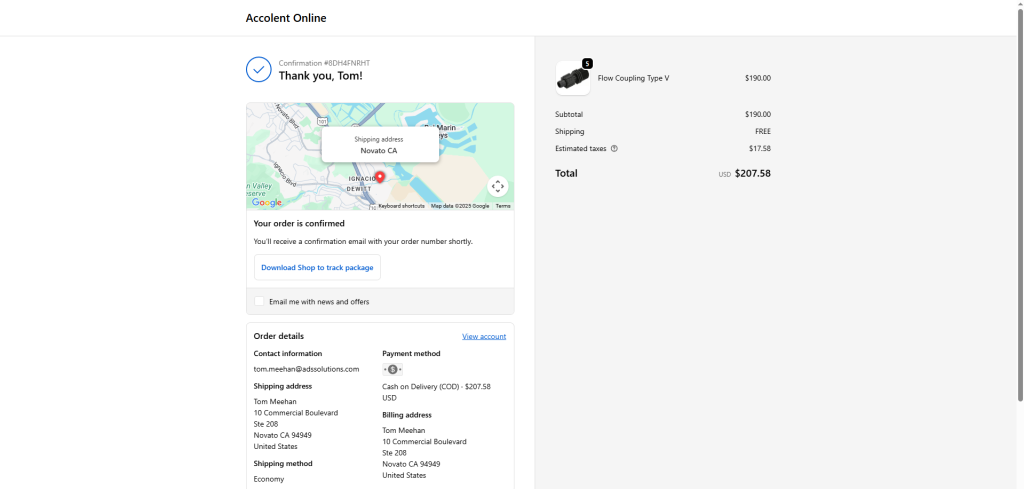
- The customer receives a confirmation email that order 1199 was created successfully for $207.58.
- The order can be viewed in the Shopify admin console together with its payment status, and fulfillment status.

- Orders are automatically sync’ed with Accolent ERP.
- Orders can be viewed on the Accolent ERP List Orders screen.

Move Order to Fulfillment Updates Shopify
- Click on Move to Fulfillment in Accolent ERP to process the order.
- Select a carrier and generate a tracking number for the order.
- The Order Update API automatically updates the order fulfillment status, the carrier and tracking number information to Shopify and marks the order as Fulfilled.

Invoicing and Processing Payment Updates Shopify
- Collect payment on the order then move the order to Invoice in Accolent ERP and apply payment.
- This automatically calls the Order Update API which updates the order payment status in Shopify to Paid.

Completion of Order Updates Inventory in Shopify
- Accolent ERP uses the Inventory API in Shopify to manage and update inventory quantities.
- The Inventory in Accolent ERP is updated for each product on the transaction.
- The balance of 18JP1000V is reduced by 5 EA by invoice SH84361.
- The Inventory API automatically updates the inventory of 18JP1000V in Shopify.
