
Accolent ERP allows for products to be added on-the-fly to an order. This might be necessary if, for example, while taking an order, the customer requests a product that is not stocked but is available as a special order from a vendor. The product can be looked up on the vendor’s website, made with very few entries and immediately put on to the order. Once the order is saved, the on-the-fly product can be cleaned up and edited without affecting the order that was taken.
Create Order
- Create order 73691 for Customer 011.
- Enter an existing product on line 1.
Add Product
- Click on Add Product on line 2 to add a new product.
- Brings up this pop-up screen which allows the new product to be made with as few as 2 fields entered.
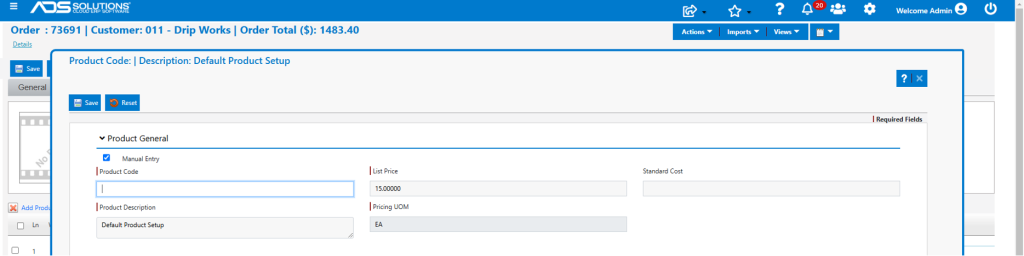
- Enter product ABC12345 with description Special Order Pump Assembly at a price of $325.00 and a standard cost of $278.50 and then save and close the pop-up.
- This is very quick, and the screen returns to the order with the new product already pre-populated.
- Enter Qty and tab out to add line 2 to the order.
- In this example, accept Low Price warning and mark as Special Order, so that when the order is moved to fulfillment it will give the option to Auto Create the PO for the new product.
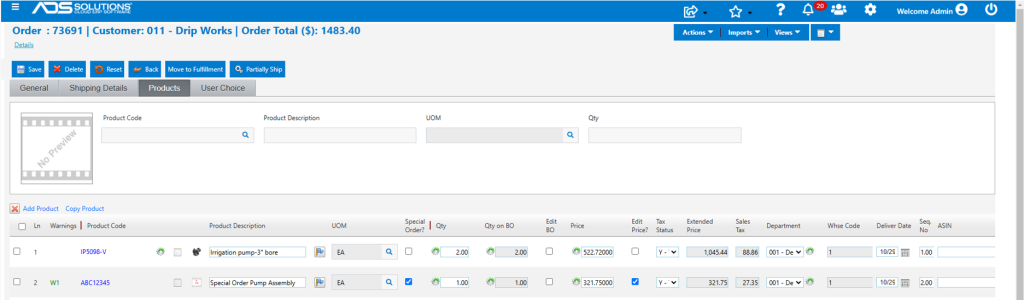
- The new product has the price of $325.00 that was entered, less a 1% special discount for this customer for a net price of $321.75.
- The standard cost is $278.50 as entered.

- Save the order then go to product master.
Edit New Product
- Product ABC12345 was made and can now be edited.
- Specify the Primary Vendor and make any other changes needed.
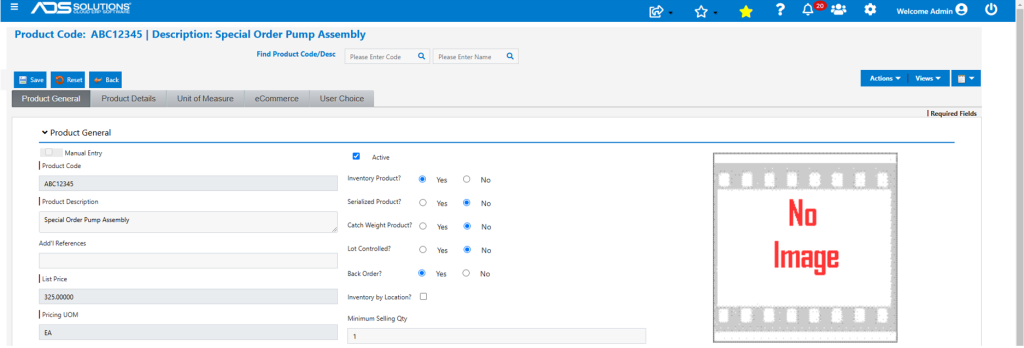
- Standard Cost is correct.
- Update Alternate and other Costs if needed.
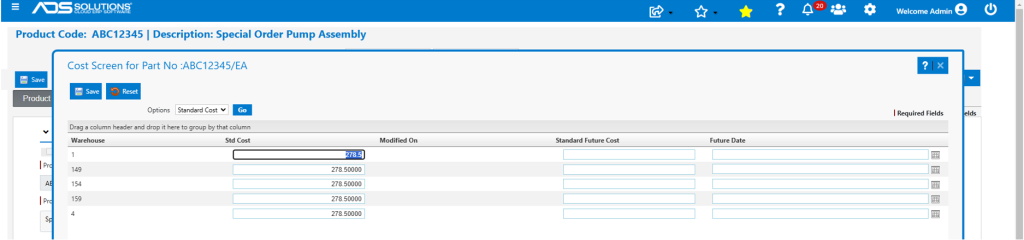
- Then Save the edited product.
- When the order is moved to fulfillment the user will have the option to Auto Create the PO.