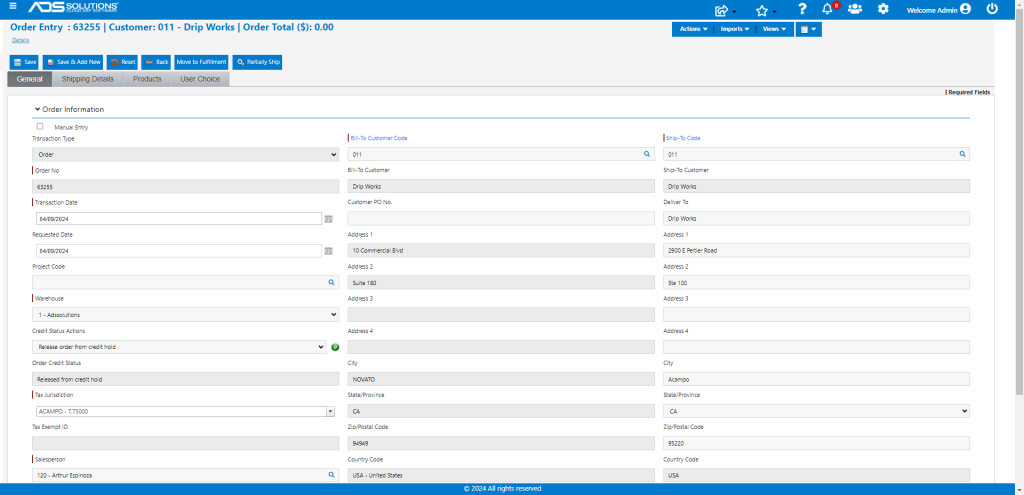
Accolent ERP allows users to manually create tax jurisdictions and manually maintain these tax jurisdictions as tax rates change. As an alternative, to avoid the need to create or manage tax jurisdictions, users can purchase Zip2Tax spreadsheets for one or multiple US States and Canada on a one-time or monthly basis. These spreadsheets can be imported into Accolent ERP and automatically update the tax jurisdictions table. This ensures that the sales and use rates are always current. Tax jurisdictions are then assigned to orders based on the ship-to address Zip Code.
Purchasing Zip2Tax Spreadsheets
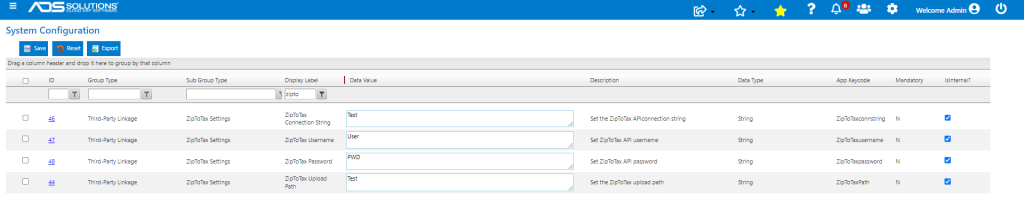
- Go to Zip2Tax and purchase spreadsheets for sales and use taxes for one or more US States or Canada
- These can be one-time purchases or updated monthly to capture changes
- This is the Zip2Tax Full Breakout format
Set Configuration Setting
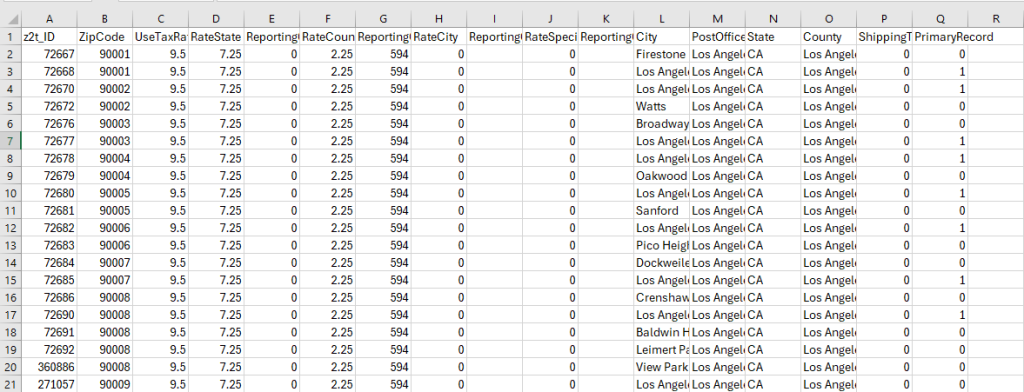
- To use Zip2Tax set Configuration ID 52 to Y, this causes the system to use the Zip Code for determining the tax jurisdiction

Importing Zip2Tax Spreadsheets
- Once purchased, the Zip2Tax spreadsheets can be imported into Accolent ERP to automatically create or update tax jurisdictions
- The Zip2Tax spreadsheets can be imported from Settings > Value Lists > Other Value Lists (M to Z) > Zip To Tax
- NOTE: The Zip2Tax CSV file should first be saved in zipped format before it can be imported

- To use the Zip2Tax API a subscription is needed; contact ADS Solutions about this
Populating the Tax Jurisdiction Table
- When imported, the Accolent ERP tax jurisdiction table will be populated with one record for each row in the Zip2Tax table marked primary=1 and split tax will be set to Yes
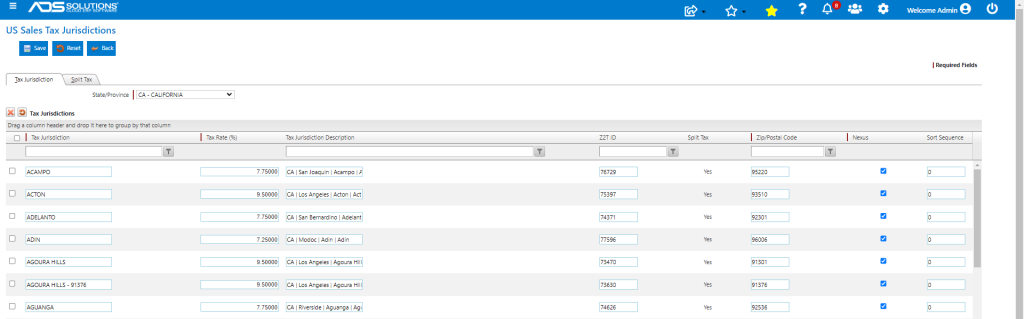
- The Tax Jurisdiction Description will display: State Name | County Name | City Name | Post Office Name (e.g., CA | San Joaquin | Acampo | Acampo)
- By default, the nexus flag will be selected for every imported tax jurisdiction
- NOTE: the nexus flag must be selected for each tax jurisdiction that it is intended that sales tax be charged in
- As part of the import, the z2t_ID and the State, County, City and Special District reporting codes will be populated
- The split tax breakdown will look like this:
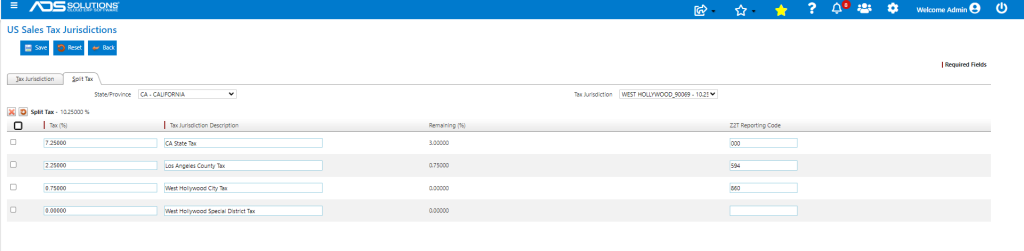
- The Tax on Freight flag on the State will be checked if the Zip2Tax spreadsheet has shipping taxable=1 or not if taxable=0

Stored Procedure to Assign Tax Jurisdiction
- Once the tax table is created, the system will call a stored procedure to go through all Customers and assign a tax jurisdiction based on each Customer’s Zip Code
Creating Orders
- When an order is created for any Customer, the order will get the tax jurisdiction stored on the Ship-To Customer
- If the Ship-To Customer’s Zip Code is edited, the system will look up the sales tax jurisdiction for that ship-to Zip Code and default this onto the order
- For example create order for Customer 011 and edit Ship-To Address and Zip Code to 95220, this automatically selects the CA | San Joaquin | Acampo | Acampo tax jurisdiction with a 7.75% sales tax rate
- User can override the defaulted tax jurisdiction, if needed